Skip to content
All tutorials

Tutorial 2 of 123:05

Your first listing video

From address to finished video: photos, music, property details and branding, then the listing page with your video and website.

0:00/0:00

Step by step

In the next few minutes, you'll turn your listing photos into a finished video, and a listing website to go with it.

  1. Start from your dashboard

    Start on your dashboard, and click Create your first video.

    In the video at 0:09

    Start from your dashboard, from the Your first listing video tutorial
  2. Enter the address

    Type the property address, and pick it from the list. If it doesn't show up, you can enter it by hand.

    In the video at 0:15

    Enter the address, from the Your first listing video tutorial
  3. Add your photos

    Now drop in your photos. Add the whole shoot. Reel-E picks the best shots for the video.

    In the video at 0:24

    Add your photos, from the Your first listing video tutorial
  4. Remove photos and set the order

    Remove any photo you don't want with the X. With AI photo order on, Reel-E arranges your photos into a tour of the home. Turn it off to keep the order you uploaded.

    In the video at 0:31

    Remove photos and set the order, from the Your first listing video tutorial
  5. Touch up a photo

    Want a photo touched up? Click Edit, and Reel-E suggests fixes. Pick one, apply it, and compare it with the original; your edit is saved, and the original is always one click away.

    In the video at 0:43

    Touch up a photo, from the Your first listing video tutorial
  6. Choose a song

    Next, the soundtrack. Press play to hear any song before you choose it.

    In the video at 1:02

    Choose a song, from the Your first listing video tutorial
  7. Or make an original track

    Or make an original one. Pick a style, add a few words about the mood, and click Generate music. In a minute or two, your new track is ready.

    In the video at 1:14

    Or make an original track, from the Your first listing video tutorial
  8. Your new track is saved

    It's saved to My music, and already selected for this video.

    In the video at 1:26

    Your new track is saved, from the Your first listing video tutorial
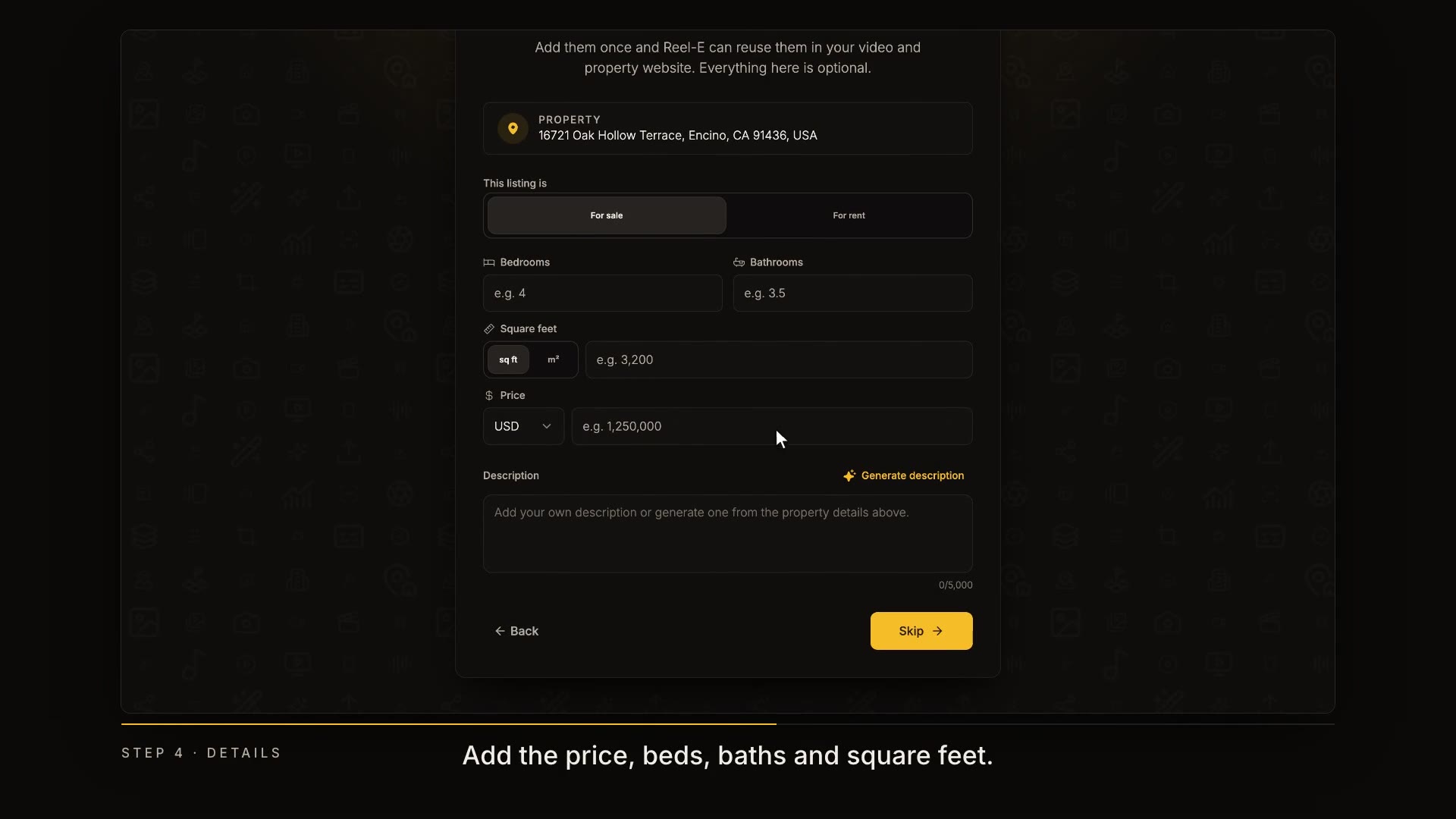
  9. Add the listing details

    Add the price, beds, baths and square feet. For a rental, switch to For rent. Jot down a few highlights, then click Generate description, and Reel-E writes the full listing description.

    In the video at 1:38

    Add the listing details, from the Your first listing video tutorial
  10. Add your branding

    Now make it yours. Choose Add my branding, or skip it for now.

    In the video at 1:55

    Add your branding, from the Your first listing video tutorial
  11. Fill in your contact card

    Your name, brokerage, phone and email go on the contact card at the end of your video.

    In the video at 2:02

    Fill in your contact card, from the Your first listing video tutorial
  12. Add your logo and headshot

    Add your logo and a headshot. Drag to frame the headshot, and use Scale to zoom in. Reel-E saves all of it for your next listing.

    In the video at 2:11

    Add your logo and headshot, from the Your first listing video tutorial
  13. Choose the video length

    Choose how long the video runs. Drag the slider left for a shorter cut, and Reel-E keeps the strongest shots. Shorter works best for social media, then click Create my video.

    In the video at 2:23

    Choose the video length, from the Your first listing video tutorial
  14. Reel-E makes your video

    Reel-E adds real camera movement to every photo. It takes a few minutes, and you can close the tab. We'll email you when it's ready.

    In the video at 2:38

    Reel-E makes your video, from the Your first listing video tutorial
  15. Watch, download and share

    And here it is. Your listing page, with the finished video ready to watch, download and share, and your listing website, built from the same details.

    In the video at 2:47

    Watch, download and share, from the Your first listing video tutorial
Read the transcript

In the next few minutes, you'll turn your listing photos into a finished video, and a listing website to go with it. Start on your dashboard, and click Create your first video. Type the property address, and pick it from the list. If it doesn't show up, you can enter it by hand. Now drop in your photos. Add the whole shoot. Reel-E picks the best shots for the video. Remove any photo you don't want with the X. With AI photo order on, Reel-E arranges your photos into a tour of the home. Turn it off to keep the order you uploaded. Want a photo touched up? Click Edit. Reel-E looks at the photo and suggests fixes. Pick one, apply it, and compare it with the original. Your edit is saved, and the original is always one click away. Next, the soundtrack. Press play to hear any song before you choose it. Or make an original one. Pick a style, add a few words about the mood, and click Generate music. In a minute or two, your new track is ready. It's saved to My music, and already selected for this video. Add the price, beds, baths and square feet. For a rental, switch to For rent. Jot down a few highlights, then click Generate description, and Reel-E writes the full listing description. Now make it yours. Choose Add my branding, or skip it for now. Your name, brokerage, phone and email go on the contact card at the end of your video. Add your logo and a headshot. Drag to frame the headshot, and use Scale to zoom in. Reel-E saves all of it for your next listing. Choose how long the video runs. Drag the slider left for a shorter cut, and Reel-E keeps the strongest shots. Shorter works best for social media. Then click Create my video. Reel-E adds real camera movement to every photo. It takes a few minutes, and you can close the tab. We'll email you when it's ready. And here it is. Your listing page, with the finished video ready to watch, download and share, and your listing website, built from the same details. Next up: editing your video in Keylight Studio.