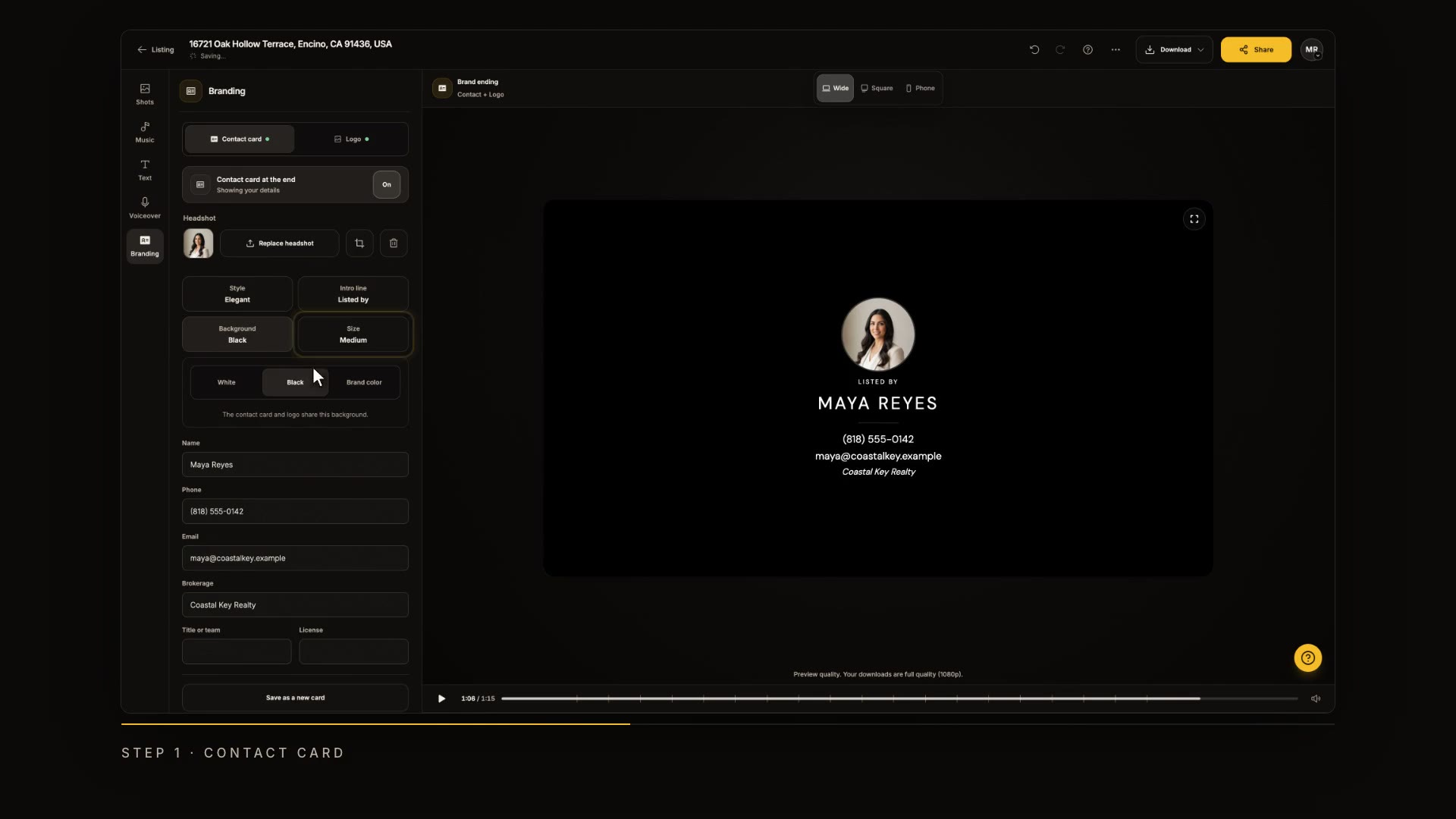
Branding and end cards
Set up the contact card and logo that close your video, and save the card to reuse on your next listing.

Step by step
Your name and your brand belong on every video. Here's how to set up the contact card and logo that close your film.
Open Branding
In Keylight Studio, click Branding. The preview jumps to the end of your video.
In the video at 0:09

Switch the contact card on
The contact card closes your video. Switch it off and on here.
In the video at 0:16

Choose its look
Choose a style, add an intro line like Listed by, and pick the background and the size.
In the video at 0:21

Check your details
Your details are right here. Add a title or a license number, and they appear on the card. Save it as a card to reuse on your next listing.
In the video at 0:35

Set up your logo
Your logo gets its own ending. Switch it on or off, and make it larger or smaller.
In the video at 0:46

Watch your ending
Press play to see your ending. First your contact card, and then your logo, just before the video fades out.
In the video at 0:55

Read the transcript
Your name and your brand belong on every video. Here's how to set up the contact card and logo that close your film. In Keylight Studio, click Branding. The preview jumps to the end of your video. The contact card closes your video. Switch it off and on here. Choose a style, add an intro line like Listed by, and pick the background and the size. Your details are right here. Add a title or a license number, and they appear on the card. Save it as a card to reuse on your next listing. Your logo gets its own ending. Switch it on or off, and make it larger or smaller. Press play to see your ending. First your contact card, and then your logo, just before the video fades out. Next up: music and voiceover.