Skip to content
All tutorials

Tutorial 8 of 121:45

Music and voiceover

Choose the song, then add a voiceover: pick a voice, let Reel-E write the script and record the narration, set the balance and add captions.

0:00/0:00

Step by step

Music sets the mood, and a voiceover tells the story. Here's how to use both in Keylight Studio.

  1. Open Music

    In Keylight, click Music. The song on your video is at the top.

    In the video at 0:10

    Open Music, from the Music and voiceover tutorial
  2. Search the library

    Search the royalty-free library by name or mood, and play any song to hear it first.

    In the video at 0:17

    Search the library, from the Music and voiceover tutorial
  3. Use this song

    Click Use this song. Reel-E re-times your video to the beat of the new song, and you can keep editing while it works.

    In the video at 0:29

    Use this song, from the Music and voiceover tutorial
  4. Save, create or upload

    Save a song to My music to use it again. Create makes an original track, and you can upload your own.

    In the video at 0:38

    Save, create or upload, from the Music and voiceover tutorial
  5. Turn the soundtrack off

    Want a video with no music? Switch the soundtrack off. Reel-E checks with you first.

    In the video at 0:47

    Turn the soundtrack off, from the Music and voiceover tutorial
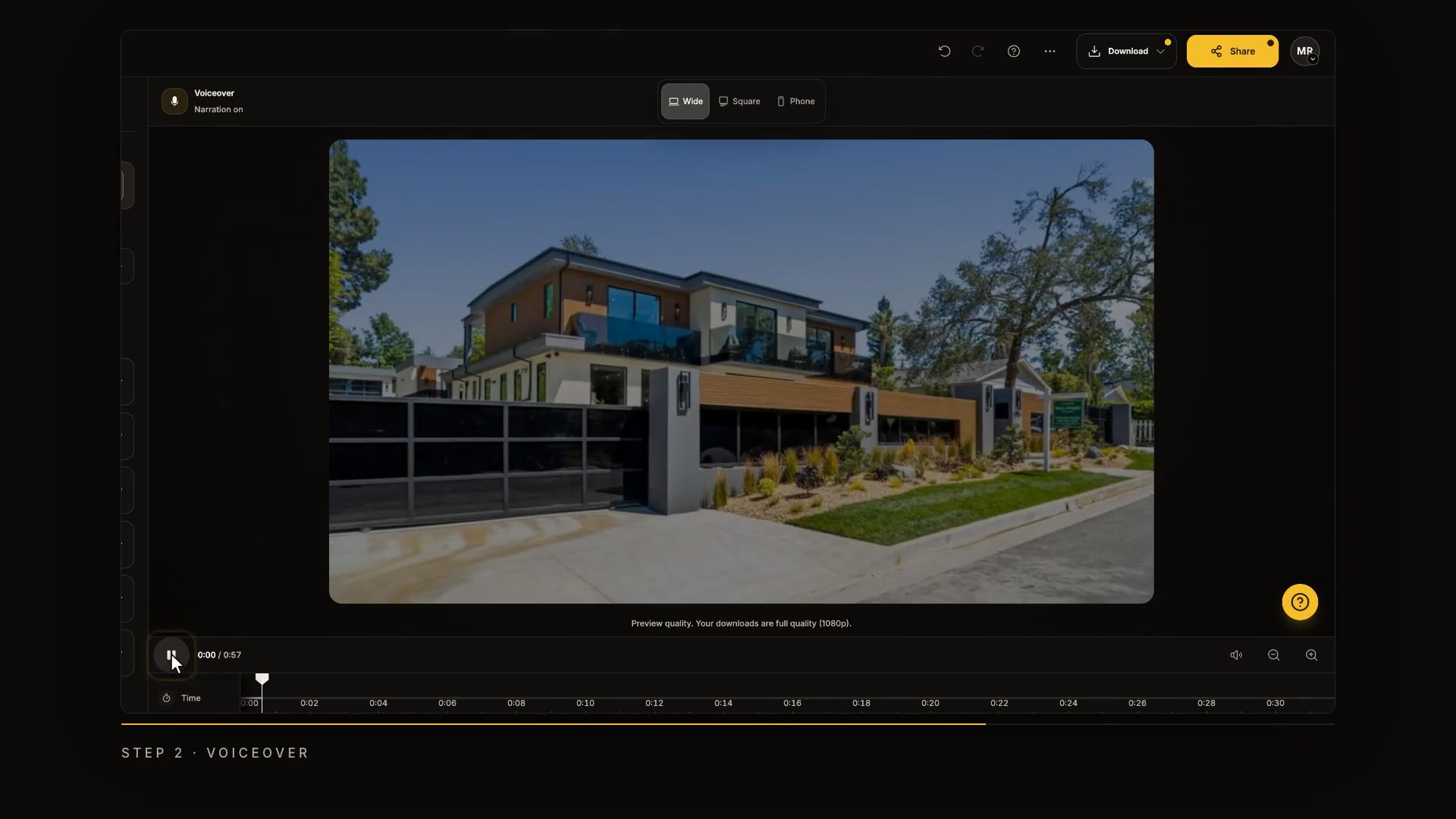
  6. Open Voiceover and pick a voice

    Now click Voiceover. There are several voices to choose from, so experiment, and pick the one that fits your listing.

    In the video at 0:54

    Open Voiceover and pick a voice, from the Music and voiceover tutorial
  7. Auto-generate the narration

    Then click Auto-generate. Reel-E watches your video, writes the script, and records the narration for you.

    In the video at 1:03

    Auto-generate the narration, from the Music and voiceover tutorial
  8. Edit each section

    Every section has its own place on the timeline. Edit any line, and generate again to hear the change.

    In the video at 1:24

    Edit each section, from the Music and voiceover tutorial
  9. Set the mix and captions

    Set the balance between the music and the voice, and switch on captions if you like.

    In the video at 1:32

    Set the mix and captions, from the Music and voiceover tutorial
Read the transcript

Music sets the mood, and a voiceover tells the story. Here's how to use both in Keylight Studio. In Keylight, click Music. The song on your video is at the top. Search the royalty-free library by name or mood, and play any song to hear it first. Click Use this song. Reel-E re-times your video to the beat of the new song, and you can keep editing while it works. Save a song to My music to use it again. Create makes an original track, and you can upload your own. Want a video with no music? Switch the soundtrack off. Reel-E checks with you first. Now click Voiceover. There are several voices to choose from, so experiment, and pick the one that fits your listing. Then click Auto-generate. Reel-E watches your video, writes the script, and records the narration for you. Every section has its own place on the timeline. Edit any line, and generate again to hear the change. Set the balance between the music and the voice, and switch on captions if you like. Next up: downloads and sharing.