Skip to content
All tutorials

Tutorial 6 of 122:05

Text, titles and stickers

Add a title, place text on any shot, and drop in stickers like Just Listed, then time them on the timeline.

0:00/0:00

Step by step

The right words help a video sell. In this tutorial you'll set up the opening title, add your own text, and finish with a sticker like Just listed.

  1. Open Text

    In Keylight Studio, click Text.

    In the video at 0:12

    Open Text, from the Text, titles and stickers tutorial
  2. Set up the opening title

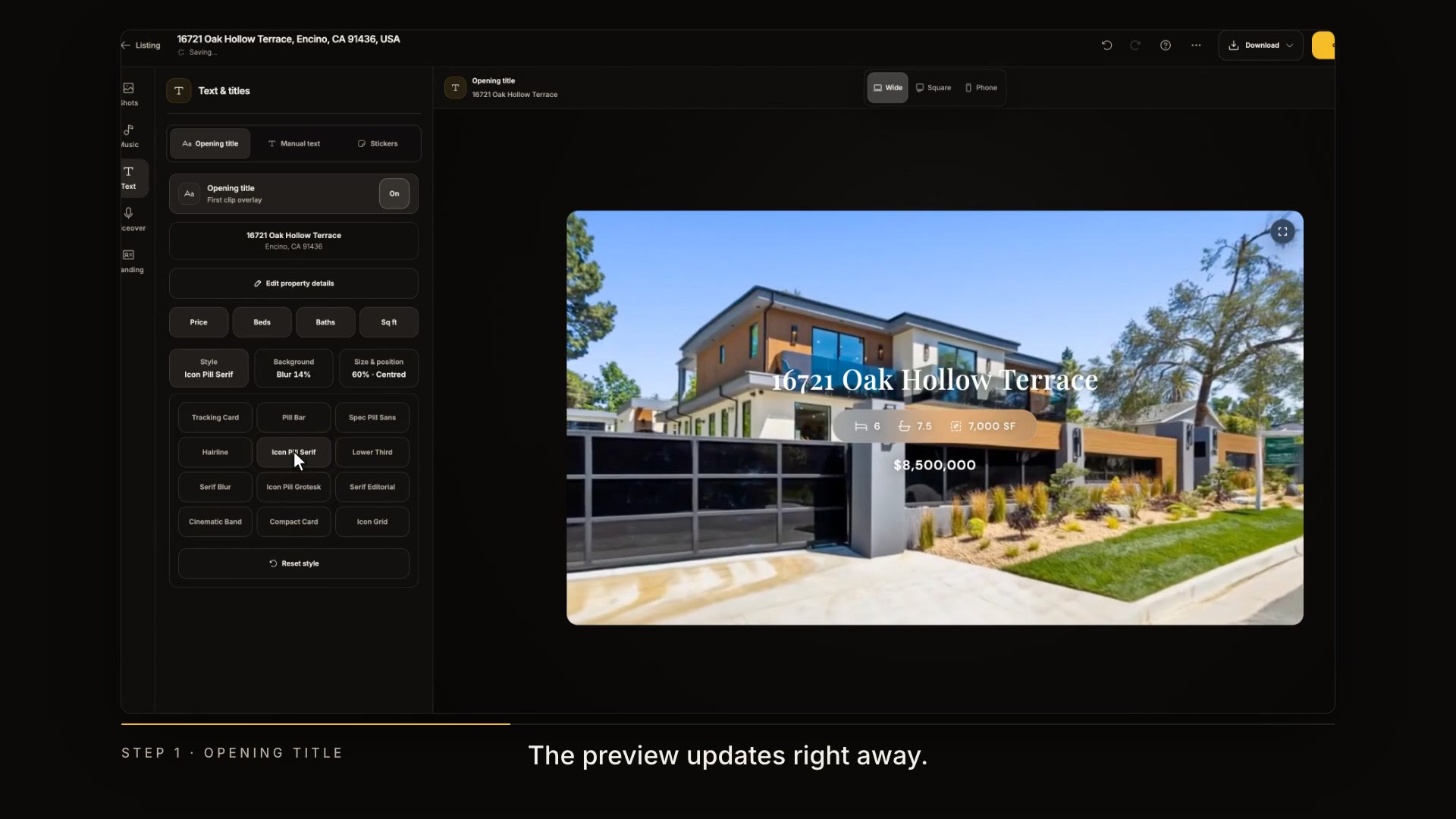
    The opening title shows the address and key details over your first shot. Switch it off and on here, and choose which details to show, like hiding the price. To change the details themselves, use Edit property details.

    In the video at 0:17

    Set up the opening title, from the Text, titles and stickers tutorial
  3. Pick a style

    Style changes the whole look. Try a few. The preview updates right away.

    In the video at 0:34

    Pick a style, from the Text, titles and stickers tutorial
  4. Set the background and size

    Background sets what sits behind the words: nothing, a soft blur, or a solid tint in the color you like. Size and position makes the title bigger or smaller.

    In the video at 0:42

    Set the background and size, from the Text, titles and stickers tutorial
  5. Add your own text

    For your own words, open Manual text and click Add text. Type your message, like a feature buyers should notice.

    In the video at 0:56

    Add your own text, from the Text, titles and stickers tutorial
  6. Style your text

    Pick a style, a color and a background, then how it animates in, and its size.

    In the video at 1:05

    Style your text, from the Text, titles and stickers tutorial
  7. Time your text

    Drag the ends of your text on the timeline to choose when it appears and for how long. Press play to check it.

    In the video at 1:18

    Time your text, from the Text, titles and stickers tutorial
  8. Add a sticker

    Stickers are ready-made badges for every stage of a sale: Just listed, Open house, Price reduced, Sold, and more.

    In the video at 1:28

    Add a sticker, from the Text, titles and stickers tutorial
  9. Choose a design and a color

    Choose a design and a color. A sticker stays on for the whole video, or switch that off to time it yourself.

    In the video at 1:38

    Choose a design and a color, from the Text, titles and stickers tutorial
  10. Save and share

    Everything saves as you go, and Undo is always at the top. When you share or download, your text is part of the video.

    In the video at 1:49

    Save and share, from the Text, titles and stickers tutorial
Read the transcript

The right words help a video sell. In this tutorial you'll set up the opening title, add your own text, and finish with a sticker like Just listed. In Keylight Studio, click Text. The opening title shows the address and key details over your first shot. Switch it off and on here, and choose which details to show, like hiding the price. To change the details themselves, use Edit property details. Style changes the whole look. Try a few. The preview updates right away. Background sets what sits behind the words: nothing, a soft blur, or a solid tint in the color you like. Size and position makes the title bigger or smaller. For your own words, open Manual text and click Add text. Type your message, like a feature buyers should notice. Pick a style, a color and a background, then how it animates in, and its size. Drag the ends of your text on the timeline to choose when it appears and for how long. Press play to check it. Stickers are ready-made badges for every stage of a sale: Just listed, Open house, Price reduced, Sold, and more. Choose a design and a color. A sticker stays on for the whole video, or switch that off to time it yourself. Everything saves as you go, and Undo is always at the top. When you share or download, your text is part of the video. Next up: branding and end cards.