Skip to content
All tutorials

Tutorial 4 of 121:25

Photo edits and virtual staging

Enhance a photo, turn day into twilight, describe your own edit, or stage an empty room, and compare before and after.

0:00/0:00

Step by step

Great photos sell homes. Reel-E can touch up any photo, or stage a room in a new style, right inside Keylight Studio.

  1. Open a photo

    In Keylight, click Edit on a shot, then open the Photo tab.

    In the video at 0:11

    Open a photo, from the Photo edits and virtual staging tutorial
  2. Apply a suggested edit

    Reel-E looks at each photo and suggests edits that suit it. Pick one, like Make it Twilight, and click Apply edit. Your daytime front becomes an evening shot.

    In the video at 0:17

    Apply a suggested edit, from the Photo edits and virtual staging tutorial
  3. Describe your own edit

    Or describe any edit in your own words. Type what you want, and apply it.

    In the video at 0:32

    Describe your own edit, from the Photo edits and virtual staging tutorial
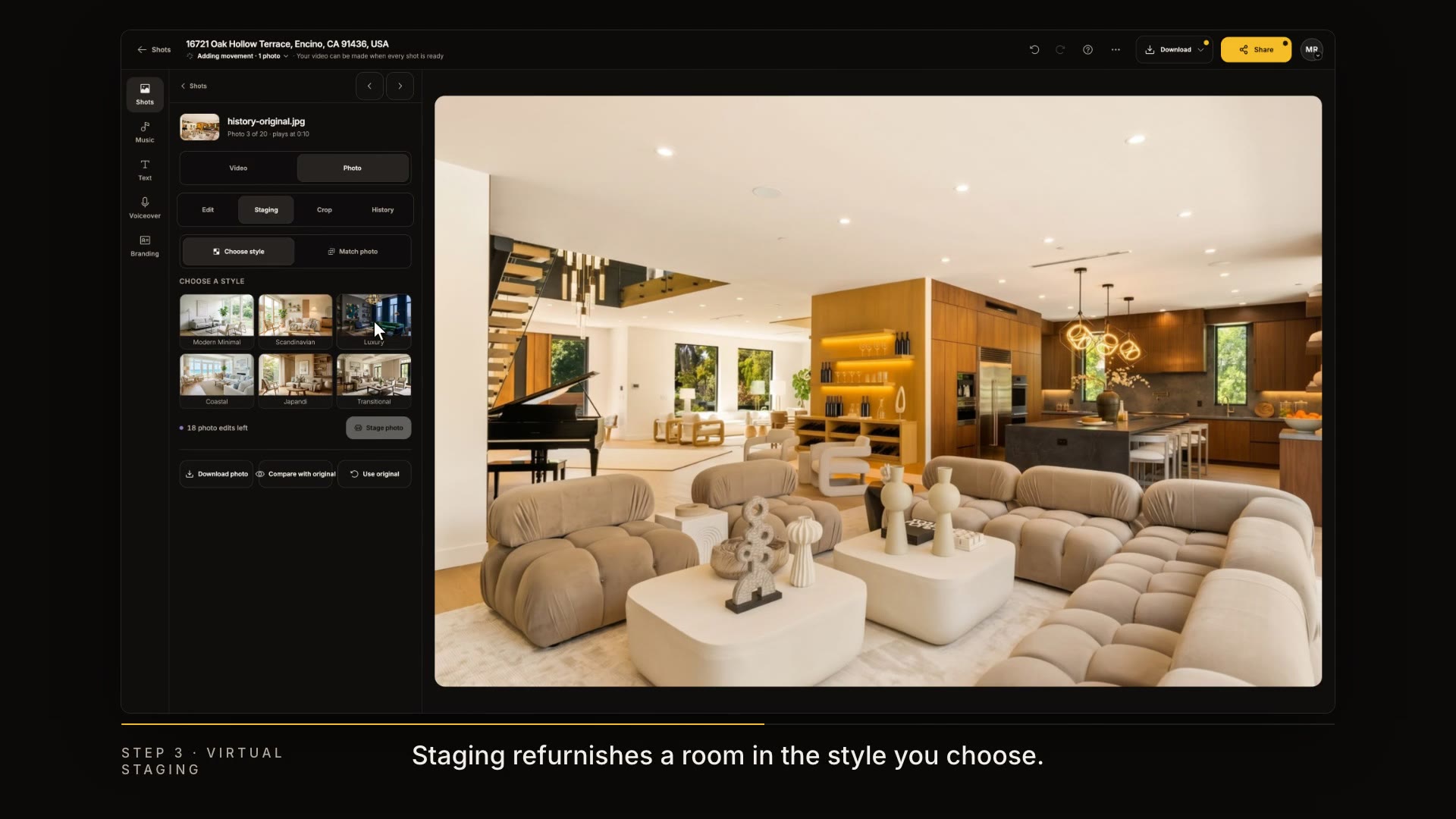
  4. Stage a room

    Staging refurnishes a room in the style you choose. Pick a style, then click Stage photo.

    In the video at 0:42

    Stage a room, from the Photo edits and virtual staging tutorial
  5. Compare in History

    Every version is kept in History. Compare the result with the original, and switch back any time.

    In the video at 0:51

    Compare in History, from the Photo edits and virtual staging tutorial
  6. Crop and reframe

    Crop lets you zoom in and reframe the photo itself.

    In the video at 0:59

    Crop and reframe, from the Photo edits and virtual staging tutorial
  7. Download the photo

    Download photo saves the edited picture for your MLS or social posts. Edits and staging share one allowance per listing, and the counter shows how many you have left.

    In the video at 1:06

    Download the photo, from the Photo edits and virtual staging tutorial
Read the transcript

Great photos sell homes. Reel-E can touch up any photo, or stage a room in a new style, right inside Keylight Studio. In Keylight, click Edit on a shot, then open the Photo tab. Reel-E looks at each photo and suggests edits that suit it. Pick one, like Make it Twilight, and click Apply edit. Your daytime front becomes an evening shot. Or describe any edit in your own words. Type what you want, and apply it. Staging refurnishes a room in the style you choose. Pick a style, then click Stage photo. Every version is kept in History. Compare the result with the original, and switch back any time. Crop lets you zoom in and reframe the photo itself. Download photo saves the edited picture for your MLS or social posts. Edits and staging share one allowance per listing, and the counter shows how many you have left. Next up: AI plus, and AI Seamless.