Skip to content
All tutorials

Tutorial 10 of 121:57

Your listing website

Make the website yours, publish it in a click, and print a QR code and flyer for yard signs and open houses.

0:00/0:00

Step by step

Every listing gets its own website, built from your details, photos and video. Here's how to make it yours, and publish it.

  1. Open Edit website

    Your listing website is on your listing page. Before you publish, click Edit website.

    In the video at 0:11

    Open Edit website, from the Your listing website tutorial
  2. Choose the headline and photo order

    Choose the headline, then drag photos to set the order your gallery shows them in.

    In the video at 0:18

    Choose the headline and photo order, from the Your listing website tutorial
  3. Pick your featured photos

    Pick the photos to feature, and the one for the banner at the bottom of the page.

    In the video at 0:26

    Pick your featured photos, from the Your listing website tutorial
  4. Set the top of the page

    The top of the page can be a slideshow or your video. Choose whether the page shows your video, and what that video includes.

    In the video at 0:32

    Set the top of the page, from the Your listing website tutorial
  5. Add page content

    On Page content, set the listing status, tap the features the home has, and add your own.

    In the video at 0:43

    Add page content, from the Your listing website tutorial
  6. Add floor plans and an open house

    Add floor plans, an open house with its date and time, and a link to a 3D tour.

    In the video at 0:52

    Add floor plans and an open house, from the Your listing website tutorial
  7. Set the address and contact email

    Sharing sets the web address. Edited and staged photos are labeled, as California requires, and the contact form sends new inquiries to the email you choose.

    In the video at 1:02

    Set the address and contact email, from the Your listing website tutorial
  8. Publish the website

    Save, then click Review and publish, and Publish website. In a moment, your website is live.

    In the video at 1:15

    Publish the website, from the Your listing website tutorial
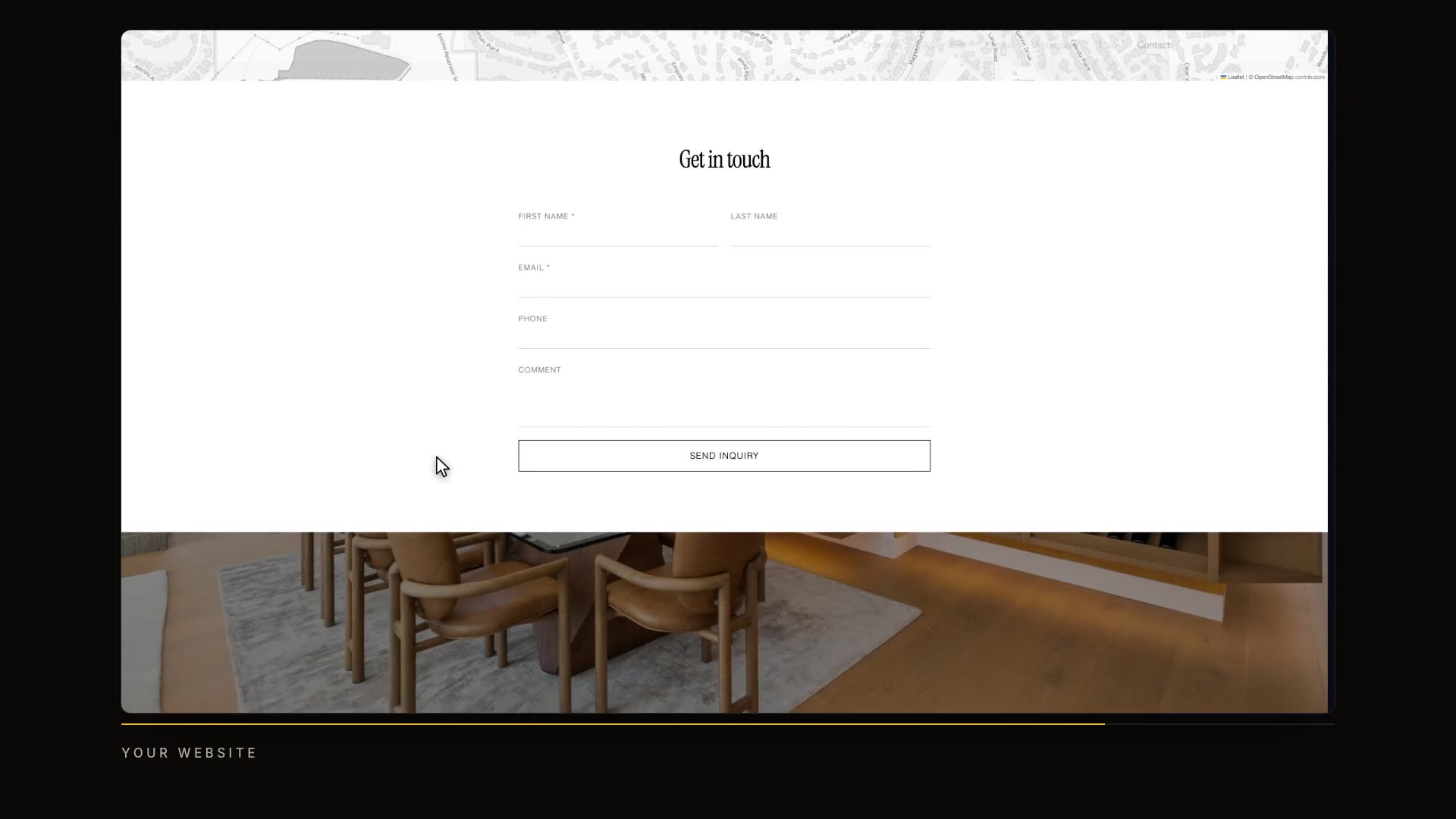
  9. See your live site

    Here it is. Your photos and video, the details, the map, and a contact form for buyers.

    In the video at 1:24

    See your live site, from the Your listing website tutorial
  10. Print a QR code and flyer

    Back on your listing page, open QR code and flyer: a QR code for yard signs, and a printable flyer for open houses.

    In the video at 1:35

    Print a QR code and flyer, from the Your listing website tutorial
  11. Unpublish if you need to

    And if you ever need to take the page down, Unpublish is in this menu.

    In the video at 1:45

    Unpublish if you need to, from the Your listing website tutorial
Read the transcript

Every listing gets its own website, built from your details, photos and video. Here's how to make it yours, and publish it. Your listing website is on your listing page. Before you publish, click Edit website. Choose the headline, then drag photos to set the order your gallery shows them in. Pick the photos to feature, and the one for the banner at the bottom of the page. The top of the page can be a slideshow or your video. Choose whether the page shows your video, and what that video includes. On Page content, set the listing status, tap the features the home has, and add your own. Add floor plans, an open house with its date and time, and a link to a 3D tour. Sharing sets the web address. Edited and staged photos are labeled, as California requires, and the contact form sends new inquiries to the email you choose. Save, then click Review and publish, and Publish website. In a moment, your website is live. Here it is. Your photos and video, the details, the map, and a contact form for buyers. Back on your listing page, open QR code and flyer: a QR code for yard signs, and a printable flyer for open houses. And if you ever need to take the page down, Unpublish is in this menu. Next up: leads from your website.