

Connect Reel-E to Gemini
Three ways: the Gemini command line (works for everyone), the Gemini app (on accounts that have custom connections), and Gemini Enterprise for teams.
Server address: https://www.reel-e.ai/mcp
How you sign in: Sign in to Reel-E in your browser (OAuth), or use a key from Connect an agent for the command line.
Credits: anything that uses a credit asks for your confirmation first.
What you need
- A Reel-E account. Reel-E is free to try · Cancel anytime.
- For the Gemini app: a personal Google Account (not a work or school account), 18 or older, in the US, with Keep Activity on and Gemini set to English.
Gemini CLI
Add the server:
gemini mcp add --transport http reel-e https://www.reel-e.ai/mcp
Start gemini, run /mcp auth and choose reel-e. Your browser opens Reel-E: sign in and press Allow. This needs a browser on the same computer.
Ask: List my Reel-E listings.
Without a browser, use a key from Connect an agent with -H "Authorization: Bearer YOUR_KEY". Keep --trust off so the CLI asks before running anything that changes your listing.
Gemini app (gemini.google.com and the mobile app)
Custom connections are not available on every Gemini account yet. If your account has them, adding is done on the web and it then also works in the mobile app. If you do not see Custom apps under Connected Apps, use Gemini CLI above or another assistant. Google reminds you that it does not run or check outside servers, so only connect Reel-E from this page.
On a computer go to gemini.google.com. At the bottom click Settings, then Connected Apps.
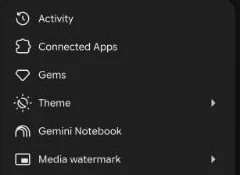
Under Custom apps click Add a custom app.
Enter https://www.reel-e.ai/mcp and click Next. Leave Advanced features closed.
Reel-E opens. Sign in, choose what Gemini may do and press Allow.
In a chat type @ and choose Reel-E, then ask. Gemini asks you to confirm anything that changes your listing.
To disconnect, open Connected Apps, find Reel-E under Custom apps, choose More details, then Disconnect (it stays in the list so you can reconnect) or Remove app.
Gemini Enterprise (team admins)
Gemini Enterprise does not register itself, so an admin creates a client id and secret for Reel-E once.
Register the client (run once and keep the result private):
curl -s -X POST https://reel-e.ai/oauth/keylight/register \
  -H "content-type: application/json" \
  -d '{"client_name":"Gemini Enterprise","redirect_uris":["https://vertexaisearch.cloud.google.com/oauth-redirect"],"grant_types":["authorization_code","refresh_token"],"token_endpoint_auth_method":"client_secret_post"}'
Keep the client_id and client_secret from the answer. In Gemini Enterprise Business go to Settings & help, your team, Manage team, Connected apps, Add MCP Server. Server URL https://www.reel-e.ai/mcp, Name Reel-E.
Authentication OAuth 2.0. Authorization URL https://reel-e.ai/connect/keylight. Token URL https://reel-e.ai/oauth/keylight/token. Paste the Client ID and Client Secret. Scopes: read edit. Tick Enable PKCE Support. Click Verify Auth, then Continue.
Pick a location, name the connector and click Add. It starts disabled: enable it for your team. In the Google Cloud console flow (Data stores, Custom MCP Server) also choose Actions, Reload custom actions and enable the actions you want, at most 100 at a time.
Google marks this feature as pre-release, and an organization policy may block custom MCP data stores until your admin allows them. Each person still signs in to their own Reel-E account.
What it can and cannot do
Your assistant can look at your listings and videos, change the order of shots, the music, titles, text and branding, check your listing website and video stats, and start a new listing video.
Anything that uses a credit, publishes your website, or starts a new listing waits for your yes, unless you gave that connection permission to go ahead on its own. Every edit has an Undo.
With your permission it can get your finished video ready and give you the download link. It cannot start a plan or change billing, or see other people's listings.
See every tool in the tool reference.
How sign-in works
Most assistants open a Reel-E sign-in page where you choose what they may do (OAuth). Your assistant never sees your password. If an assistant asks for a key instead, make one in Reel-E: open Keylight Studio and the AI Director panel, click the plug button and choose Connect an agent. A key is shown once.
What to say first
- List my Reel-E listings.
- Move the kitchen photo to the front and make the title Just Listed.
- Make a listing video from this listing page: (paste a link).
If something goes wrong
- No Connected Apps or Custom apps. Your account is not eligible for custom apps (a work or school account, outside the US, under 18, or Keep Activity off). Use another assistant from the list.
- Reel-E cannot be added. Check the address https://www.reel-e.ai/mcp and start again.
- Enterprise: Verify Auth fails. Check the redirect address in the client you registered is exactly https://vertexaisearch.cloud.google.com/oauth-redirect and that PKCE is on.
Disconnect
Disconnect in Gemini as described above, and in Reel-E go to Account settings, Profile, Connected apps and choose Disconnect.
You stay in control
You decide what the assistant may do. On the sign-in screen, choose Full control, where it does the whole job without stopping, or Ask me first, where anything that uses a credit, publishes your website or starts a new listing waits for your yes in Reel-E. You can pick which listings it can reach. You can disconnect any time in Reel-E under Account settings, Profile, Connected apps, and the connection stops at once. Reel-E only shares what the assistant needs to do what you asked, and your assistant's maker handles it under their own terms.
Stuck? Email support@reel-e.ai and tell us which assistant you use.