

AI Seamless
Replace a cut with one continuous camera move from one room into the next.
- Time
- About two minutes, while you keep editing
- Where
- Keylight Studio > Shots > the join between two shots
- Who
- Trial and every plan, with AI+ credits
- Cost
- 1 AI+ credit
Join two shots
In Shots, click the join between two shots
Or open a shot and use its transition into the next shot ("Into Shot 4").
Choose AI Seamless
One continuous camera move, for 1 AI+ credit.
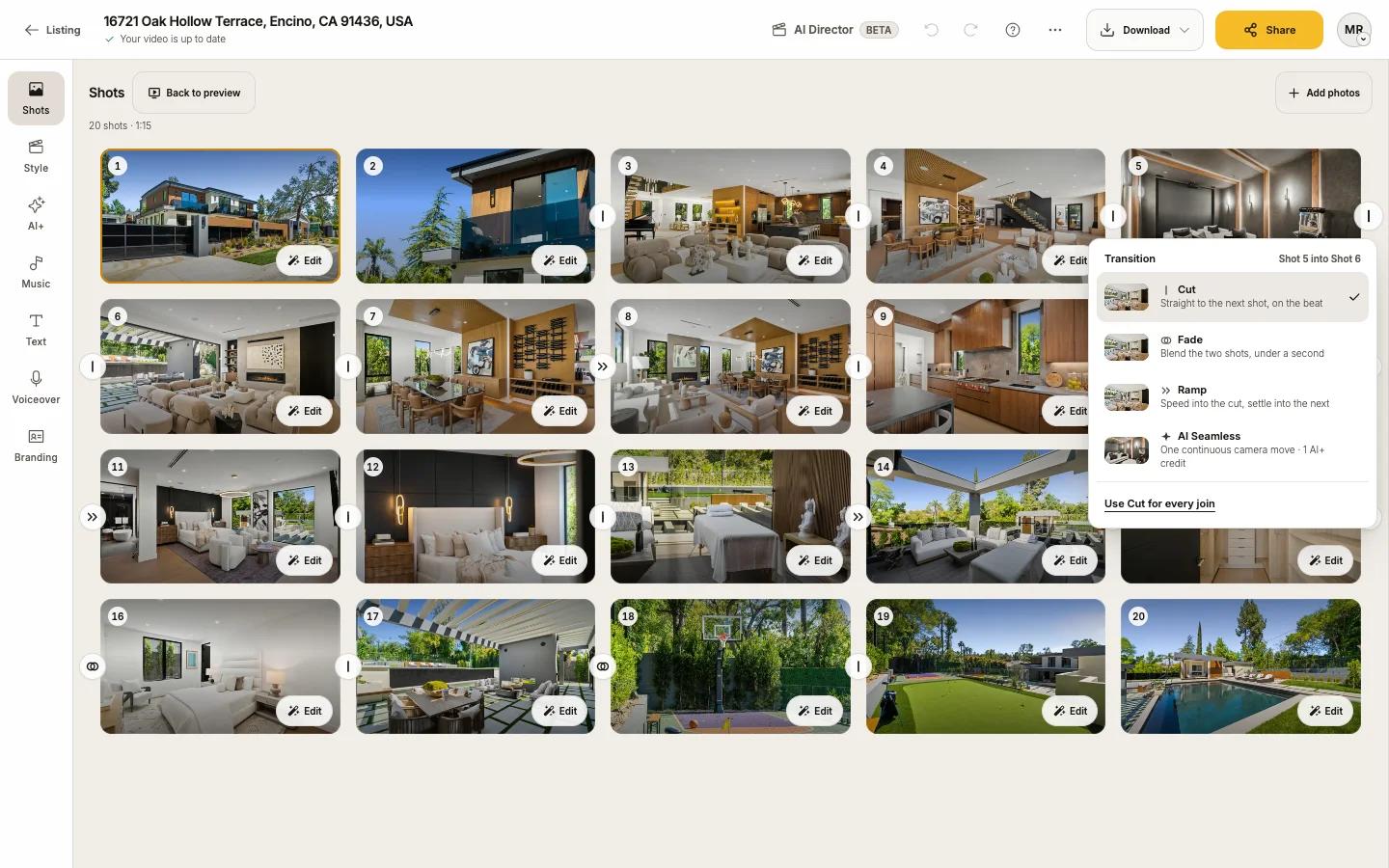
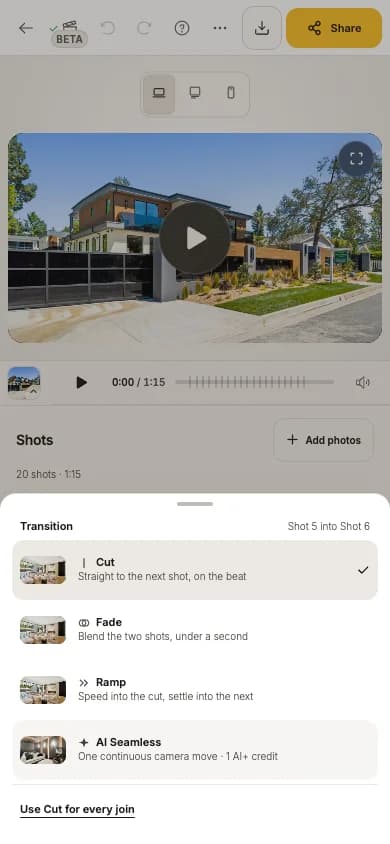
Press Make AI Seamless
The dialog shows an example on your two shots. The cost line reads "Uses 1 of your N AI+ credits on this listing."
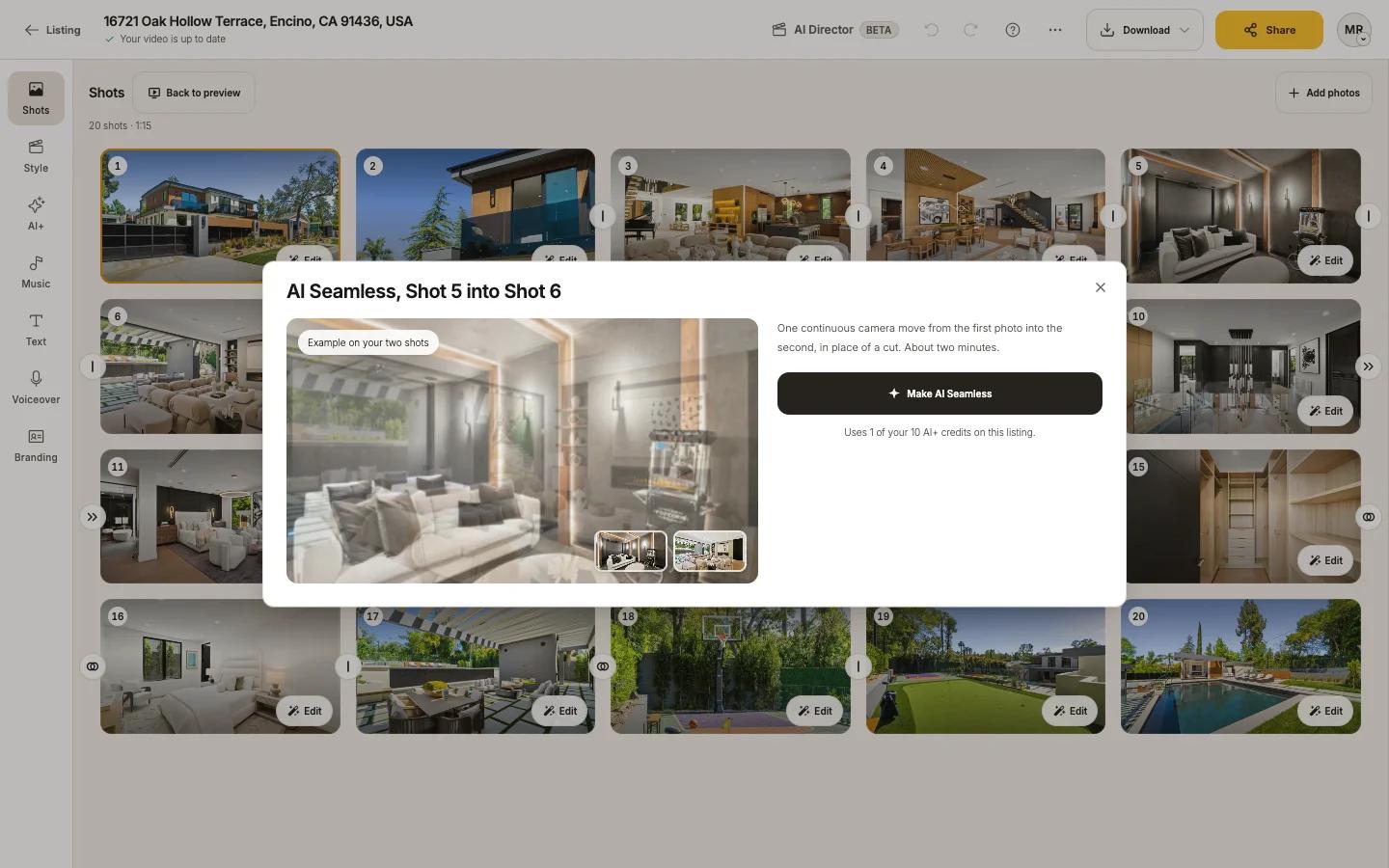
Keep editing
You can close the dialog. The transition goes into your video by itself when it is ready, in about two minutes.
The two shots then move as a pair and keep the length of the transition, a few seconds.
Versions
Each result is saved as a version. Switching to another version is free, and Use your saved AI Seamless brings a saved one back free.
If something looks off
- A take that does not come out right is made again automatically, at no extra credit.
- If it still cannot be made for these two photos, the join uses a Fade and your credit is back.
- Taking longer than usual? After about three minutes Use a Fade instead appears; it switches the join now.
Good to know
- Editing or cropping either photo asks whether to make the AI Seamless again (1 credit) or use standard movement.
- Fast Cuts and Flow set AI Seamless aside; it comes back when you return to Cinematic.
- Joins next to the opening and closing shots stay clean.
- AI Seamless uses the same per-listing AI+ credits as AI+. See AI+ motion and looks.