

Undo, history and saving
Keylight Studio saves every change as you make it. Undo any step, jump back to any point, or save a checkpoint.
- Time
- 1 minute
- Where
- Keylight Studio > Undo and Redo; More > Version history
- Who
- Trial and every plan
- Cost
- Free. Editing never uses a listing
Saving
There is no Save button. The status under the listing name shows "Saving…" then "Saved". If you go offline: "Offline · Changes save when you reconnect". Open the same video in another window or on another device and both stay in step ("Updated with your latest changes").
Undo and Redo
Use the arrows in the top bar, or Cmd/Ctrl + Z and Cmd/Ctrl + Shift + Z. The tooltip names the step ("Undo: Changed song to …"). A new edit after an undo clears Redo.
- Voiceover changes save as you go and are not part of Undo.
- Undoing an AI+ result keeps it, at no charge; Redo brings it back free.
Version history
Open More (three dots), then Version history. History lets you go back to any edit, watch a saved video, or save a checkpoint.
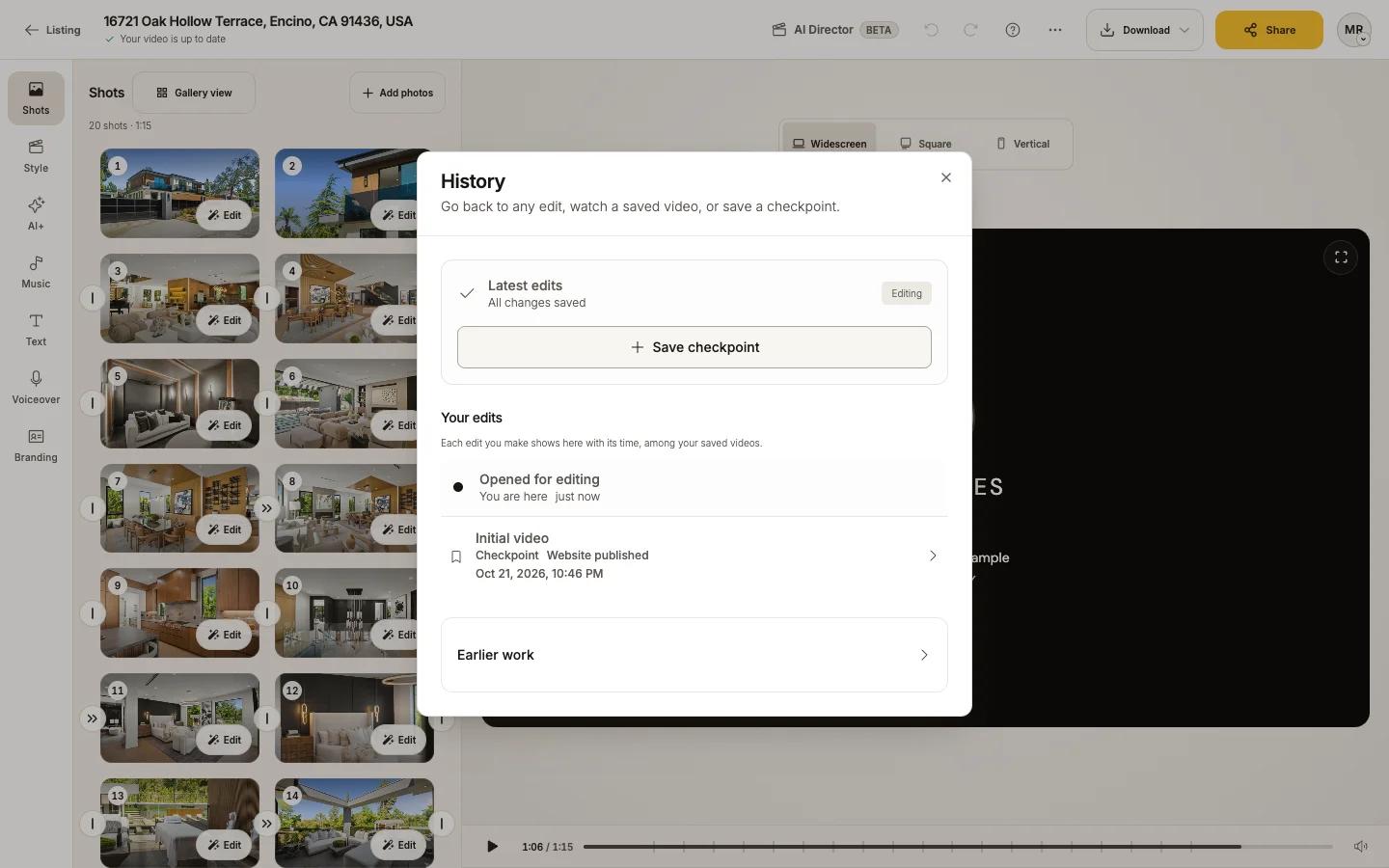
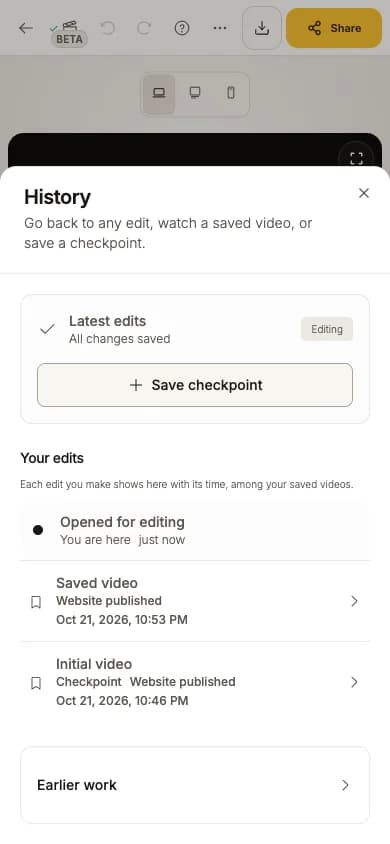
- Latest edits: "All changes saved". Name a point and press Save checkpoint to find it again.
- Your edits: every edit with its time, newest first. Choose one to go back to it, or forward again.
- Saved videos: the versions you downloaded, shared or published. Watch one, then Restore to edit to continue from it.
What happens to links and downloads when you edit
- A download captures the saved video at the moment you request it.
- Your listing website updates by itself: saved details go live within seconds, and when you save a video (download, share or save a checkpoint) it replaces the site's video once it is ready.
- A video link changes only when you update it in Share.