

Add photos
Upload your listing photos from a computer or phone. Reel-E prepares them, puts them in tour order and keeps every photo with the listing.
- Time
- Under a minute
- Where
- Create flow > Photos; later, Keylight > Shots > Add photos
- Who
- Everyone
- Cost
- Included
Upload photos
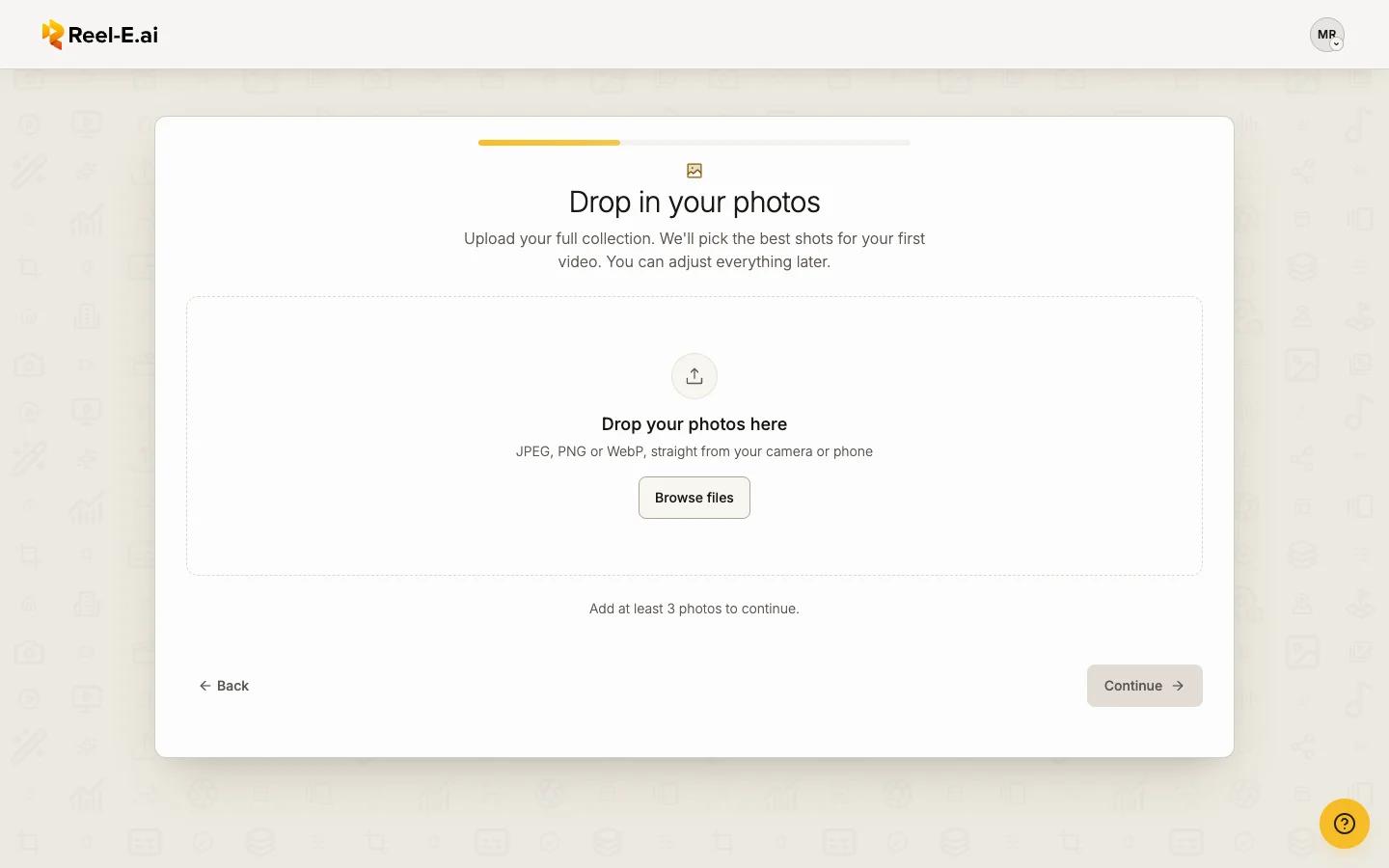
Drop your photos onto Drop your photos here
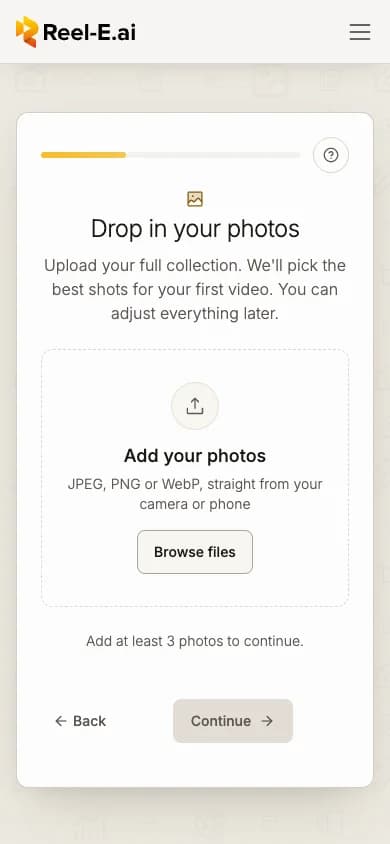
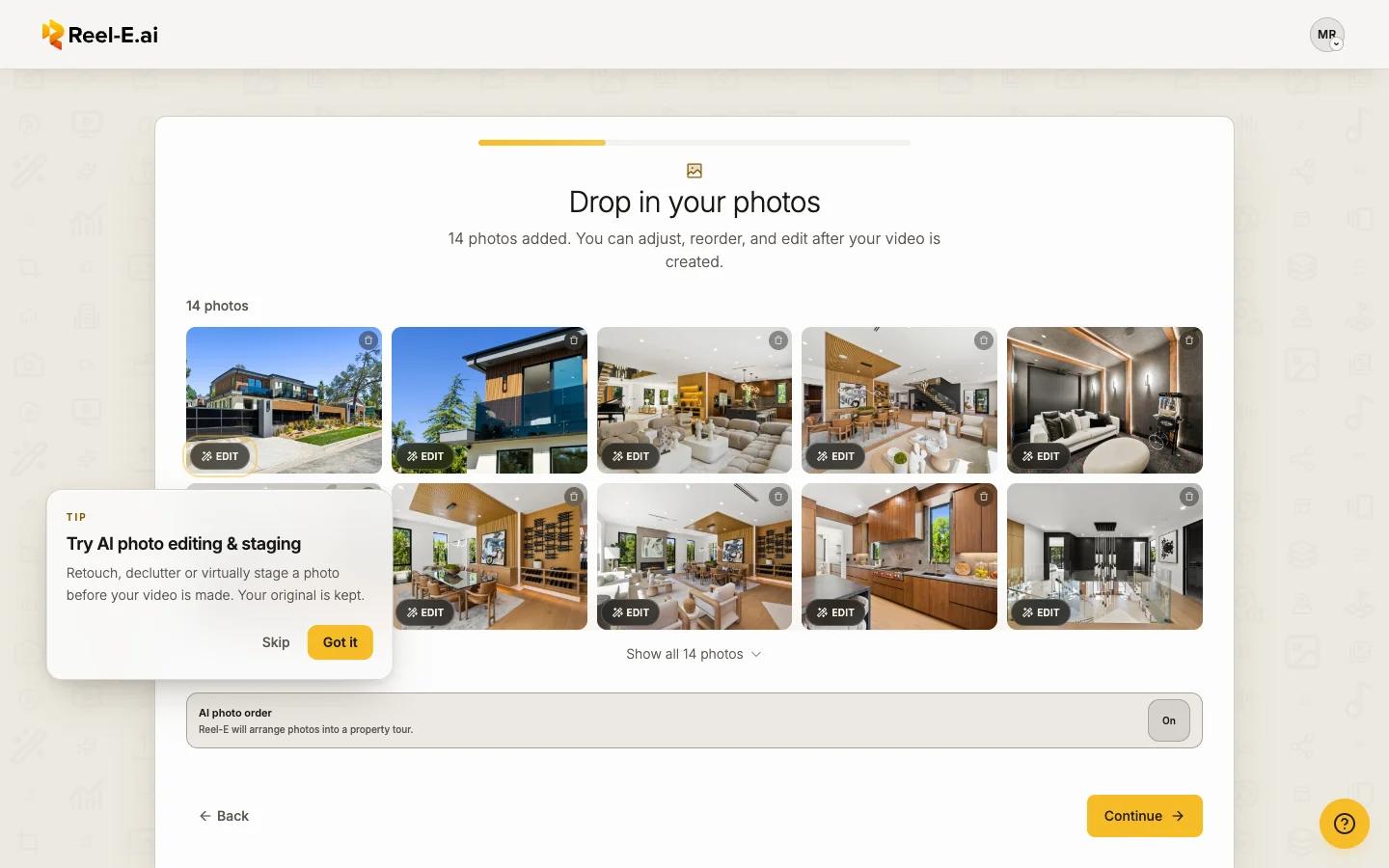
On Drop in your photos, drag photos onto the drop area, or press Browse files. On a phone, Browse files opens your photo library.
Let Reel-E prepare them
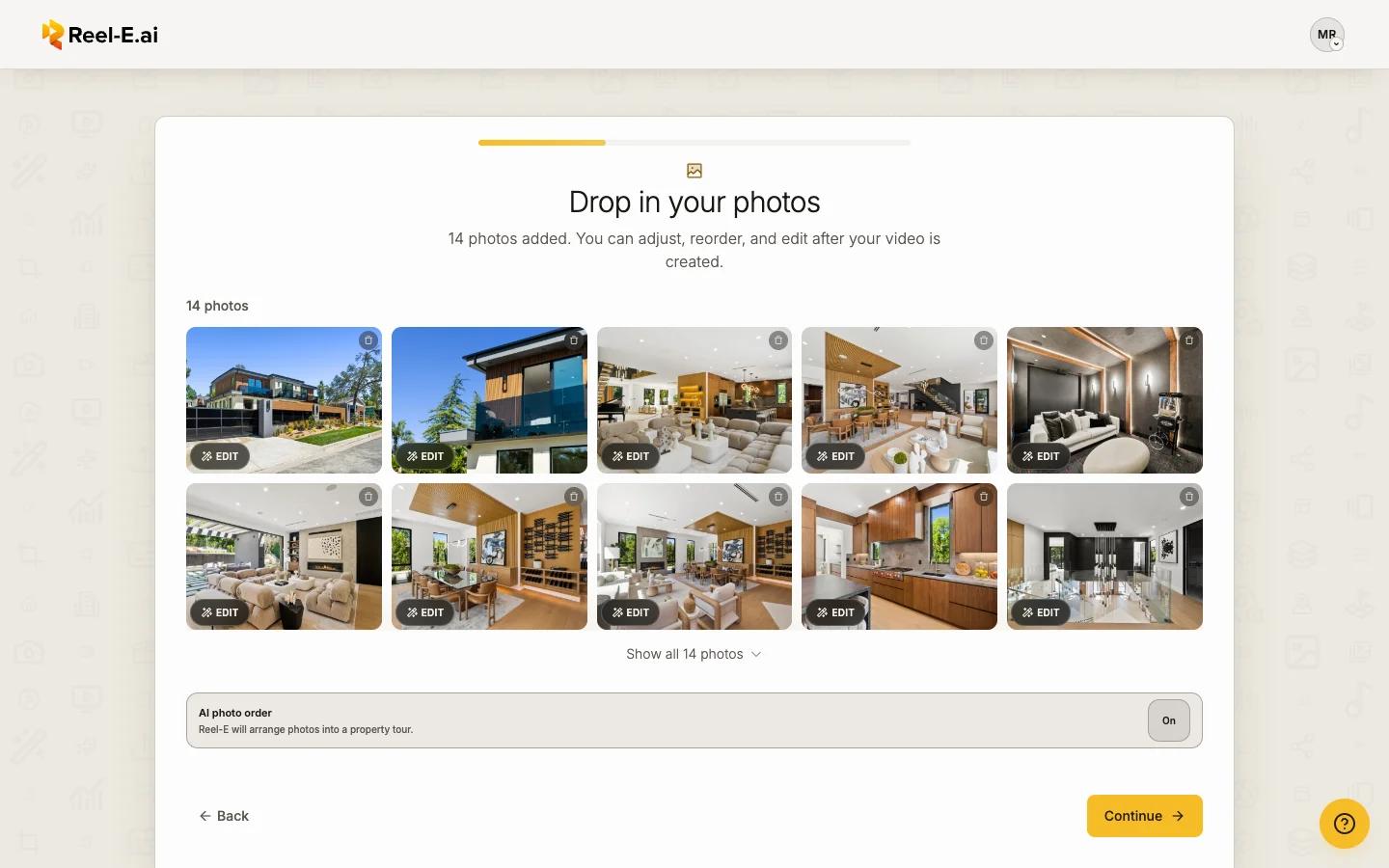
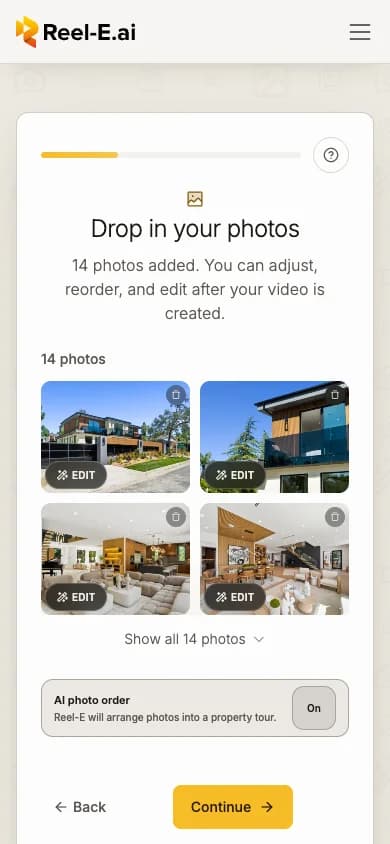
Each photo is prepared in your browser (Preparing photos), then the photos show in a grid. Show all expands the grid when there are many.
Keep AI photo order on, or turn it off
With AI photo order on, Reel-E arranges the photos into a property tour. Turn it off to keep the order you uploaded them in (Uploaded order).
Press Continue
A tip may offer Try AI photo editing & staging: retouch, declutter or virtually stage a photo now with its Edit button, or later in Keylight Studio. Your original is always kept. See Edit a photo.
What you can upload
| Rule | What works |
|---|---|
| Formats | JPEG, PNG and WebP. HEIC, AVIF, GIF and BMP are converted for you as they upload. If your browser cannot open a HEIC file, upload it from Safari or export it as JPEG. RAW camera files: export them as JPEG first |
| File size | Up to 25 MB per photo |
| Smallest photo | 400 px on each side. A photo under 600 px works but may look soft |
| How many | At least 3, and up to 75 on a listing. The video uses up to your plan's photo count (see Limits); the rest stay with the listing to swap in later |
Adding photos later
In Keylight, open Shots and press Add photos, or drop photos onto the panel. New photos join the end of the video once they are ready. See Add, remove and reorder shots.
Limits
| Limit | Trial | Essential | Growth | Pro |
|---|---|---|---|---|
| Photos in a video | 20 | 20 | 40 | 40 |
If something looks off
- A photo was left out: that file could not be read, for example a cloud placeholder that was never downloaded to the phone. Download it to your device and add it again.
- Photo limit reached: the listing already holds as many photos as it can (75). Delete photos you do not need, then add the new ones. The number in the video itself follows your plan; see Plans and limits.
- A file was skipped as a format Reel-E cannot read: export it as JPEG and add it again.