

Editing on a phone
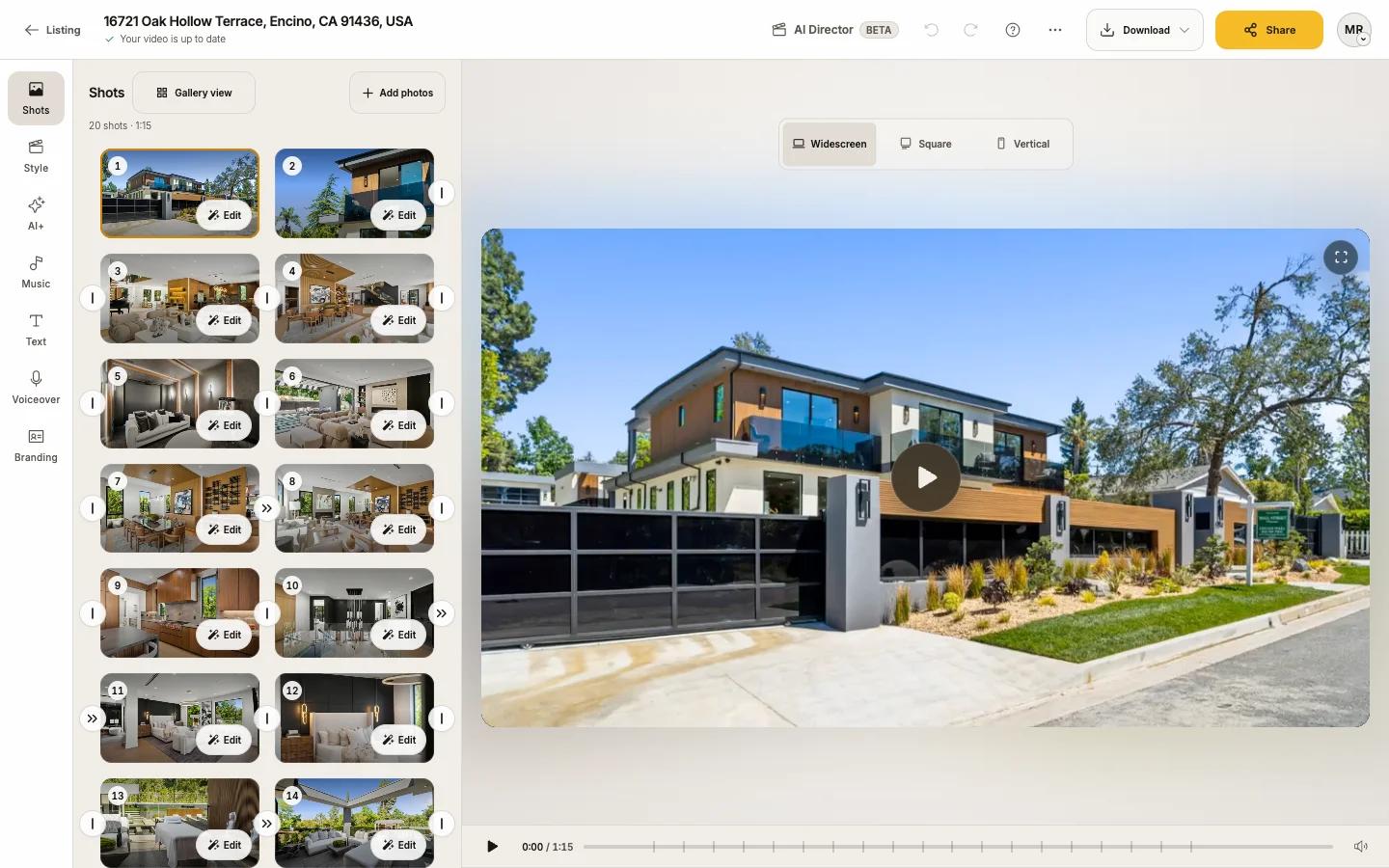
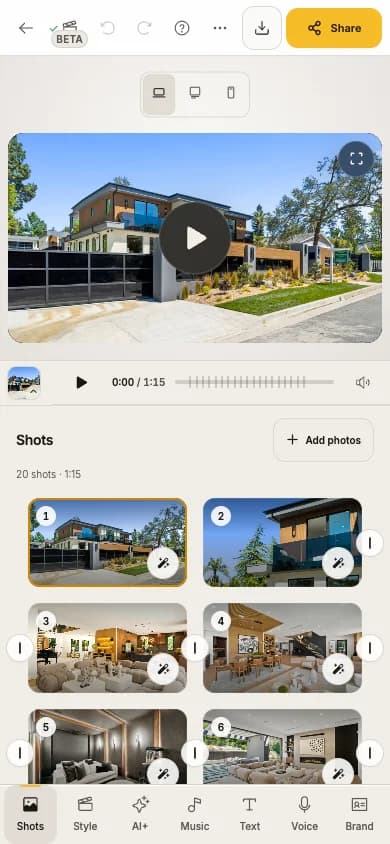
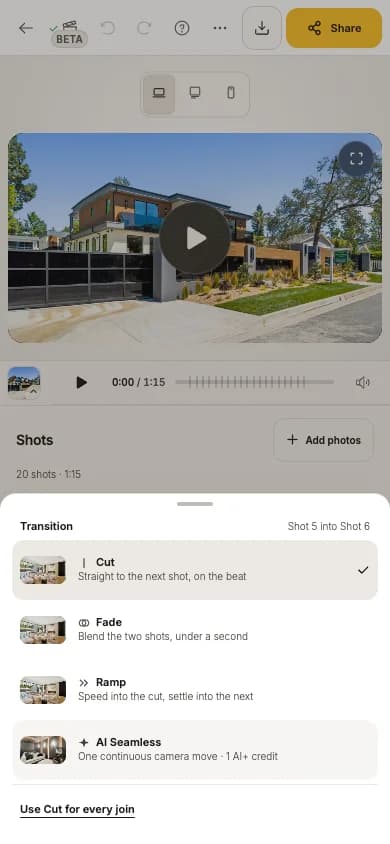
Keylight Studio works the same on your phone. The video sits on top and your tools at the bottom.
- Time
- 1 minute
- Where
- Keylight Studio on a phone or small tablet
- Who
- Trial and every plan
- Cost
- Free
The layout
- At the top: back, AI Director, Undo and Redo, Help, More and the gold Share. When the bar is tight, the least-used buttons fold away first: Download folds into Share, and More holds Version history, AI+ credits and Account. On a trial phone, Remove watermark takes Help's place (Help stays in the account menu).
- The video sits under the bar, with Widescreen, Square and Vertical above it.
- The tool you picked opens below the video. Scroll down and the video tucks away, leaving a slim play bar with the current shot; tap it to show the video again.
- The bottom bar holds Shots, Style, AI+, Music, Text, Voice and Brand.
Touch gestures
| To | Do |
|---|---|
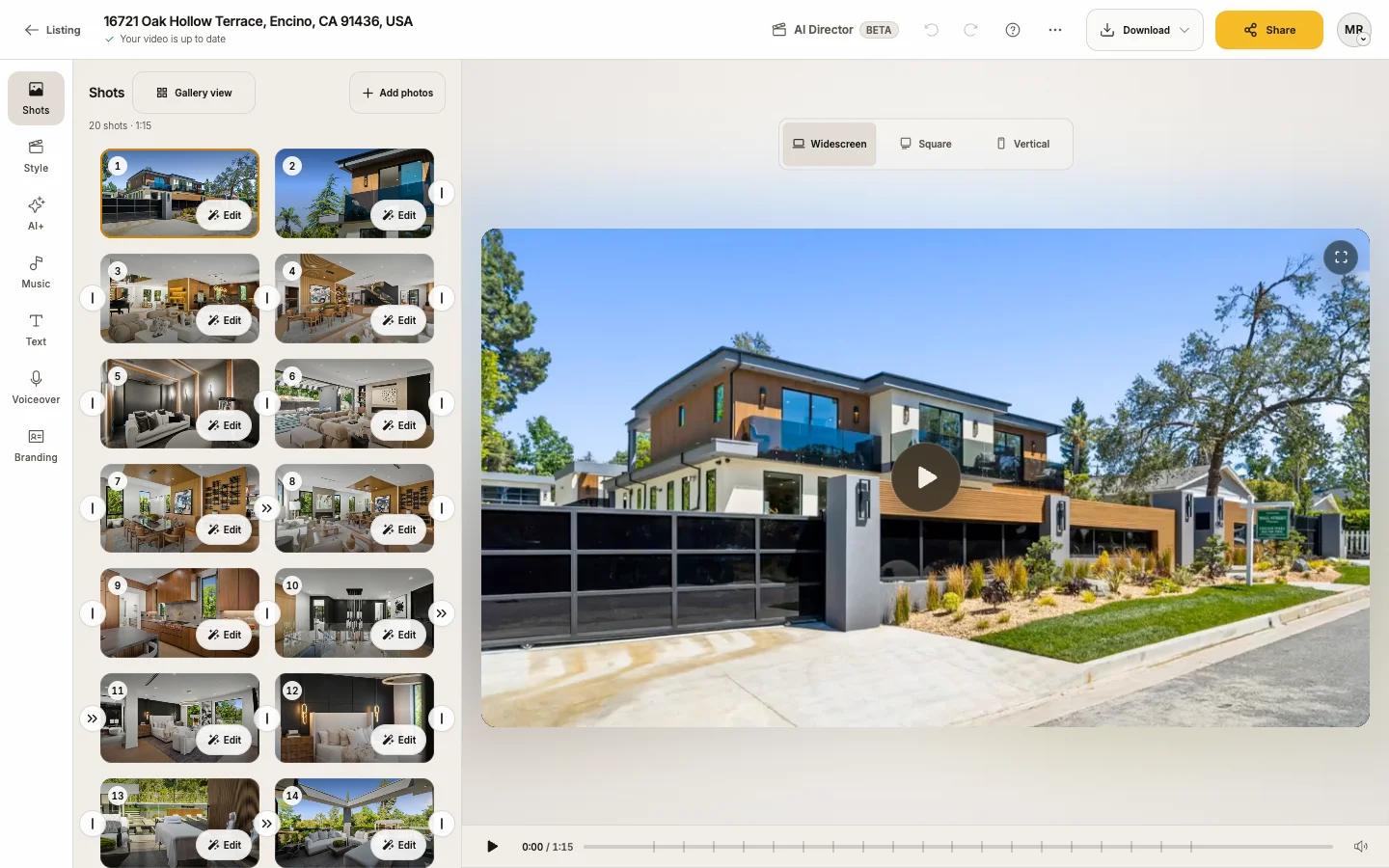
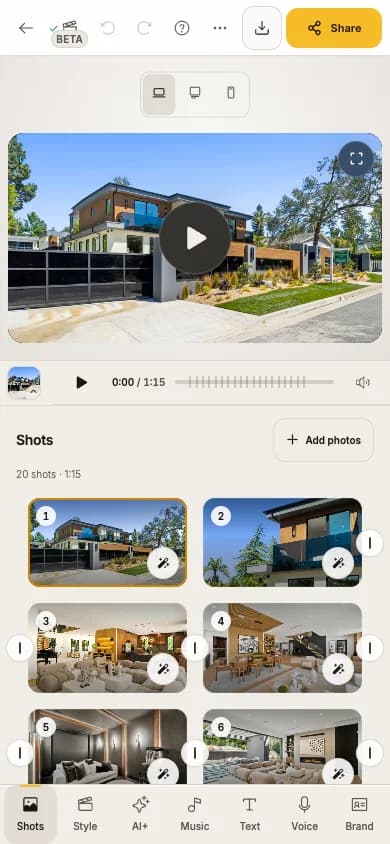
| Take a shot out, or put it back | Tap the photo |
| Reorder | Press and hold a shot, then drag |
| Select several | Select, tap the shots, Done |
| Open a shot | Tap Edit on it |
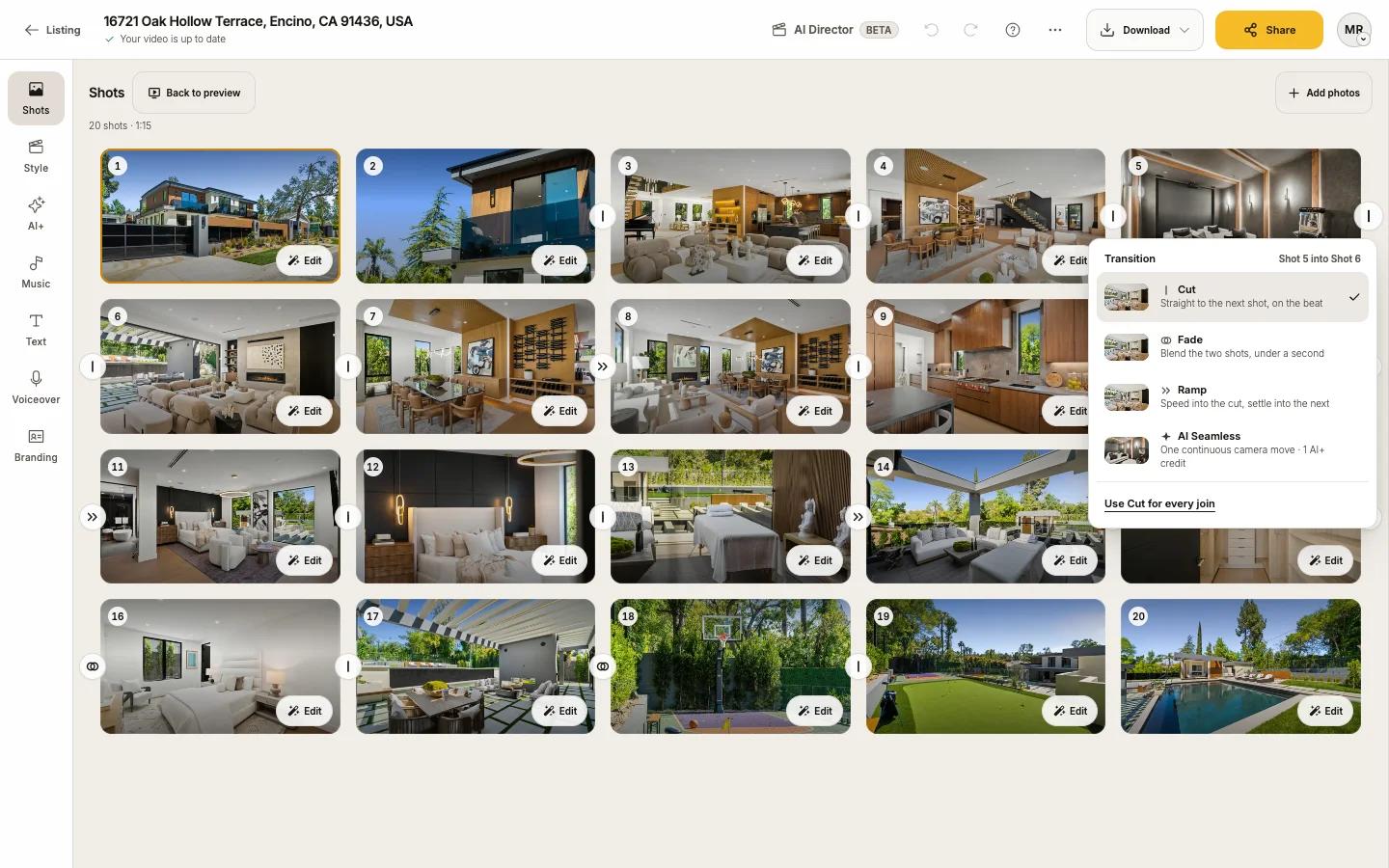
| Change a transition | Tap the join between two shots; the choices open as a sheet |
On a tablet
Portrait tablets and short landscape screens get an Edit / Preview switch above the tool bar, to give the video or the tools the full screen.
Saving to your phone
On a phone, downloads save to Photos. See Download your video.