

Add, remove and reorder shots
Choose which photos play, in what order, and open any shot to change its movement, length and transition.
- Time
- 2 minutes
- Where
- Keylight Studio > Shots
- Who
- Trial and every plan
- Cost
- Free
A shot is one photo in your video, numbered in play order ("Shot 3"). In Keylight Studio, Shots shows the ones in the video at the top and the rest under Not in the video. The count line shows how many shots there are and how long the video is, for example "14 shots · 0:57".
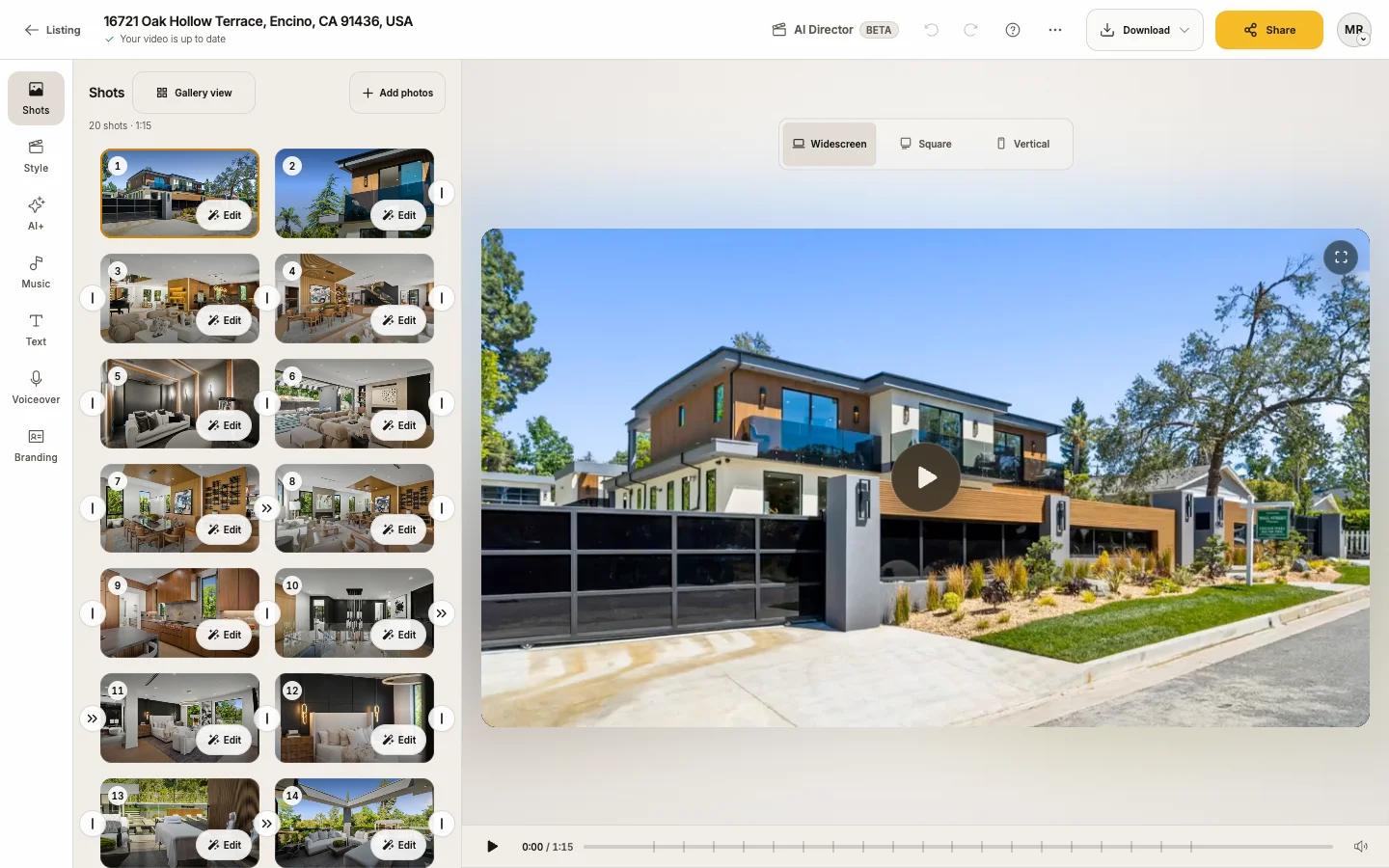
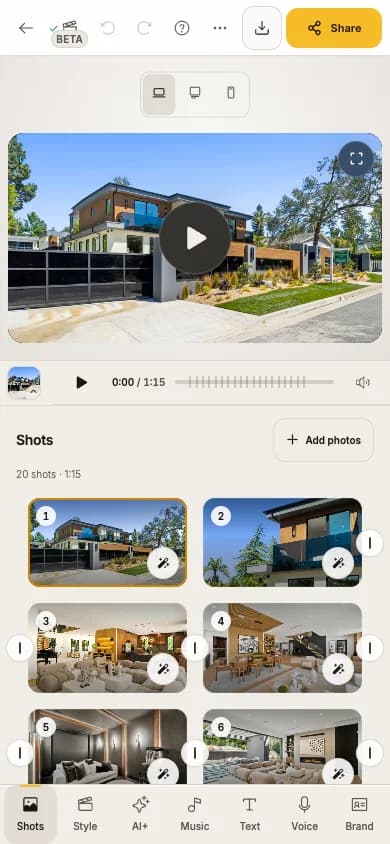
Take a shot out, or put it back
Click (or tap) the photo itself. It moves to Not in the video, and a note offers Undo. Click it there to add it back. Nothing is deleted.
Change the order
- On a computer, drag a shot to its new place.
- On a phone or tablet, press and hold a shot, then drag.
- With a keyboard, focus the shot's reorder handle, press Enter or Space to pick it up, the arrow keys to move, Enter to drop and Esc to cancel.
- Right-click a shot for Move to start or Move to end.
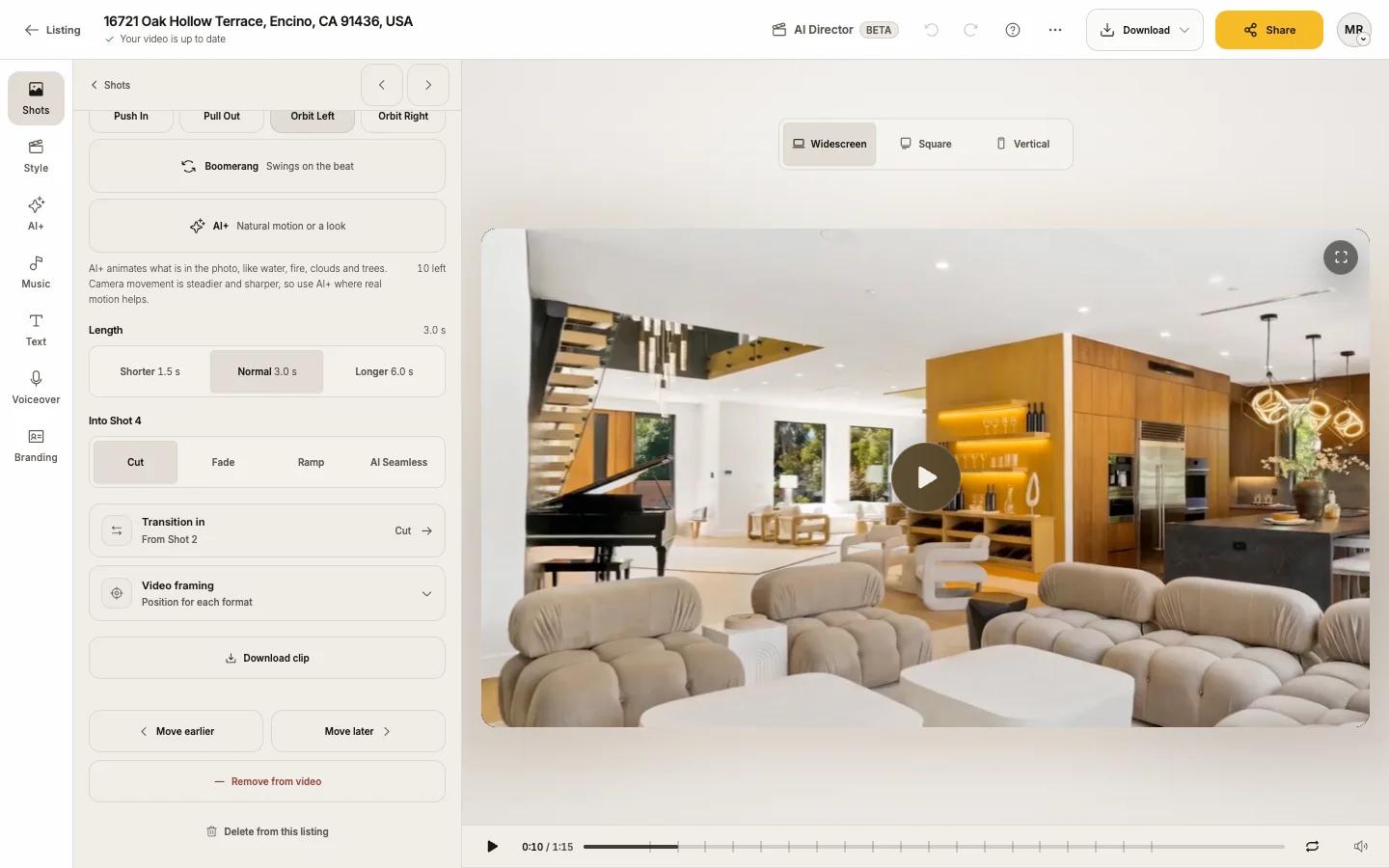
- In an open shot, use Move earlier or Move later.
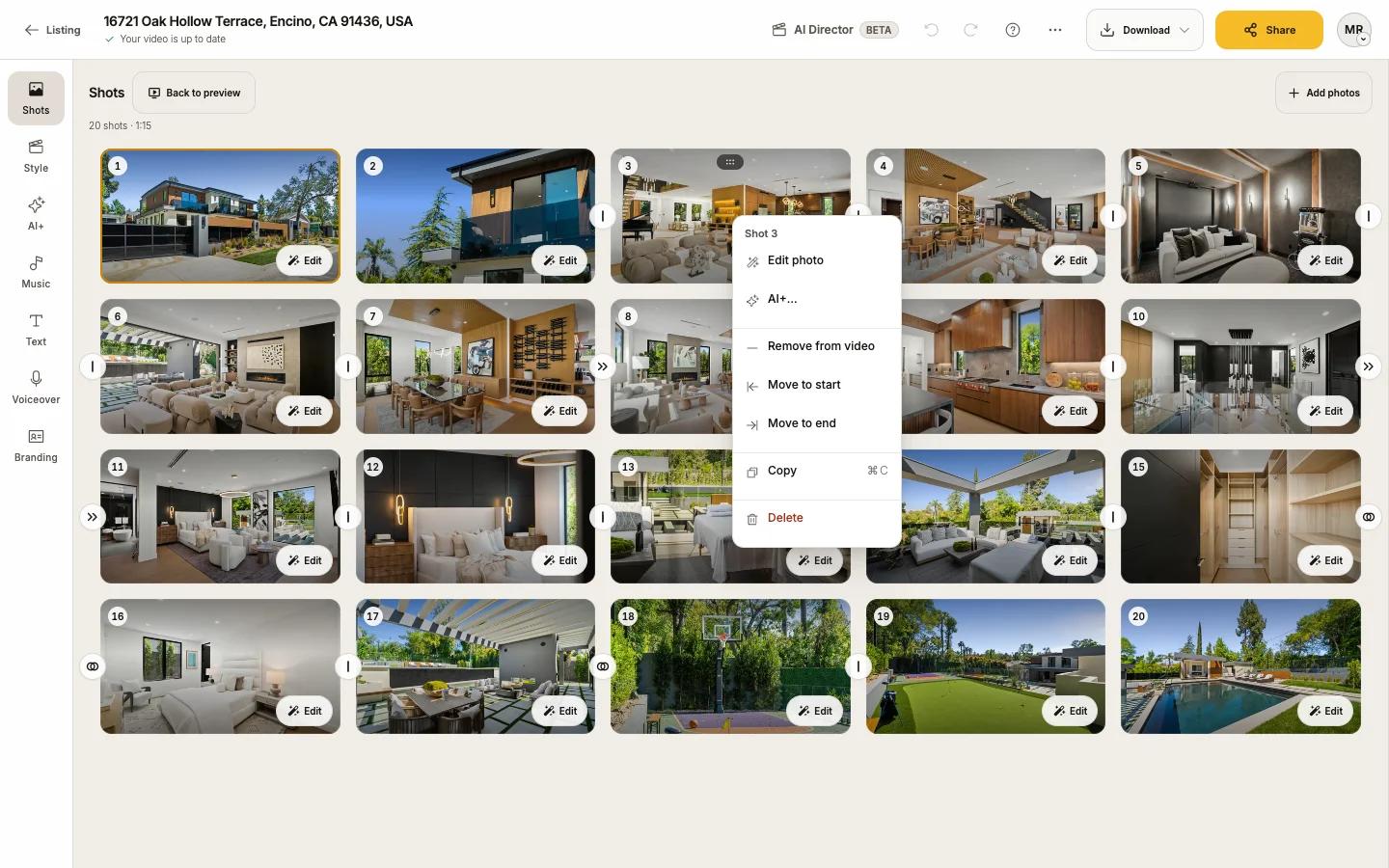
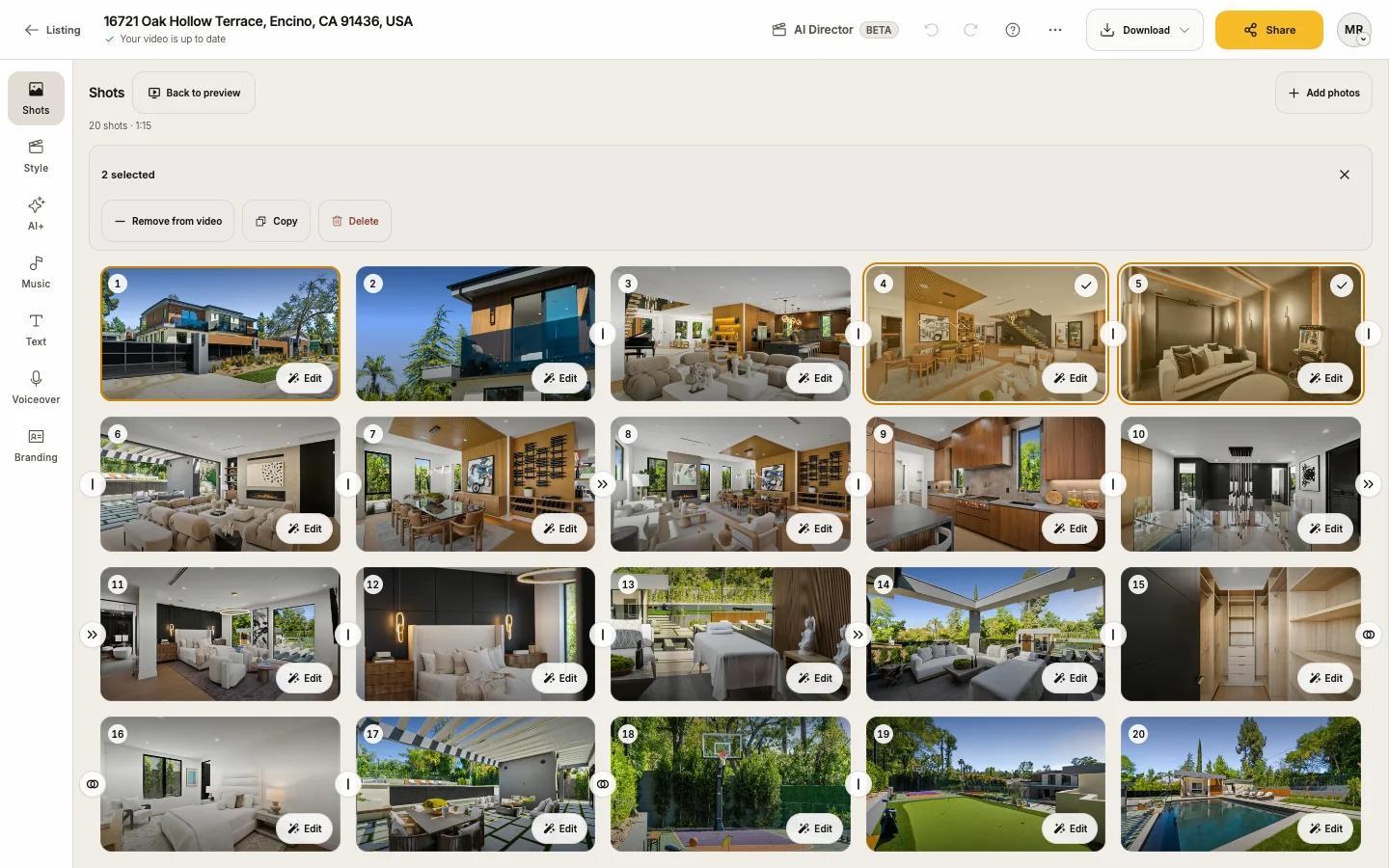
Select several shots
- On a computer, Cmd-click (Ctrl-click on Windows) or Shift-click. Cmd/Ctrl + A selects all.
- On a phone or tablet, press Select, tap the shots, then Done.
The bar shows "N selected" with Remove from video, Add to video, Copy and Delete. Copy lets you paste the shots into another listing: open it in Keylight and press Paste (for example "Paste 3 shots").
See every shot at once
Gallery view spreads your shots across the screen on a computer or tablet. Back to preview returns.
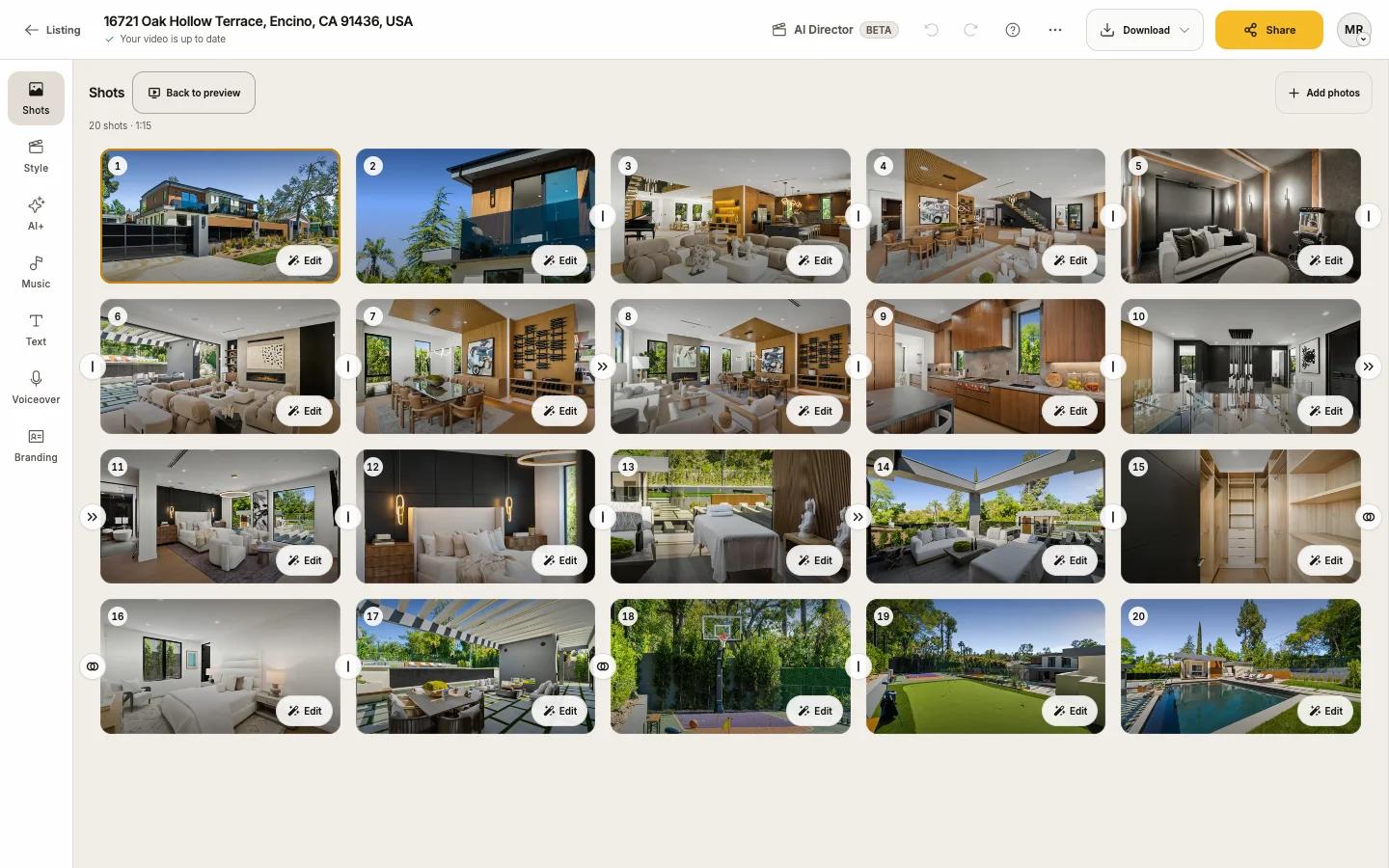
Add photos
Press Add photos, or drop photos onto the panel ("Drop to add photos"). Each new photo joins the end of the video when it is ready, and Undo takes it out. See Add photos for formats and sizes.
Open a shot
Press Edit on a shot
The shot panel opens with two tabs, Video and Photo.
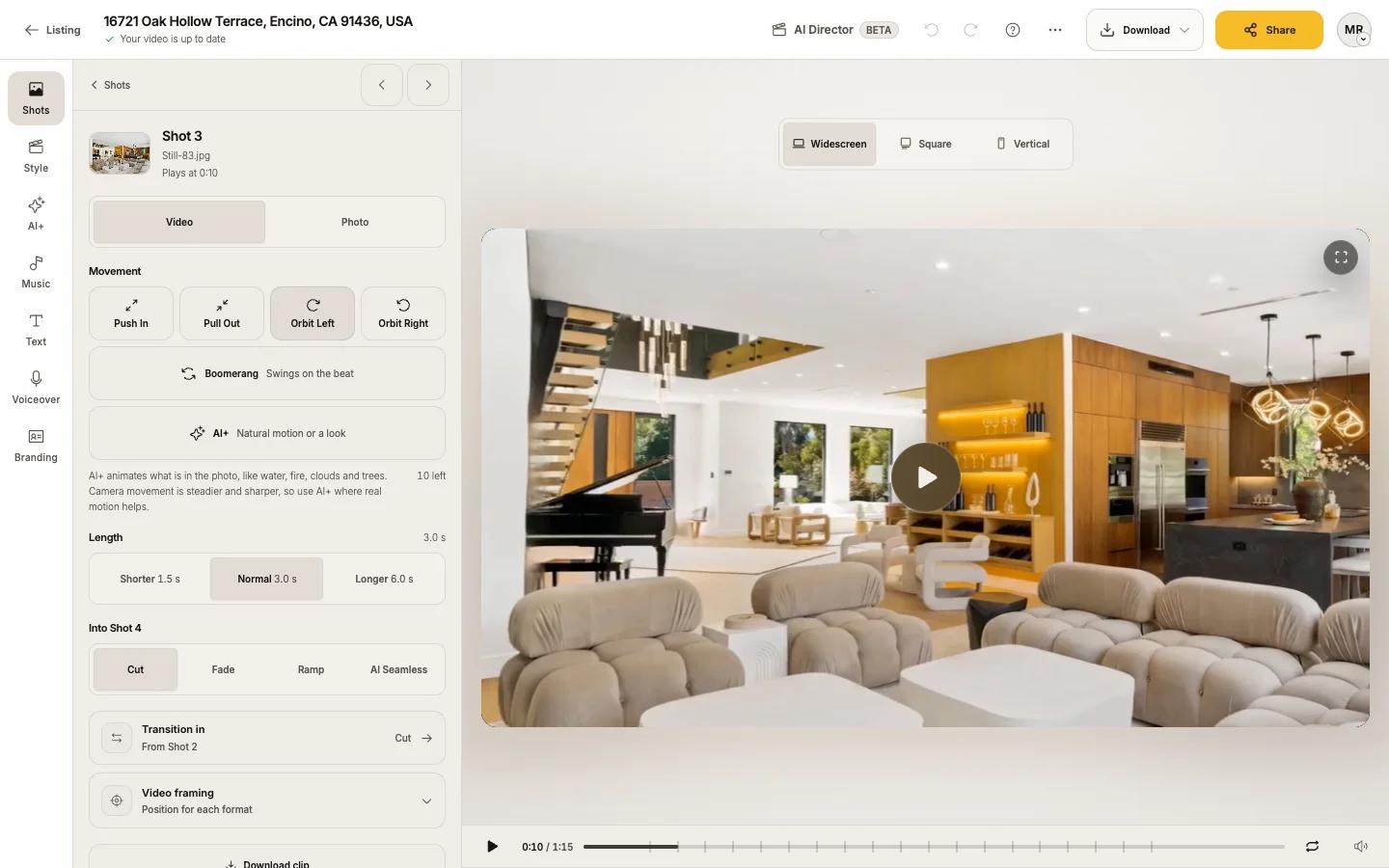
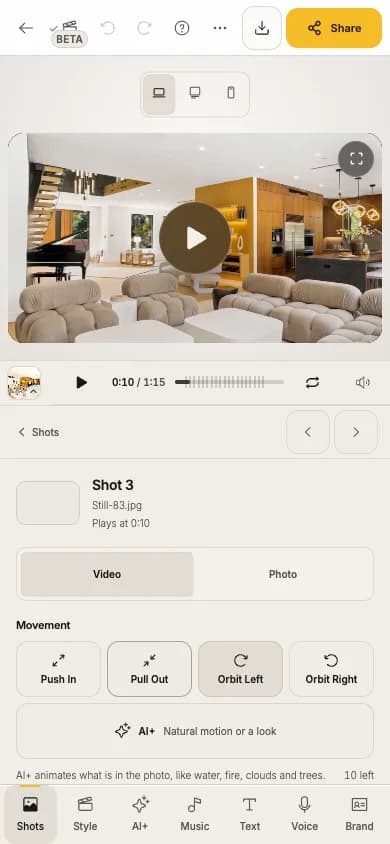
Change the video on the Video tab
Movement, AI+, Length, the transition into the next shot ("Into Shot 4"), Video framing (a position for each format), Download clip (on Growth and Pro), Move earlier / Move later, Remove from video and Delete from this listing.
Edit the photo itself on the Photo tab
Enhance, staging, crop and history. See Edit a photo.
Move to the next shot, or go back
Use the arrows at the top to go to the previous or next shot. Shots takes you back.
Remove vs delete
| What happens | Remove from video | Delete from this listing |
|---|---|---|
| Video | Leaves the video | Leaves the video |
| Photo | Kept under Not in the video | Gone from the listing and your listing website |
| Undo | Yes | Yes ("Photo deleted", with Undo) |
Swap a photo
There is no replace button: take the old shot out of the video, then add the new photo (it joins the end) and drag it into place.
Limits
| Limit | Trial | Essential | Growth | Pro |
|---|---|---|---|---|
| Shots in the video | 20 | 20 | 40 | 40 |
At the limit Keylight says "Take one out to add this one." Extra photos stay under Not in the video.