

Camera movement and framing
Every shot moves. Pick the camera move for any shot, and set how it is framed in each format.
- Time
- 1 minute
- Where
- Keylight Studio > Shots > Edit > Movement, Video framing
- Who
- Trial and every plan
- Cost
- Free. AI+ motion uses 1 AI+ credit
Reel-E turns each photo into a moving 3D shot. Until you pick one, a shot's movement is "Chosen automatically": your Style picks among the moves below.
Pick a movement
In Keylight Studio, open Shots and press Edit on a shot
Under Movement, choose a move
Push In moves slowly toward the room and draws the eye to a feature. Pull Out moves slowly back, a reveal for big rooms and views. Orbit Left and Orbit Right pan around the room. Boomerang swings on the beat: out, a stop on the beat, and back.
The shot remakes itself with the new move in the background ("Adding movement"); keep editing.
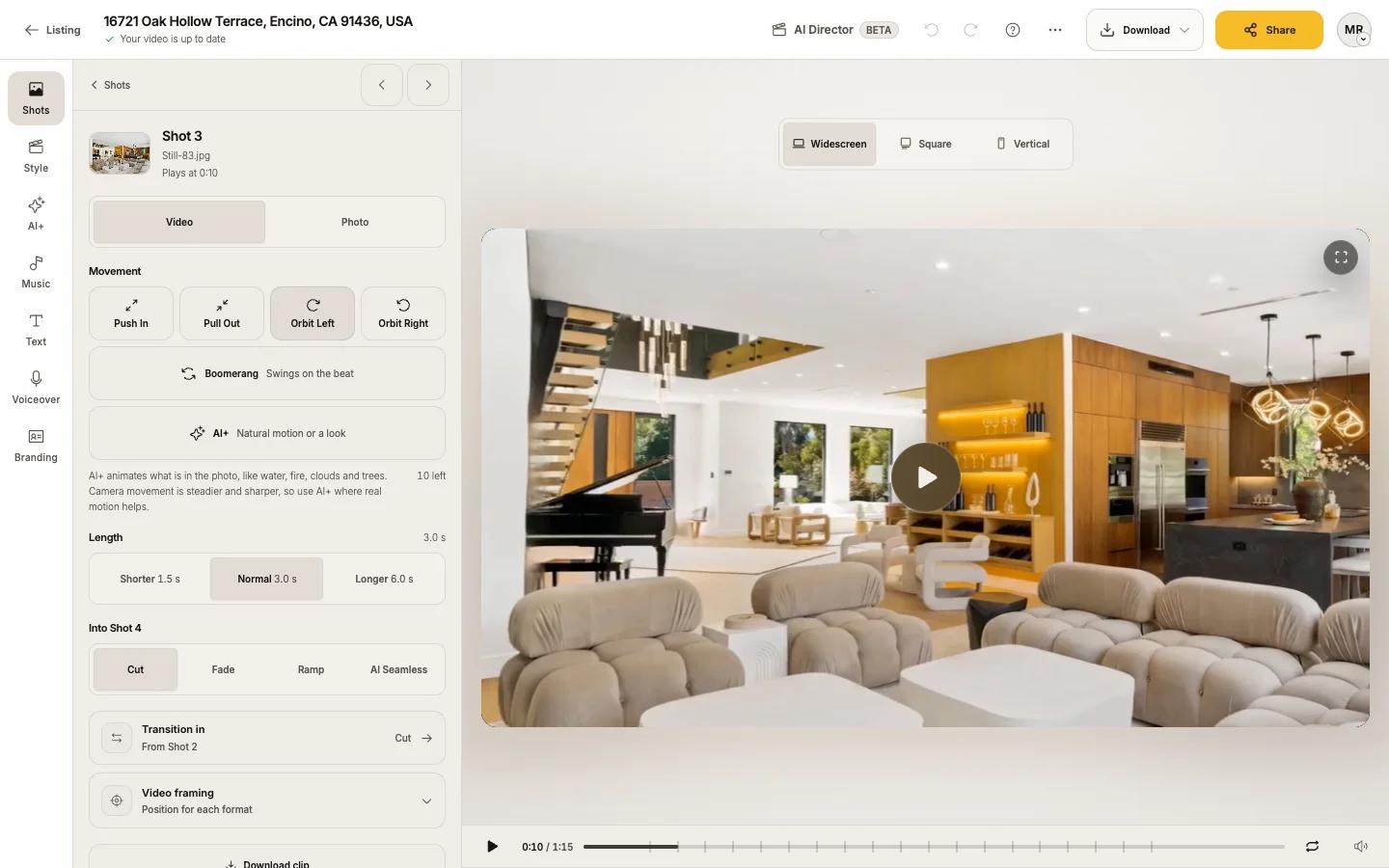
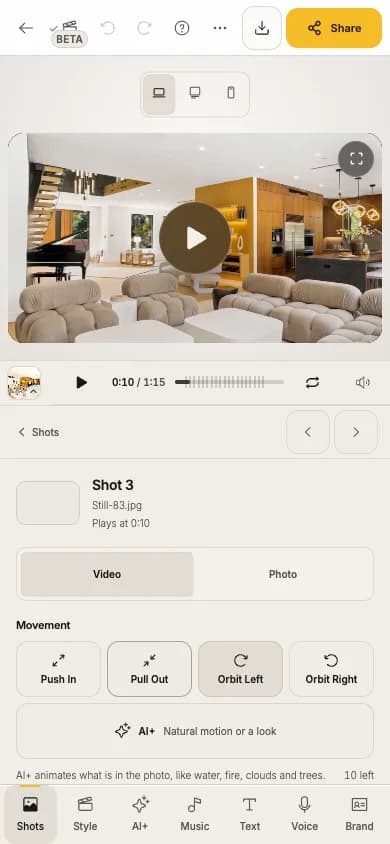
For real motion, choose AI+
Want water, fire, clouds or trees to really move? Choose AI+ (natural motion or a look). Camera movement is off while AI+ is on; choose AI+ again to go back. See AI+ motion and looks.
Frame each format
A Vertical video crops the sides of a wide photo. Video framing lets you move the picture for Widescreen, Square and Vertical separately: switch the format above the player and drag the picture in the preview.
Tips
- Use Push In on the hero room and a Pull Out to reveal the view; vary Orbit Left and Orbit Right on similar rooms.
- Wide photos move best. Very tight photos look best as short shots.