

The create flow, step by step
Every screen between Create and your finished video: what it asks, what you can skip, and what happens after you press Create my video.
- Time
- 2 to 5 minutes
- Where
- Dashboard > Create Video, or reel-e.ai/create
- Who
- Everyone. New accounts start the trial at the end
- Cost
- 1 listing when the video is created
The create flow asks only what Reel-E cannot work out on its own, and everything you enter can be changed later in Keylight Studio. Progress is kept as you go: leave and come back, and Create Video on your dashboard offers to resume the listing you started or Start New Project.
The order is Address, Photos, Music, Details and Branding, then Contact and Logo (only if you add branding), then Length (only with 6 or more photos), then your trial or plan, then Creating your video.
The steps
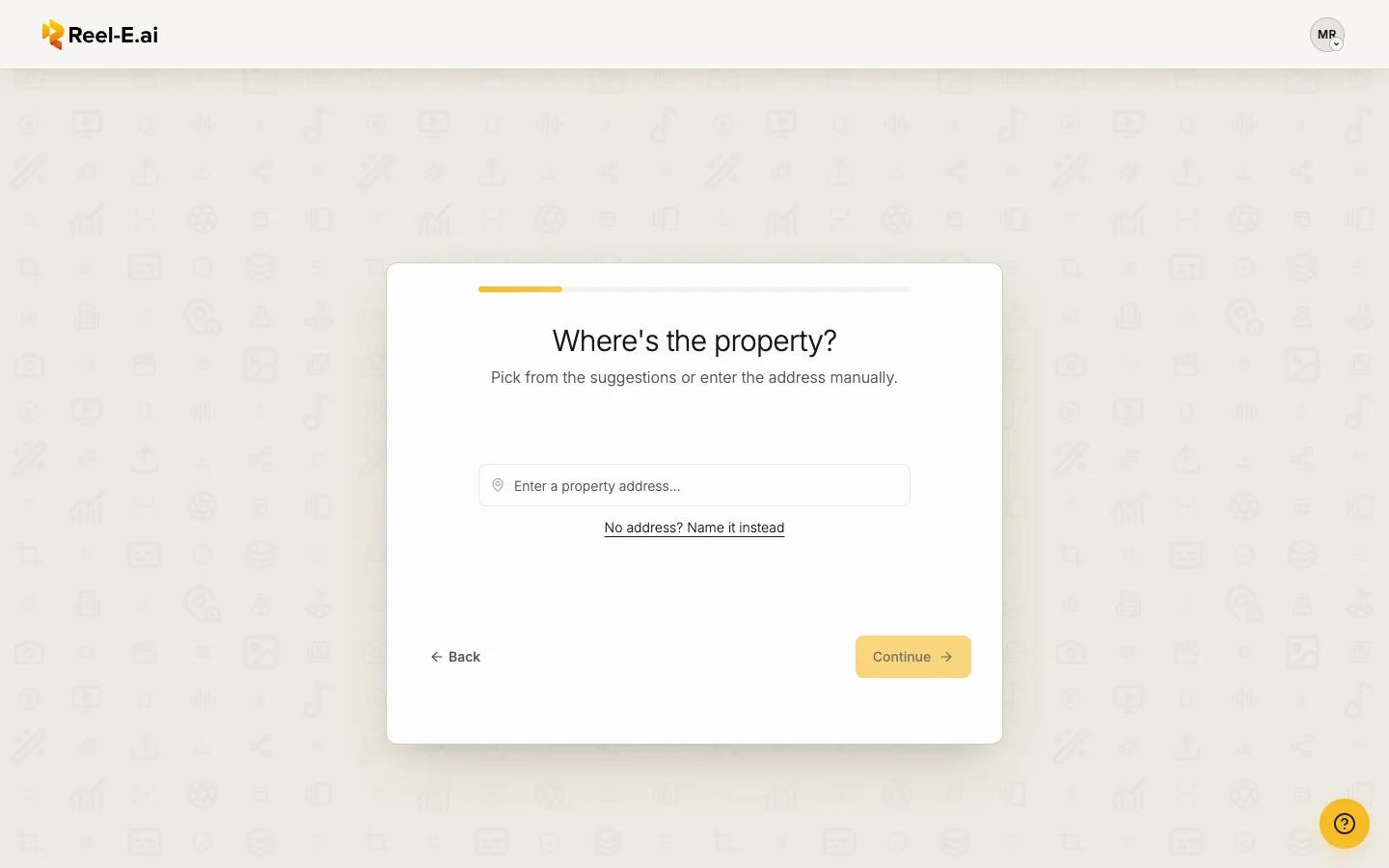
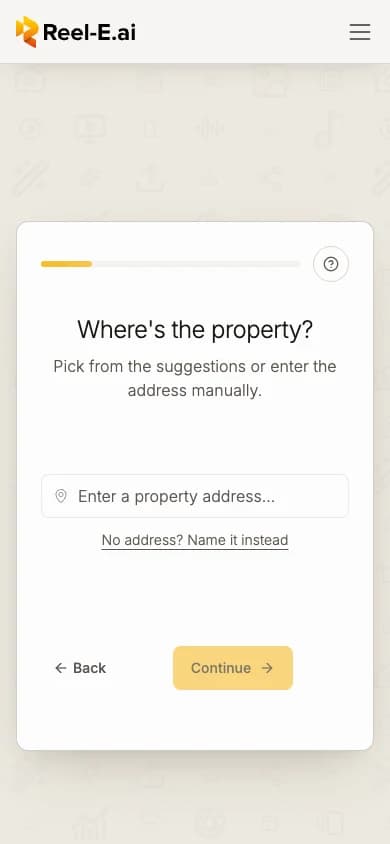
Address: Where's the property?
Start typing and pick a suggestion. Not in the list? Choose Can't find it? Enter manually, fill in the street, Unit (optional), city, state and ZIP, then Use this address. No address yet, for example a new build? Choose No address? Name it instead and type a name; you can add the address later.
The address becomes the opening title of your video and the name of your listing website.
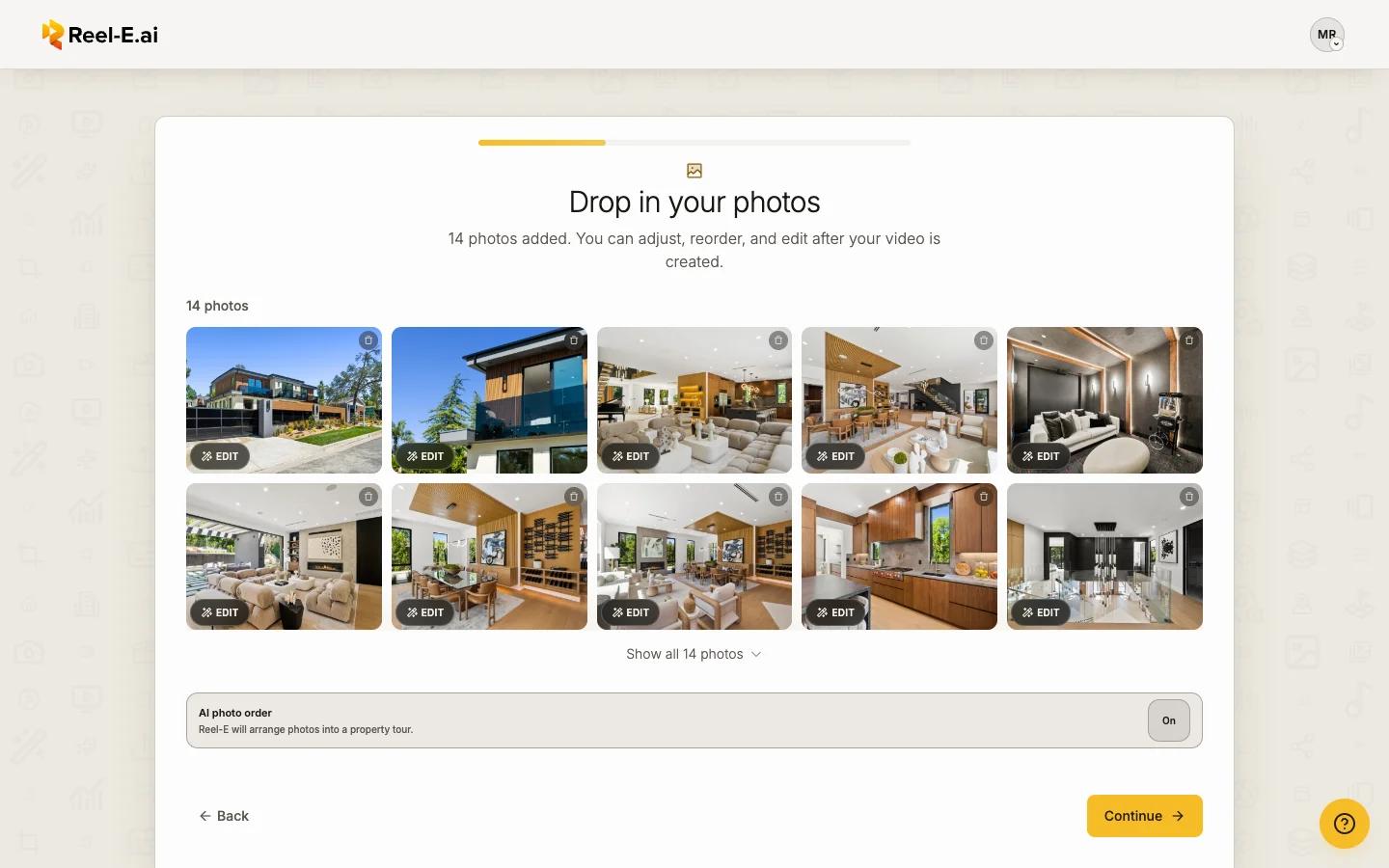
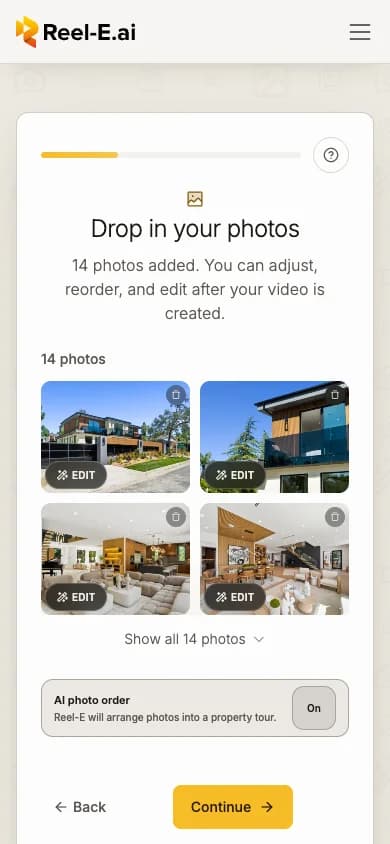
Photos: Drop in your photos
Upload your full collection; Reel-E picks the best shots for the first video and keeps the rest with the listing. AI photo order arranges the photos into a property tour. Formats, sizes and counts: Add photos.
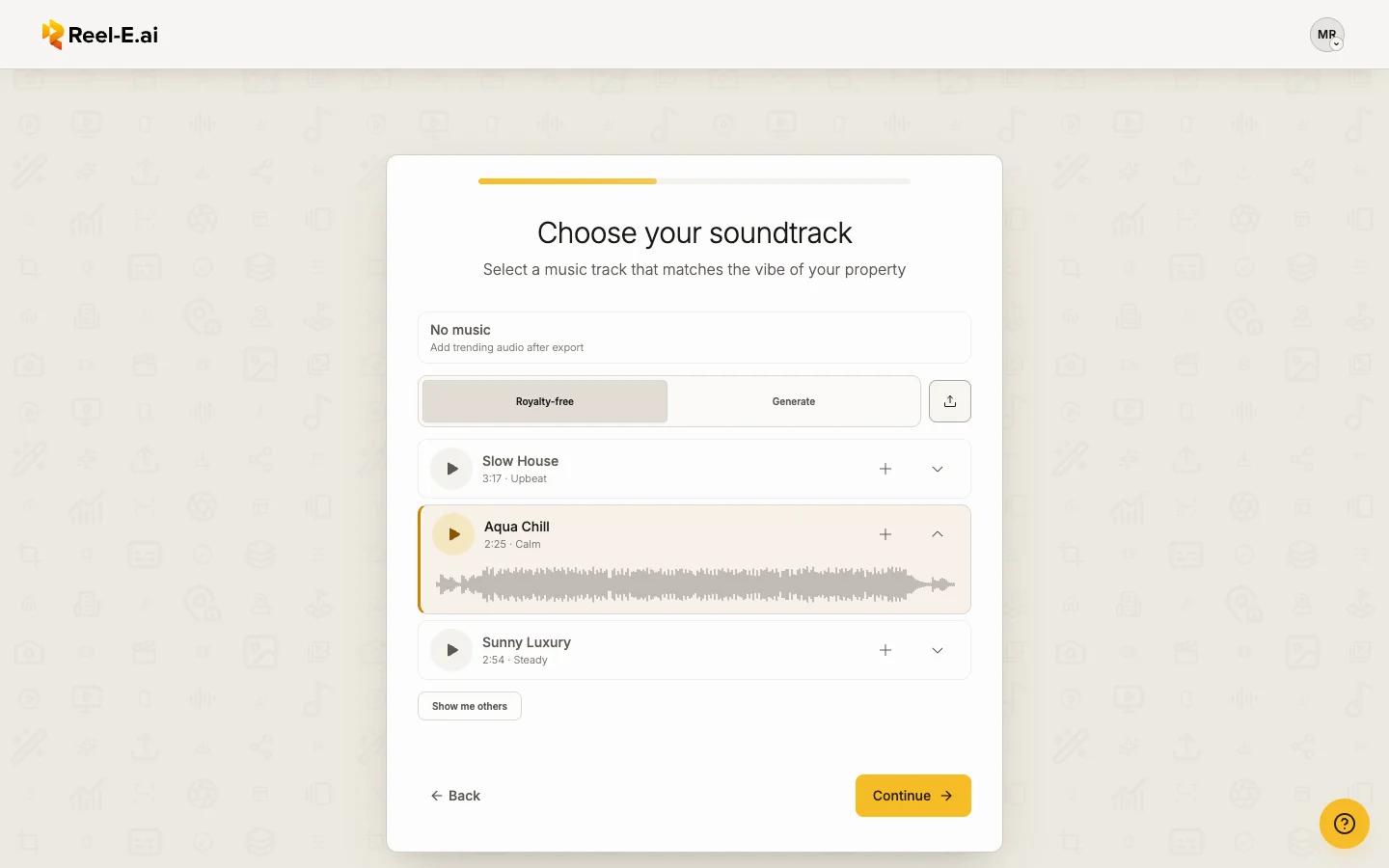
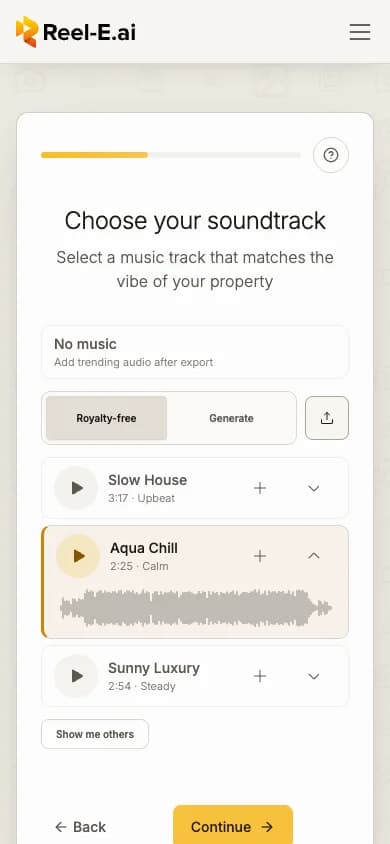
Music: Choose your soundtrack
Press play on a song to hear it, and pick one. Show all songs lists every song, with a search box to find one by name. No music plays the video without a song. Generate makes an instrumental track for this listing from a style you describe. The upload button takes your own track: MP3, WAV, M4A, AAC, FLAC or OGG, up to 20 MB and 6 minutes.
Details: A few property details
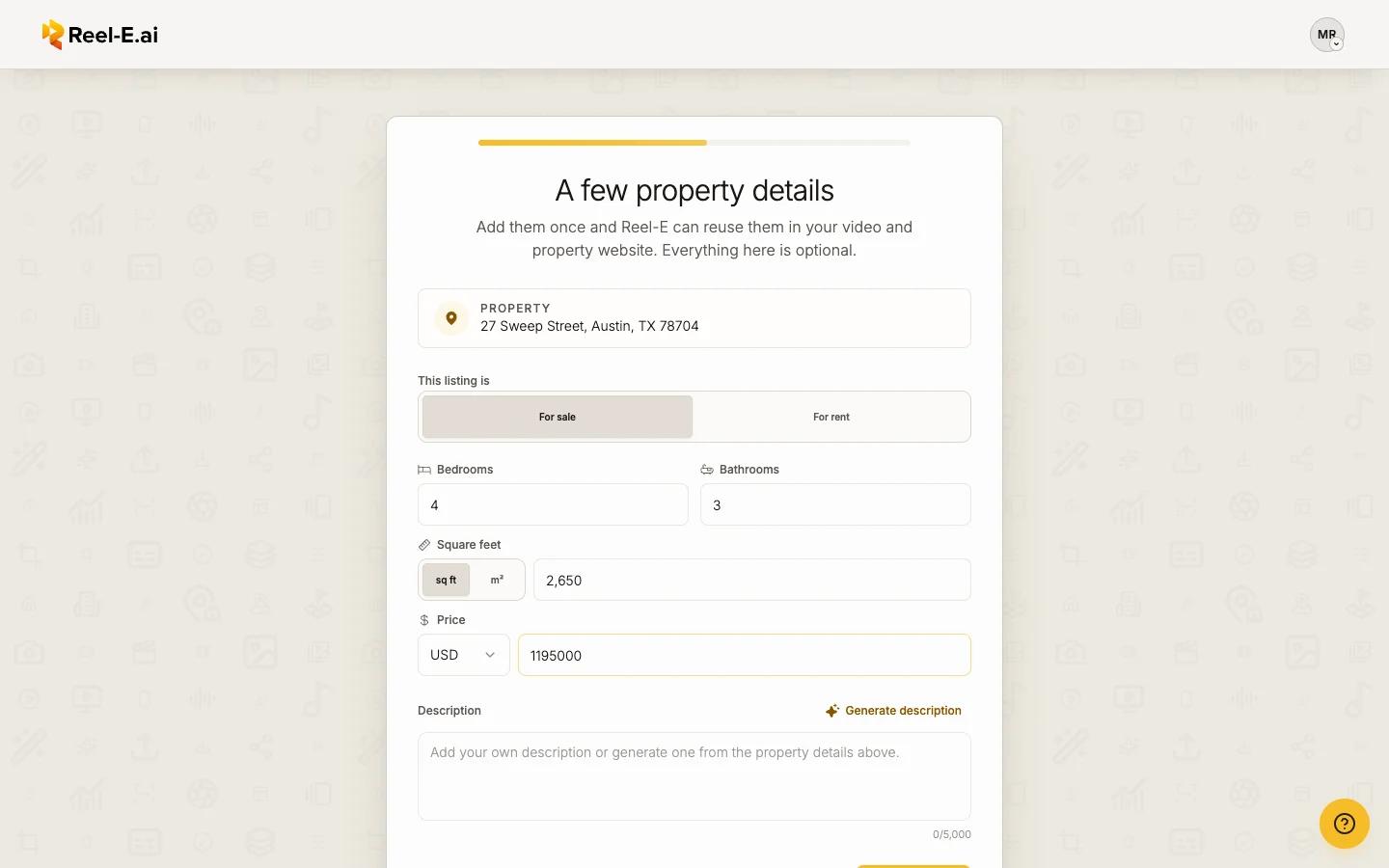
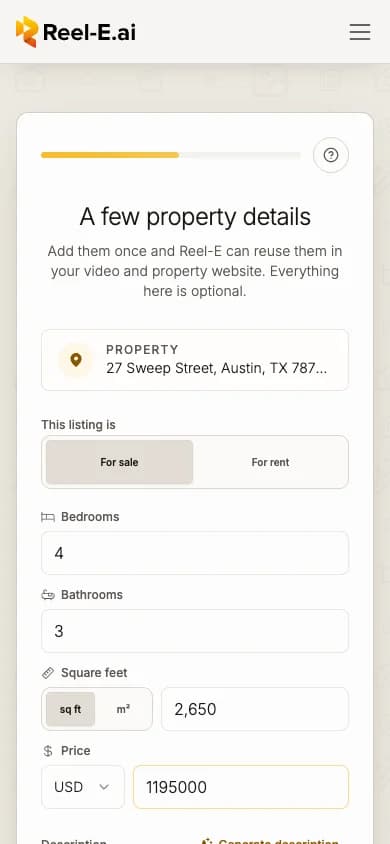
All optional. Choose For sale or For rent, then add Bedrooms, Bathrooms, Square feet (or Square meters) and the Price (or Monthly rent). Generate description writes a description for your listing website from these facts; edit it as you like. Beds, baths and size appear on the opening title and your website.
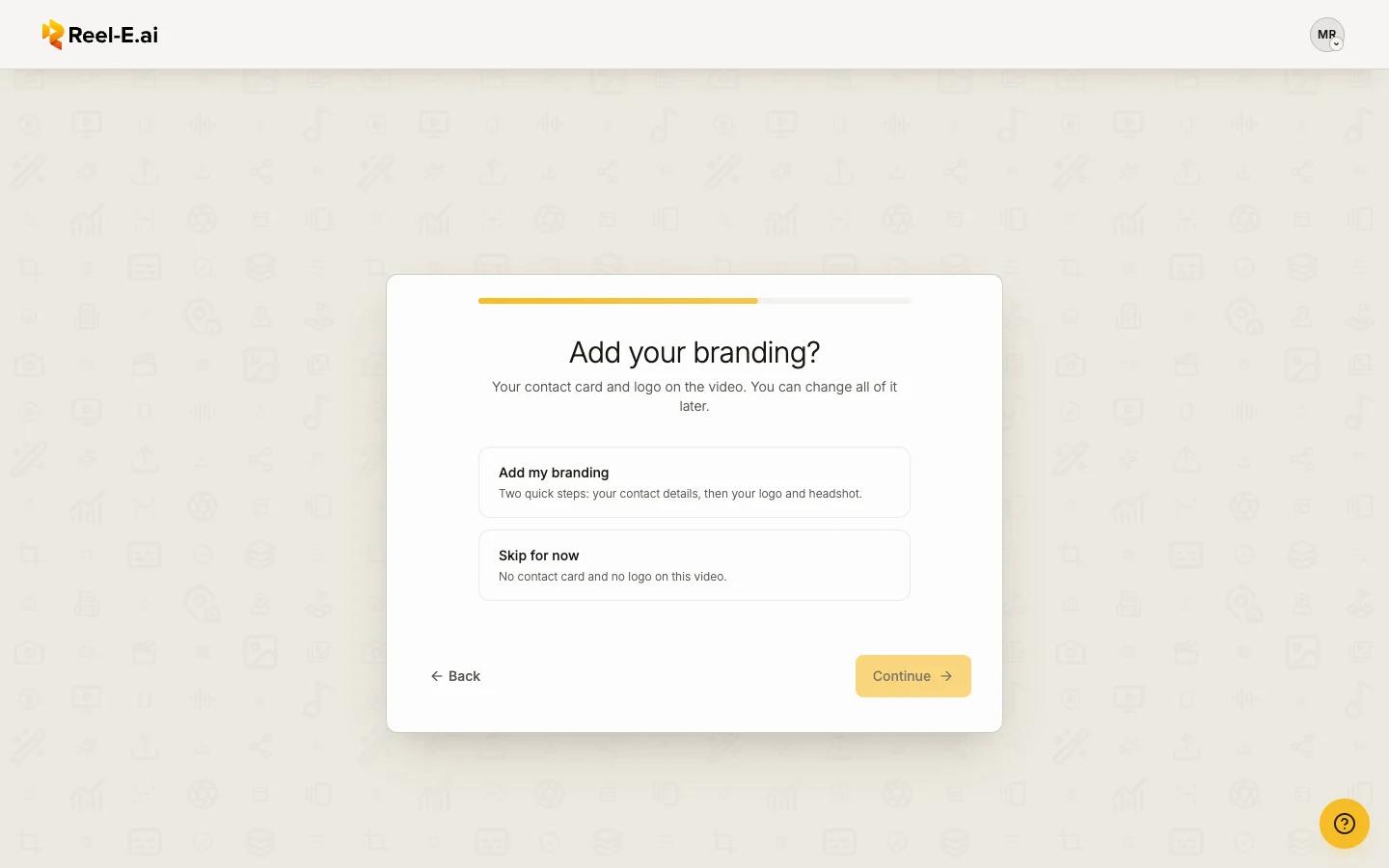
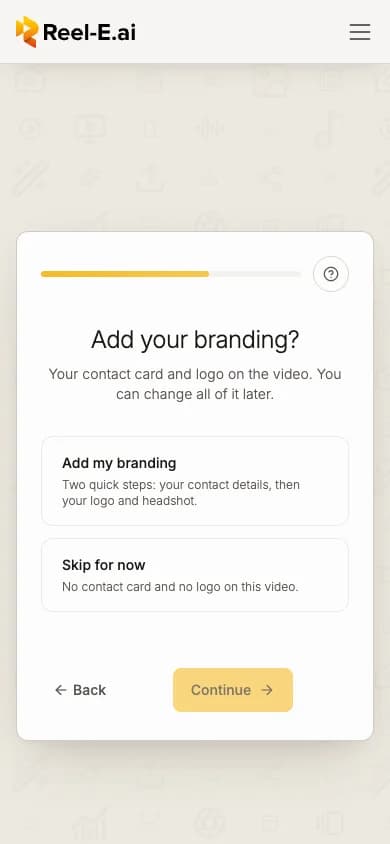
Branding: Add your branding?
Add my branding adds two quick steps, Contact and Logo. Use my saved brand (shown once you have saved one) fills your contact card, logo and Headshot and skips ahead. Skip for now leaves the contact card and logo off this video; you can add them later in Keylight.
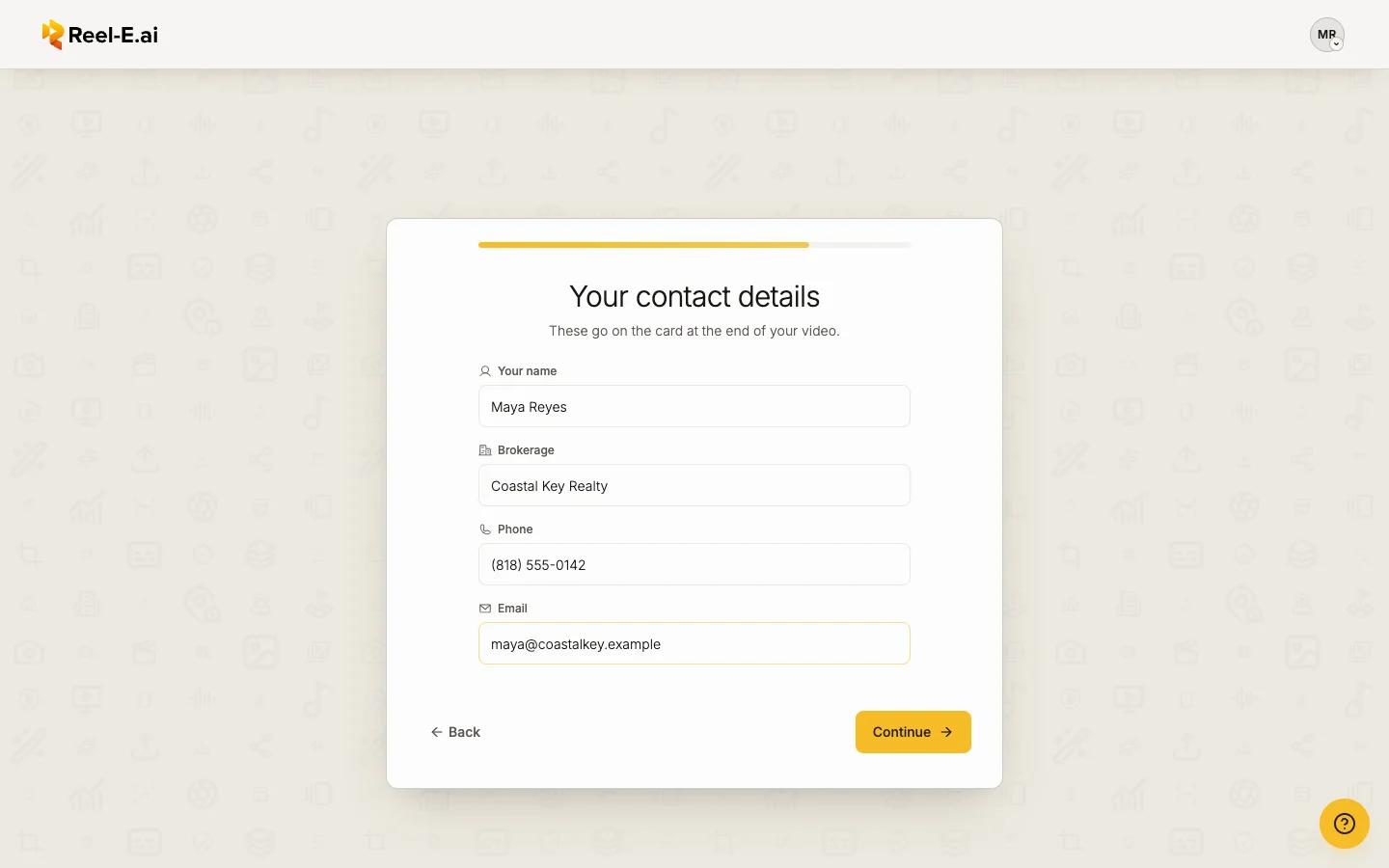
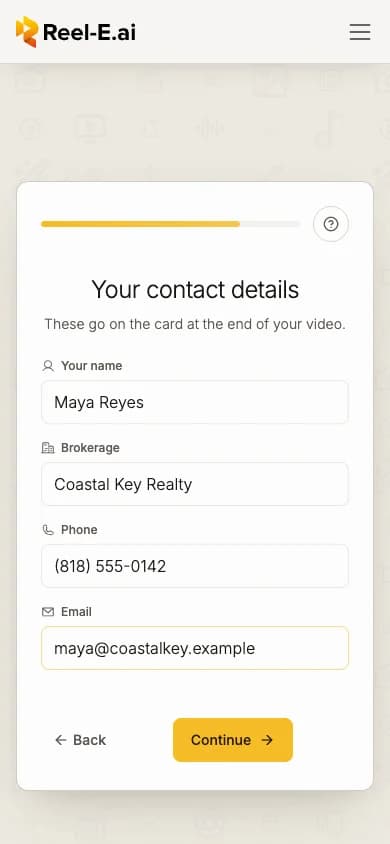
Contact: Your contact details
Your name, Brokerage, Phone and Email. They go on the contact card at the end of your video.
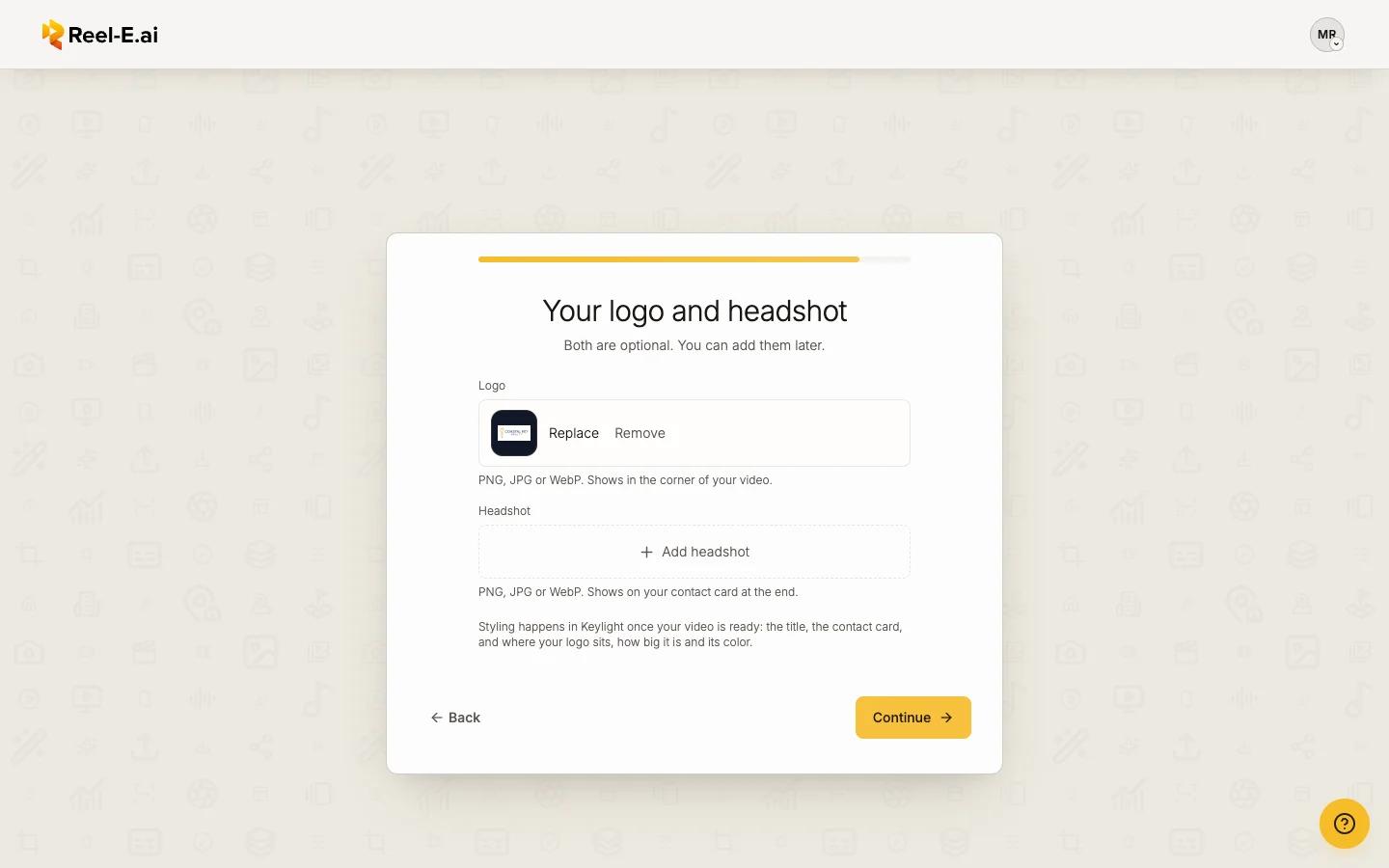
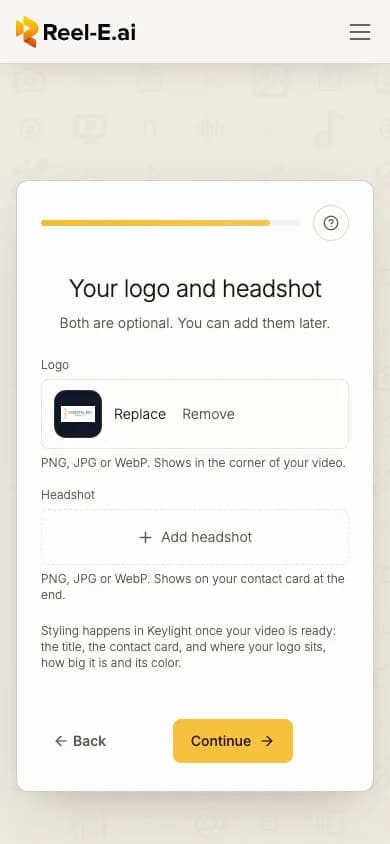
Logo: Your logo and headshot
Both optional; PNG, JPG or WebP. Your logo plays on its own card at the end of the video, and your Headshot sits on your contact card. Designs, colors and sizes are styled in Keylight once the video is ready.
Length: Video length
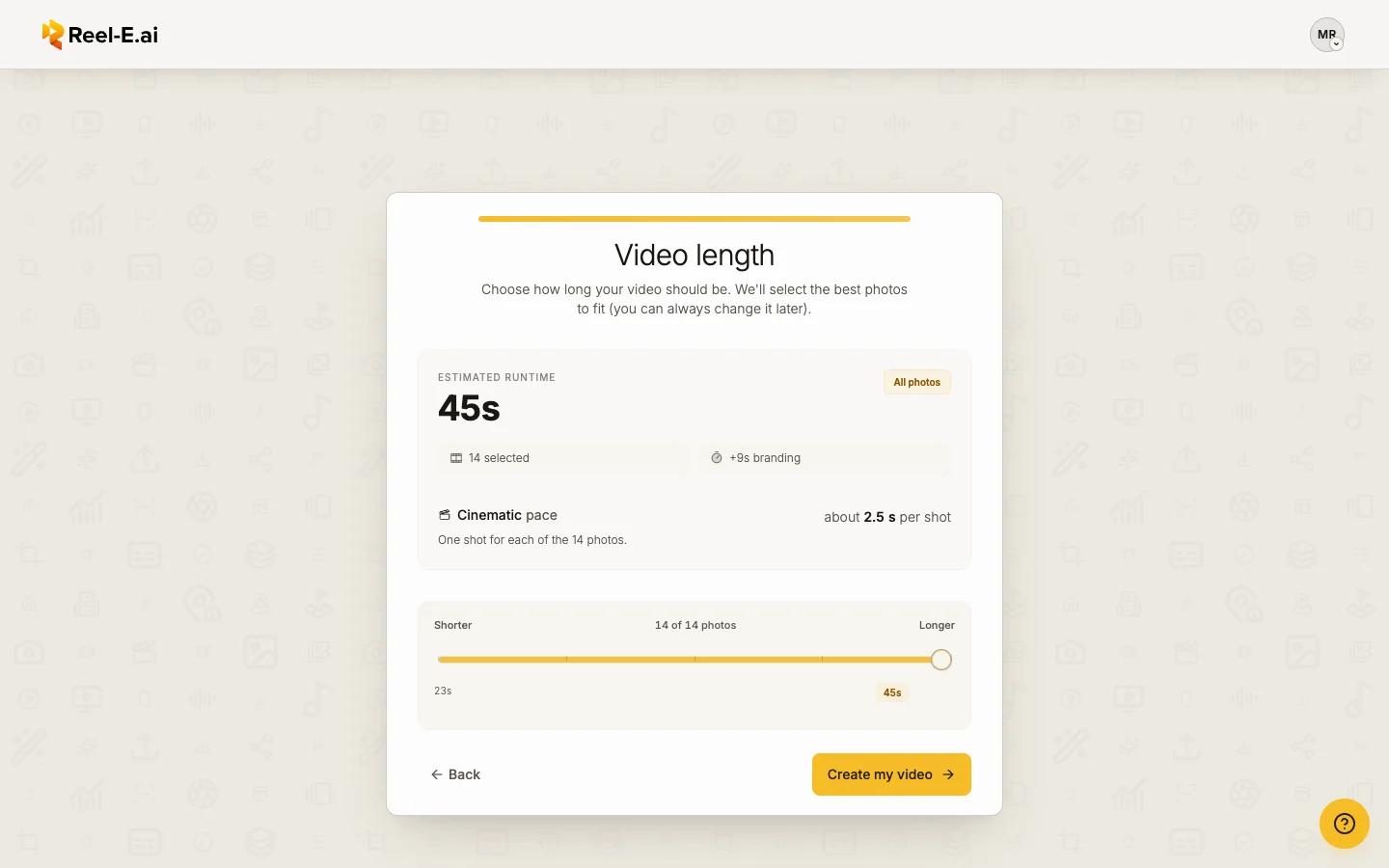
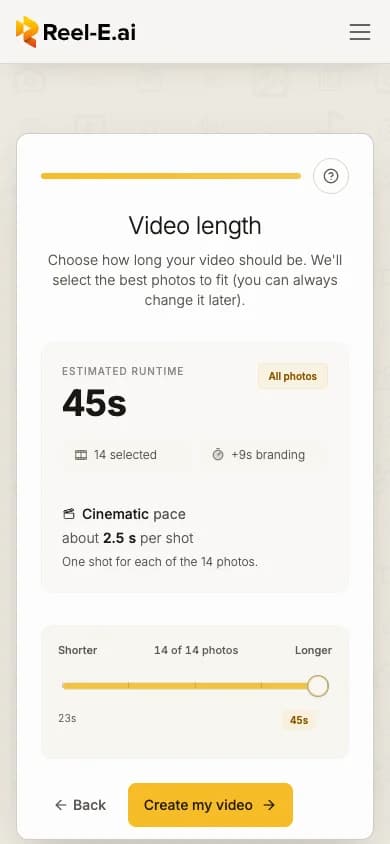
Shown when you add 6 or more photos. The Estimated runtime updates as you drag between Shorter and Longer; Reel-E picks the best photos to fit. You can change the length any time in Keylight. Then press Create my video.
Start your trial (new accounts)
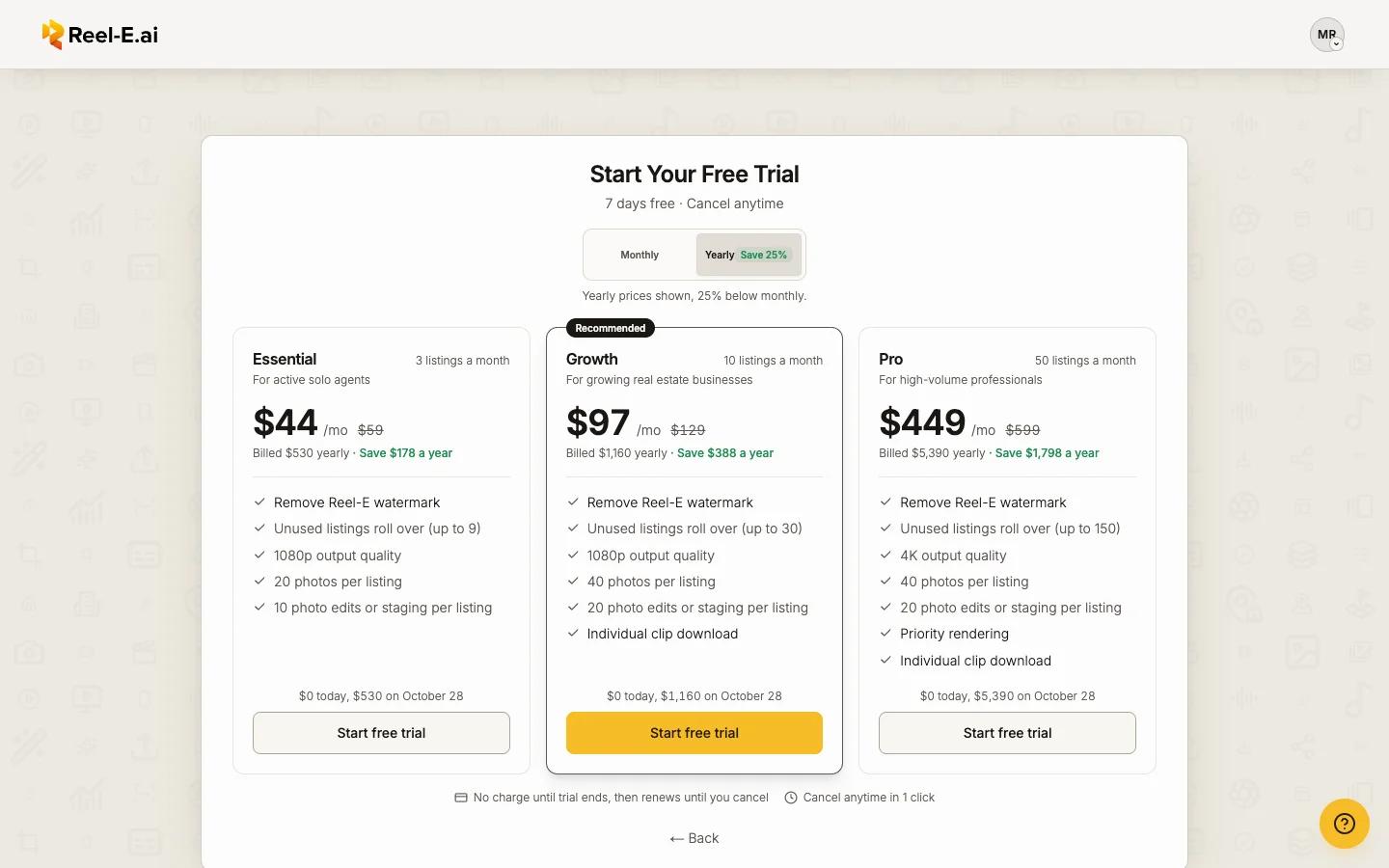
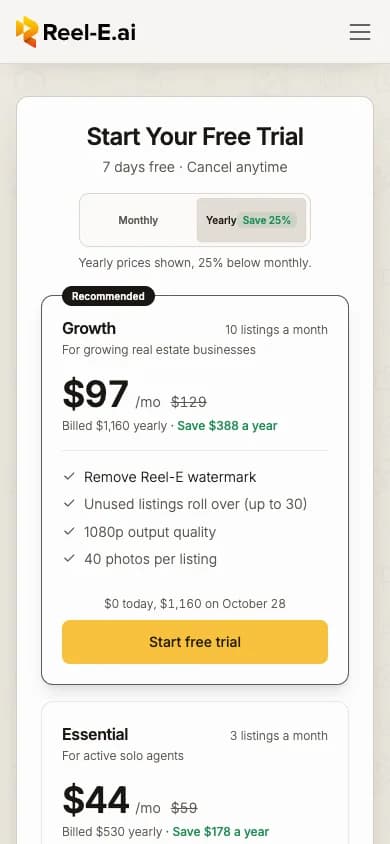
Start creating for free shows what the trial includes. Next, We'll remind you before your trial ends explains the reminder email, sent about 48 hours before the trial ends. Then Start Your Free Trial: pick Monthly or Yearly and a plan, and press Start free trial. Checkout takes your card; nothing is charged until the trial ends. Active and trialing accounts skip this step.
Wait for Creating your video
The screen walks through Preparing your photos, Uploading your photos, Setting up your listing, Adding movement to your photos, Getting your preview ready and Your video is ready. Then your listing page opens. See Your listing page.
While your video is made
- Keep the page open while your photos upload. After that you can close the tab: "You can close this tab. Your video keeps being made."
- If the upload is interrupted, it picks up where it stopped by itself ("Picking up where it stopped"). There is nothing to retry.
- If it takes longer than usual you see "Taking a little longer than usual. It finishes on its own."
Tips
Limits
| Limit | Trial | Essential | Growth | Pro |
|---|---|---|---|---|
| Photos in a video | 20 | 20 | 40 | 40 |
Every video needs at least 3 photos. Generated soundtracks: 5 per listing and 12 a day.