

Voiceover and captions
Add narration written for your video, read by an AI voice or by you, with captions for muted viewing.
- Time
- 2 minutes, then about a minute to write and read
- Where
- Keylight Studio > Voiceover (Voice on a phone)
- Who
- Trial and every plan
- Cost
- Script drafts and voice generations per listing (see Limits)
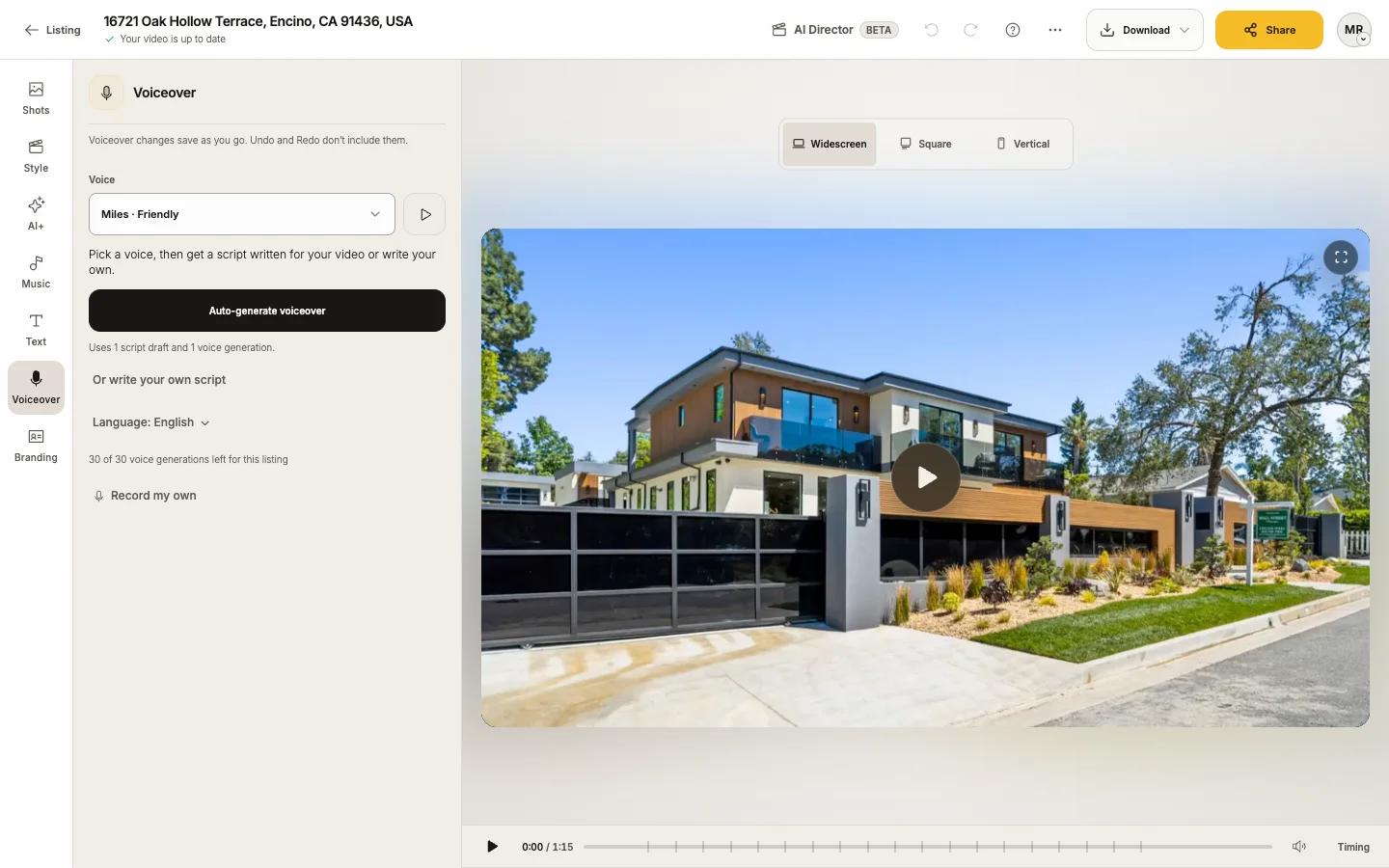
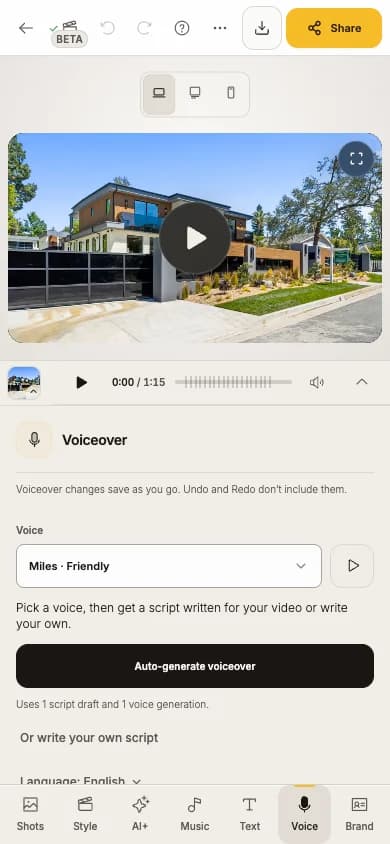
Auto-generate a voiceover
Open Voiceover and pick a voice
Press play beside a voice to hear a sample: Miles · Friendly (the default), Maya · Easygoing, Grant · Clear or Nora · Warm.
Choose the language (optional)
Language: English lets you choose Español.
Press Auto-generate voiceover
It uses 1 script draft and 1 voice generation. Reel-E watches your video, writes a script that fits each part, then reads it ("Writing your script…", "Generating narration…"). You can leave or reload; progress is saved.
Listen
"Voiceover ready". Press play to hear it.
Prefer your own words? Choose Or write your own script.
Edit the script
The script is split into sections named after the shots they cover ("Shots 2 to 4"). For each section you can edit the words, preview it, Adjust timing, delete it, or Add section.
After you change words, Keylight says "Script changed. Generate to hear it." Press Generate changed sections. Each Generate press uses 1 voice generation; moving or trimming a section is free.
If narration runs past the end: Move it to fit or Shorten it (Suggest shorter uses 1 script draft).
Record your own
Choose Record my own, then Allow Microphone. The video plays silently with your script as a teleprompter. Start Recording, Stop Recording, then Use This Recording. Use an AI voice instead switches back.
Turn it on or off, and balance the music
- The Voiceover switch: "Included in this video", or off with your saved takes kept.
- Music balance: drag between Quieter and Louder; music ducks smoothly under the voice.
- Voiceover changes save as you go and are not part of Undo.
Captions
Under the voiceover switch, Captions shows the words on screen for muted viewing, synced to the take. Choose a style (Classic, Strong, Label, Accent, Cinema), a reading style (Follow words or One word), colors, size and position. Captions follow the narration, so turn voiceover on first.
Narration and your end cards
With a contact card or logo, the last part of the narration can run over the end cards, up to the final fade. The video never gets longer for narration.
Narrated files
In Share, More download choices has a Narration switch. Narrated files say so in the name, for example "12 Oak St (Unbranded Narrated - Widescreen).mp4". See File names.
Good to know
- The Flow Style plays without narration; it returns in Cinematic or Fast Cuts.
- A shot you remove leaves its section marked "Not in the video", with Move to… or Remove.
Limits
| Limit | Trial | Essential | Growth | Pro |
|---|---|---|---|---|
| Script drafts per listing | 6 | 8 | 12 | 20 |
| Voice generations per listing | 15 | 20 | 30 | 50 |
The panel shows what is left for the listing. A generation that does not finish does not count.