

Edit a photo
Fix a photo in a sentence. Brighten it, tidy it, take something out or change the sky, and the new photo goes into your video and website.
- Time
- About a minute per edit
- Where
- Keylight > Shots > Edit on a shot > Photo; Edit photo on each photo in the create flow
- Who
- Trial and every plan
- Cost
- 1 photo edit credit per edit. Crop, History and Use original are free
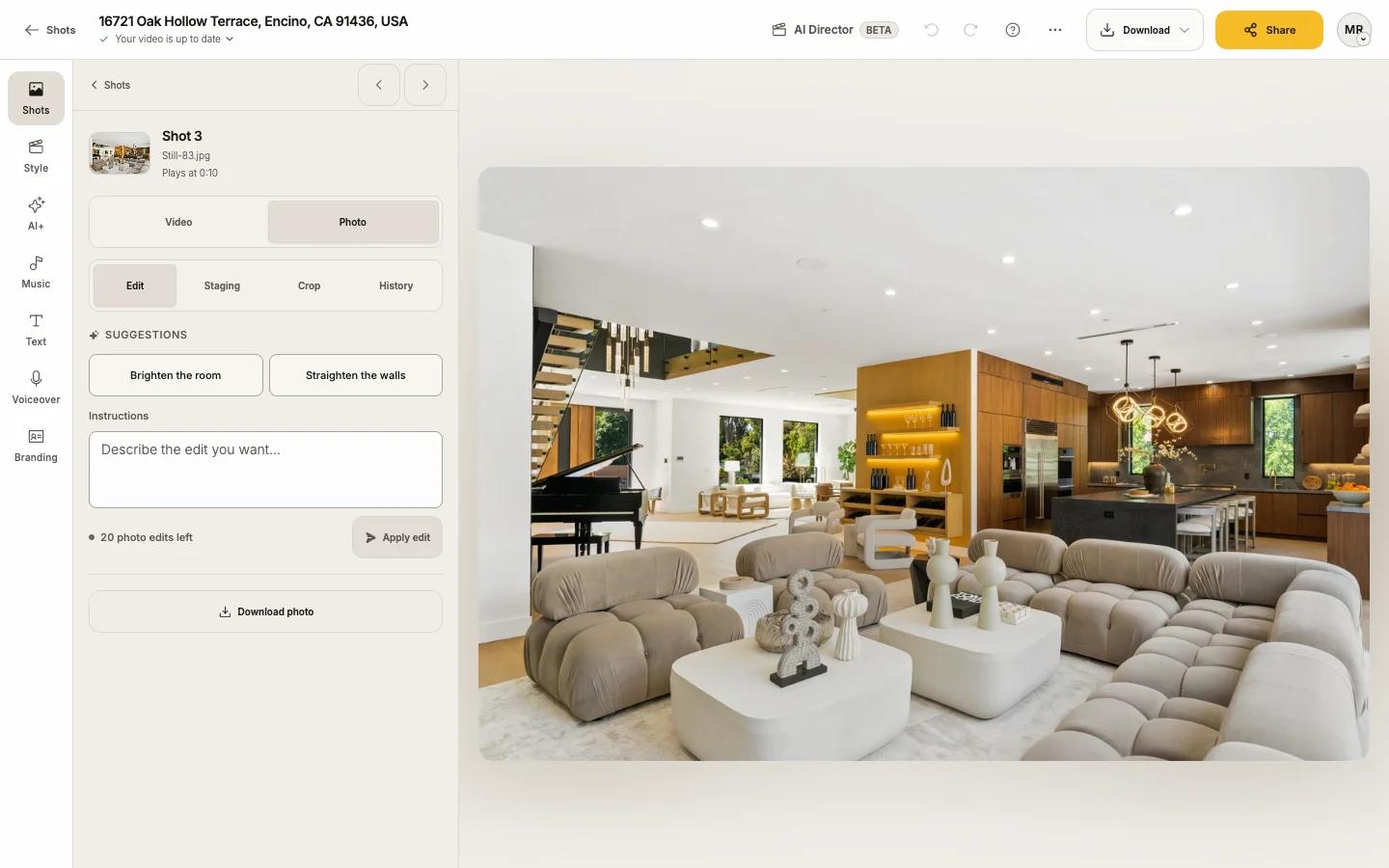
The photo editor lives inside Keylight Studio. Describe the change you want, or pick a suggestion, and Reel-E makes a new version of the photo. Your original is always kept.
Open a photo
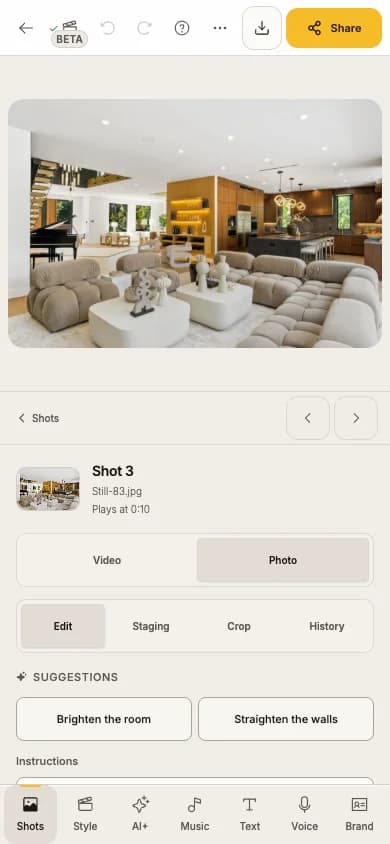
Press Edit on the shot
In Keylight, open Shots and press Edit on the shot. You can also right-click a shot and choose Edit photo.
On a phone On a phone, press the round wand button on the shot.
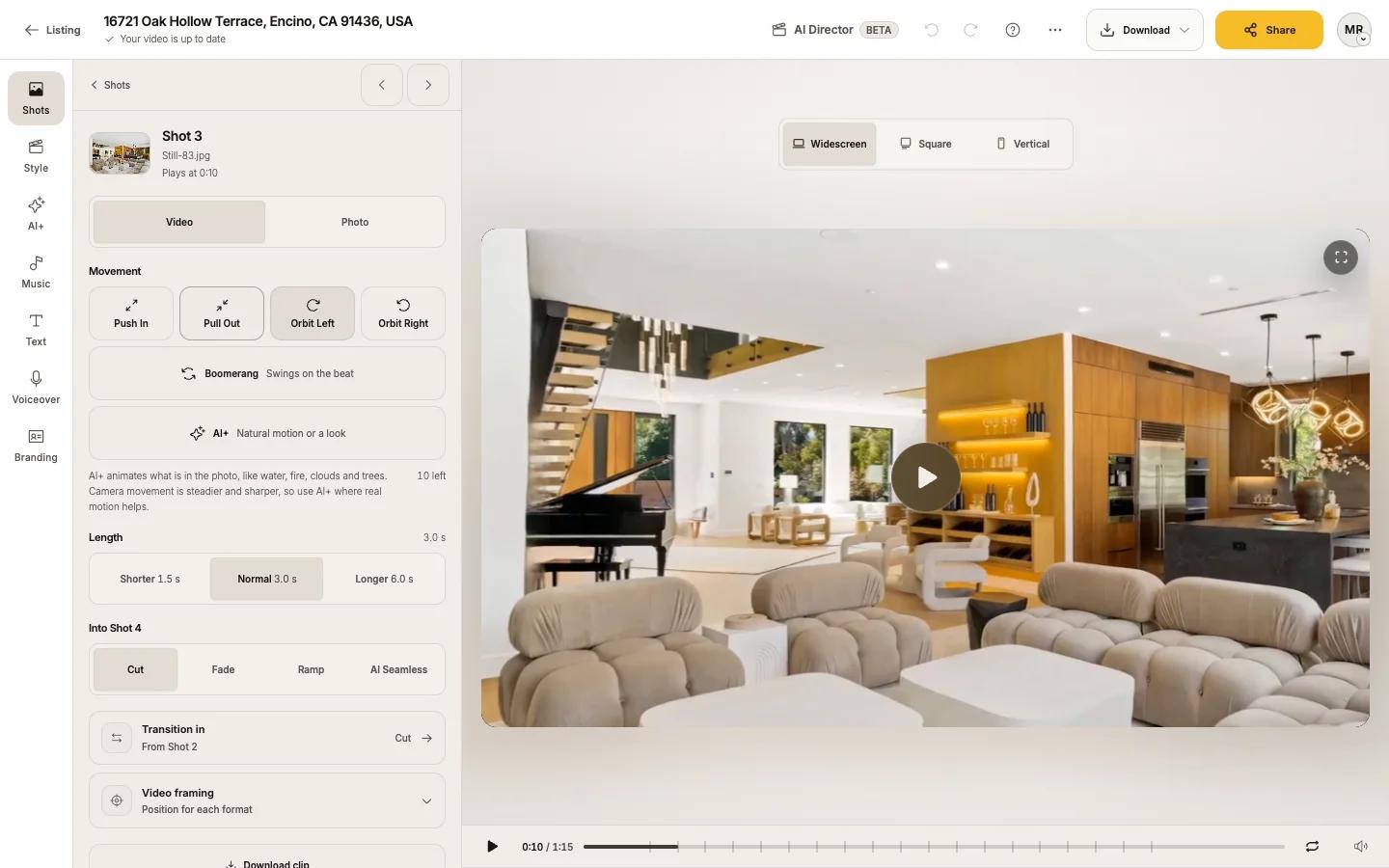
Switch the shot panel to Photo
The shot panel opens on Video. Switch it to Photo.
Pick a tab
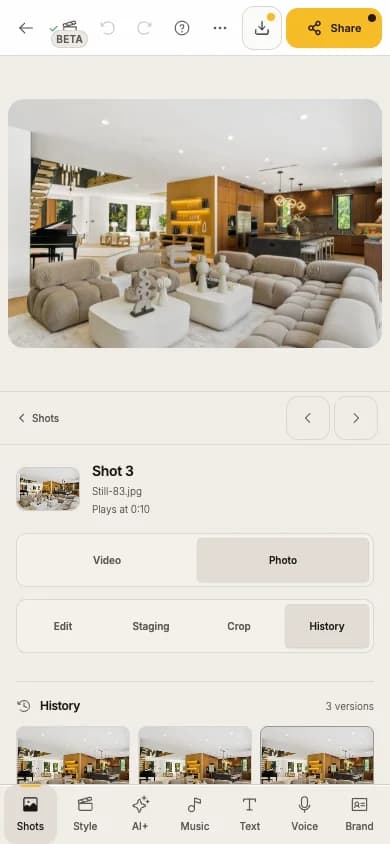
The photo fills the stage, with four tabs beside it (under it on a phone): Edit, Staging, Crop and History.
In the create flow, every photo card has Edit photo too, so you can fix photos before your video is made. Its arrows step through your photos.
Make an edit
Pick one of the Suggestions
On Edit, Reel-E looks at the photo ("Analyzing photo...") and offers Suggestions written for that photo, for example brightening a dark room or tidying a counter. A daytime outside photo also offers Make it Twilight (see Day to dusk and twilight).
Or write your own under Instructions
Describe the edit in up to 500 characters. Say what to change and what to keep: "Remove the cars from the driveway, keep the trees."
Press Apply edit
While it works the photo shows "Editing photo" and "Your original stays in History." Keep editing other shots; nothing waits on it.
The edited photo takes the old one's place
It replaces the old photo in the shot, in your listing's photos and, the next time you share or publish, on your listing website. If the shot has AI+ motion, Keylight asks before using an AI+ credit to make that clip again.
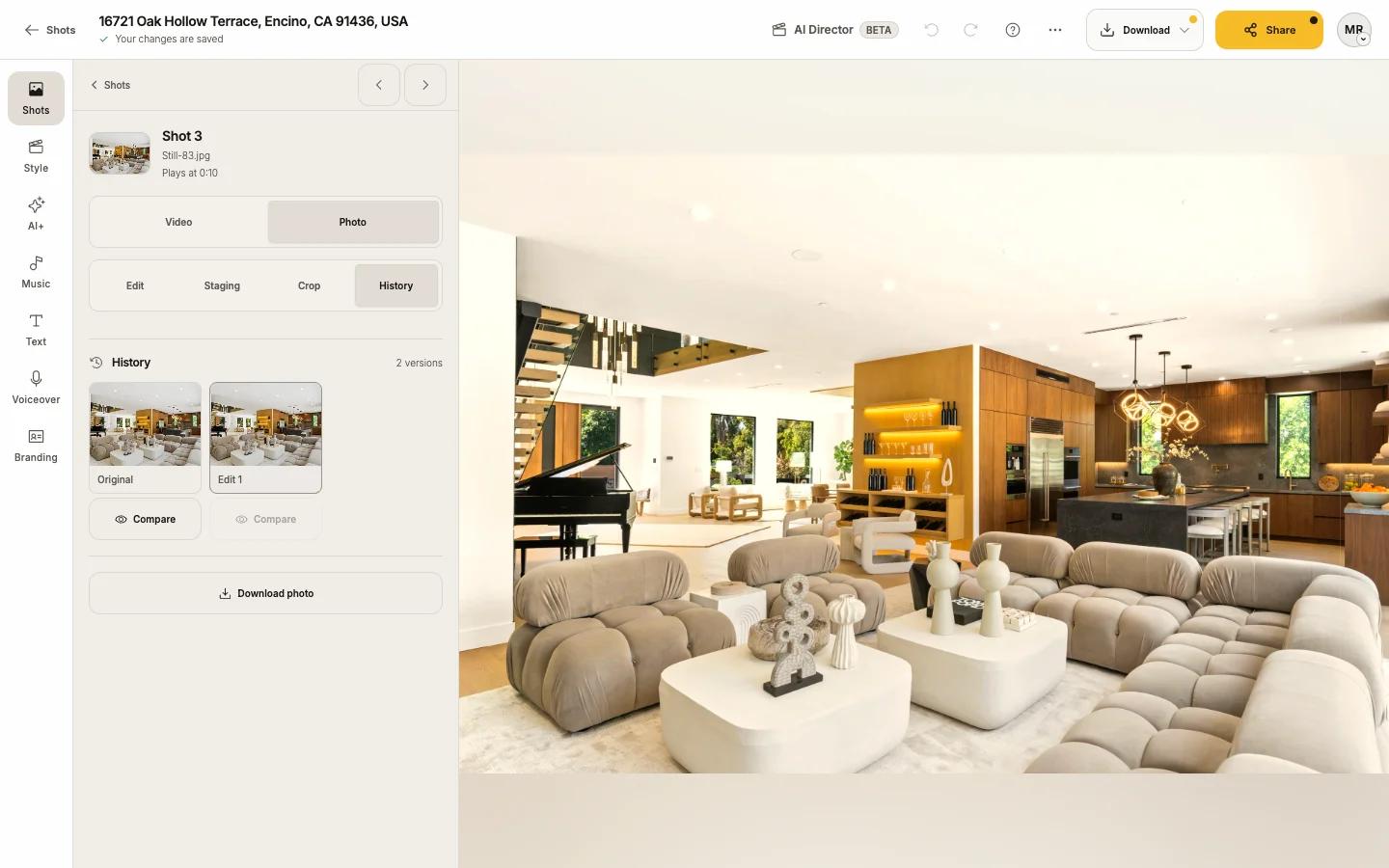
Compare, go back, or keep the original
- Compare with original shows Before and After on the stage. Close comparison returns.
- History lists every version: Original, then Edit 1, Edit 2 and so on, each with Compare. Tap a version to use it again.
- Use original puts the untouched photo back in the video. Your edits stay in History.
- Undo in the Keylight toolbar steps back a version change like any other edit.
- Download photo saves the version you are looking at, named like 12 Oak St (Photo 03 - Edited).jpg. See File names.
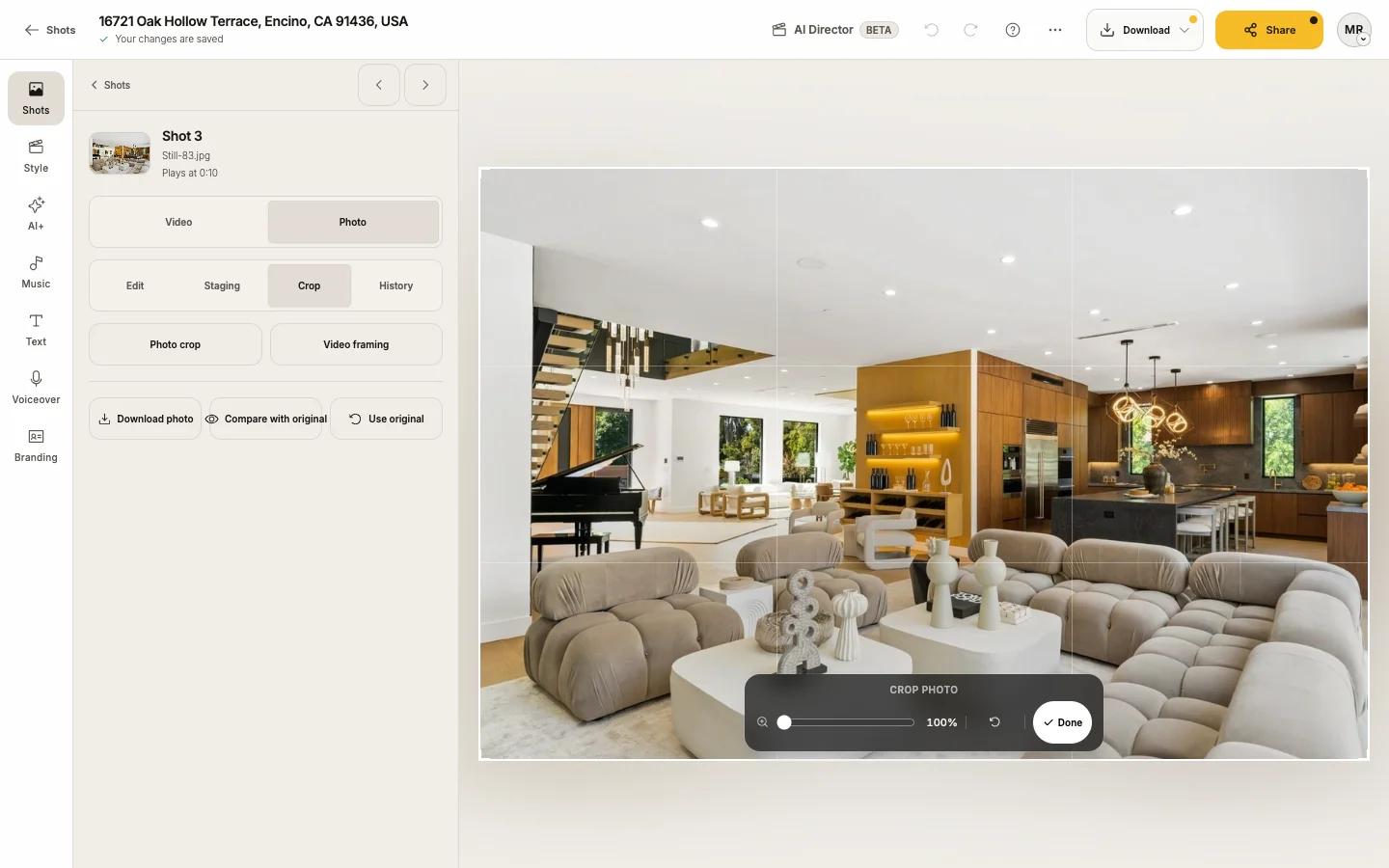
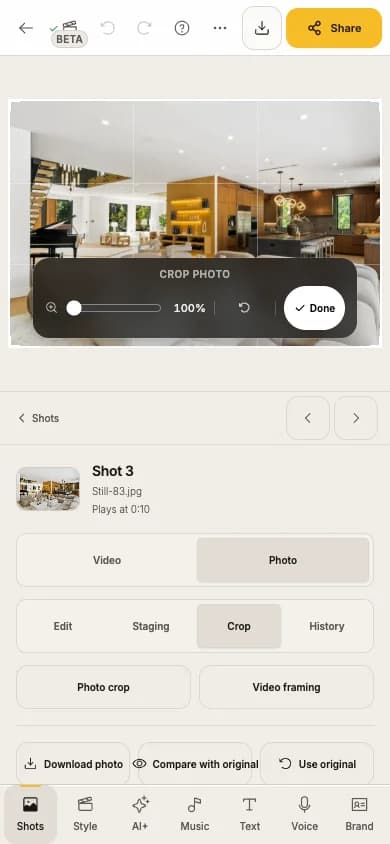
Crop
Crop has two choices, and both are free:
- Photo crop changes the photo itself, everywhere it is used (video, website, downloads).
- Video framing leaves the photo alone and sets how the shot sits in each format (Widescreen, Vertical, Square). See Camera movement and framing.
Credits
Photo edits and virtual staging share one pool per listing. Each new listing starts with a fresh allowance.
| Limit | Trial | Essential | Growth | Pro |
|---|---|---|---|---|
| Photo edits and staging per listing | 5 | 10 | 20 | 20 |
- The count shows in the editor (for example "8 photo edits left"). It turns amber when a few are left.
- A failed edit never uses a credit.
- Going back to an earlier version or the original is free, and does not give the credit back.
- When a listing runs out you see No photo edits left here and Get more edits: a Photo Edit Pack for just this listing (10 edits, $9 once), or a Photo Edit Boost for every listing, every month. Add-ons need a paid plan. See Add-ons and referrals.
Tips
If something looks off
- "Photo edit couldn't finish": your photo was not changed and no credit was used. Choose the edit again when you are ready.
- "Try a different instruction": the request was turned down. Reword it, for example without people or brand names.
- A photo that is too large: the message says the size limit. Export a smaller JPEG and add it again.
- An editor left open for about two days closes its session. Open the photo again; your history, original included, is still there.