

Publish your listing website
Every listing comes with its own website. Publish it in one click, and it keeps itself up to date.
- Time
- 1 minute
- Where
- Listing page > Website card or Listing Website; Keylight > Share > Website
- Who
- Trial and every plan
- Cost
- Included
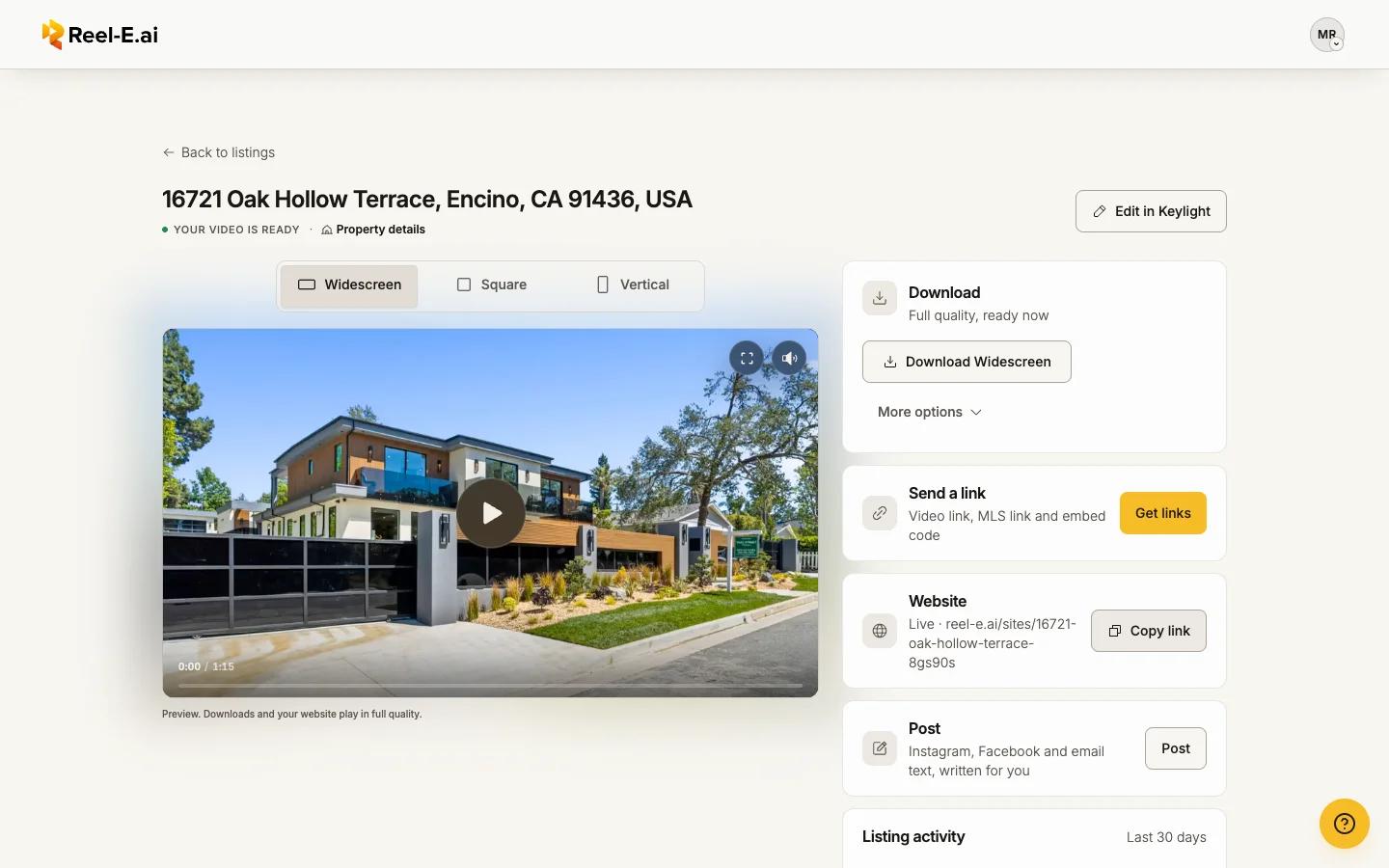
Your listing website has the video, the photos, the details, a map, your contact card and an inquiry form. Reel-E builds it from the listing you already made; there is nothing to design.
Publish
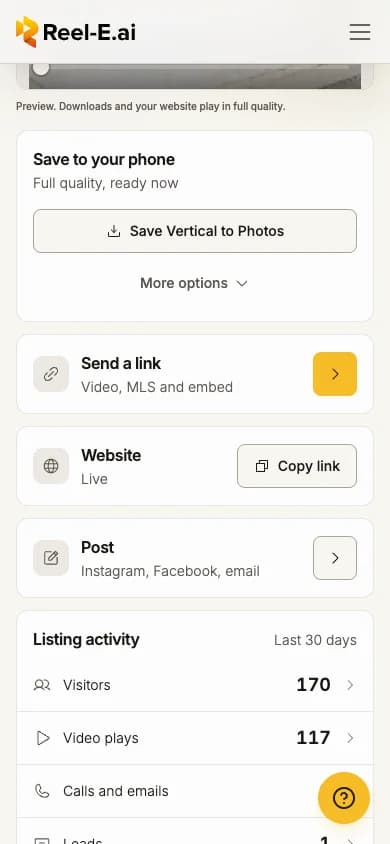
Open the listing and find the Website card
The card shows the status: Not set up yet, Ready to publish or Live.
Press Publish
On the card, in the Listing Website section further down, or in Keylight under Share > Website. If the card says Set up, press it first; the site is made from your listing.
Copy the link
"Your website is live" appears with Copy link and Undo. Undo takes it offline again.
The Listing Website section then reads "Your listing website is live." with View website, Edit website, this week's visits and leads, and a More website actions menu.
What updates by itself
A live site has no publish button. It follows your saved work:
- Property details (price, beds, baths, description), Website settings and your contact card go live within seconds of saving.
- The video changes when you save a new video: download it, share a video link, or save a checkpoint in Keylight's History. Keylight's automatic saves do not change the site. The new video replaces the old one when it is ready; the old one stays up meanwhile.
- The status line says Up to date, Live · Updating or Unpublished video changes.
In Keylight, Share > Website can also push the latest video at once (Publish latest video).
On the trial
You can publish during your trial. The site plays the watermarked video, and swaps in the clean video by itself when you start your plan. A trial site stays public while the trial is active and goes offline if the trial ends without a paid plan. See Your trial and the watermark.
If Publish is held back
Reel-E tells you what it needs and leaves the site unchanged:
| Message | What to do |
|---|---|
| Add the property address | Open Property details and add the address. A listing named without an address publishes without a map. |
| Save your latest video edits first | Press Open Keylight and save your video, then publish. |
| Photos are still uploading | Publish when they finish. |
| Your video is still being made | Publish when it is ready. |
Unpublish
Open More website actions > Unpublish (or Unpublish in Share). "Your website will be hidden until you publish it again. Your settings are kept." Visitors then see "This listing is not published". Publishing again brings it back at the same address.
Promote it
Once the site is live, the Promote card opens QR code and flyer: a QR code as PNG or SVG for yard signs, and Open printable flyer (one page with photos, price, details, your card and the QR code; Save as PDF). Changing the web address breaks printed codes.