

Website settings
Choose what the top of the page shows, set the status, order the gallery, add an open house, floor plans or a 3D tour, and change the web address.
- Time
- 2 to 5 minutes
- Where
- Listing page > Listing Website > Edit website
- Who
- Trial and every plan
- Cost
- Included
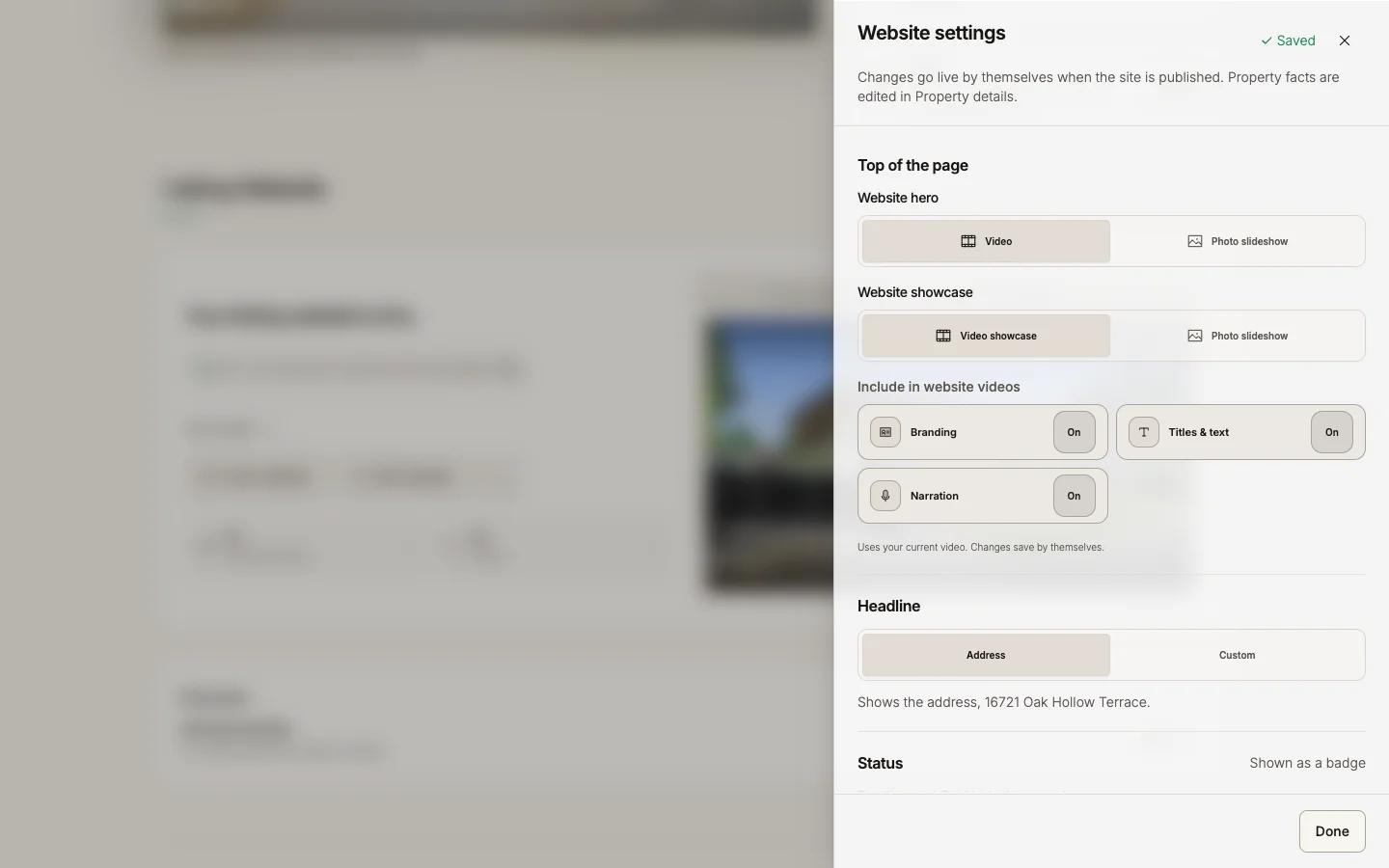
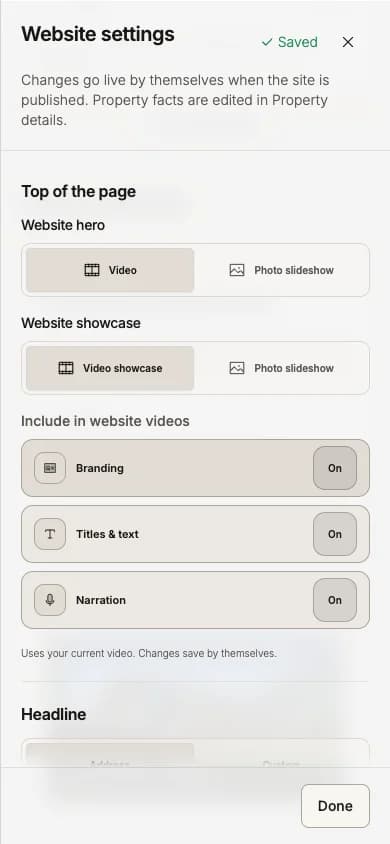
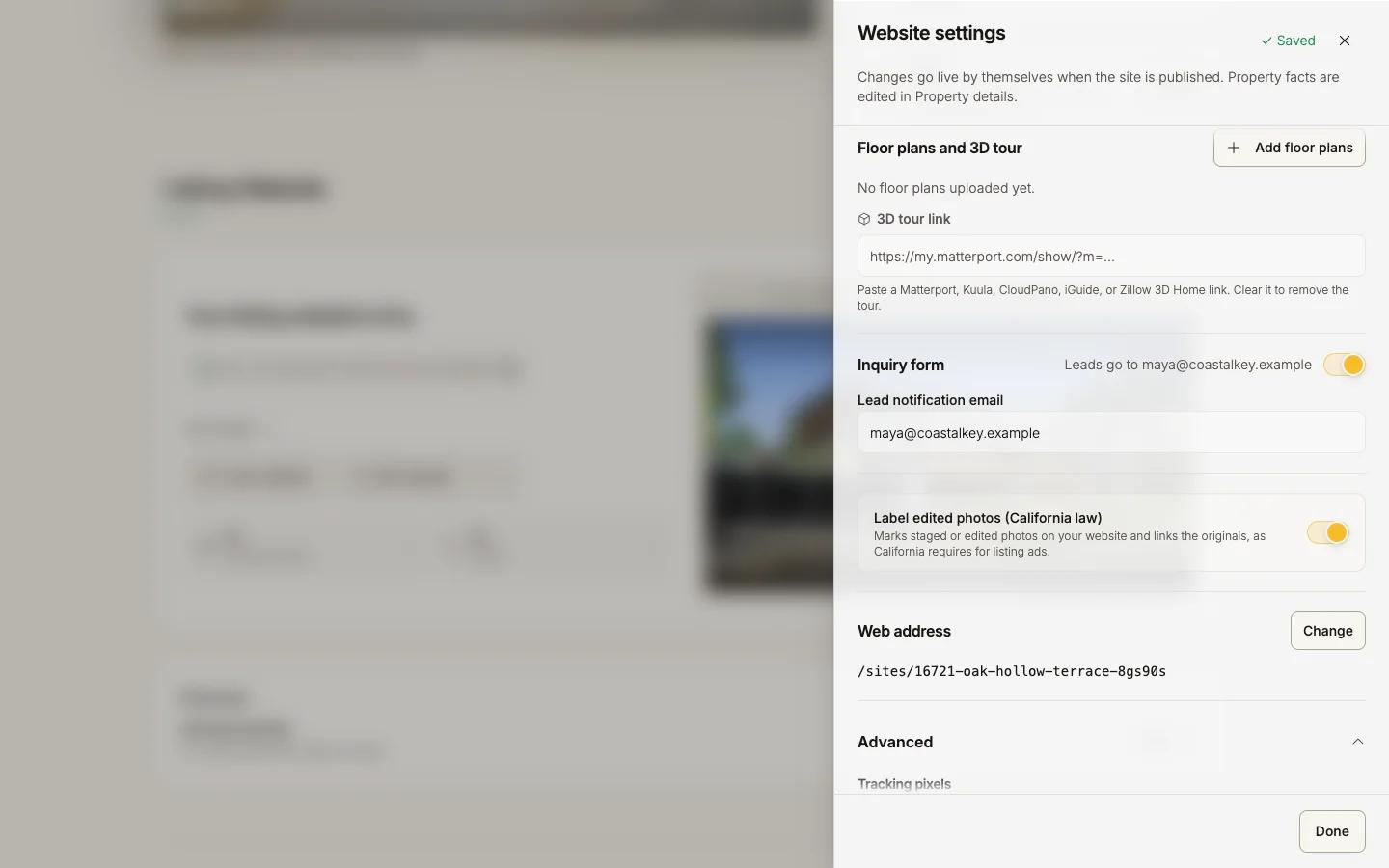
Press Edit website to open Website settings: one scrolling sheet that saves as you go ("Saving", then "Saved"). Done closes it. Changes go live by themselves when the site is published.
Price, address, beds, baths, square feet and the description are not here: edit them in Property details, under the listing title. They update the site within seconds of Save details.
The sections
| Section | What you set |
|---|---|
| Top of the page | The hero: Video or Photo slideshow. The showcase further down: Video showcase or Photo slideshow. |
| Headline | Address or Custom. |
| Status | For sale, Coming soon, Pending or Sold (rentals: Available, Coming soon, Application pending, Leased), shown as a badge. Sold shows "Just sold" for 60 days, with an optional Sold price. Pending and Sold hide the open house. |
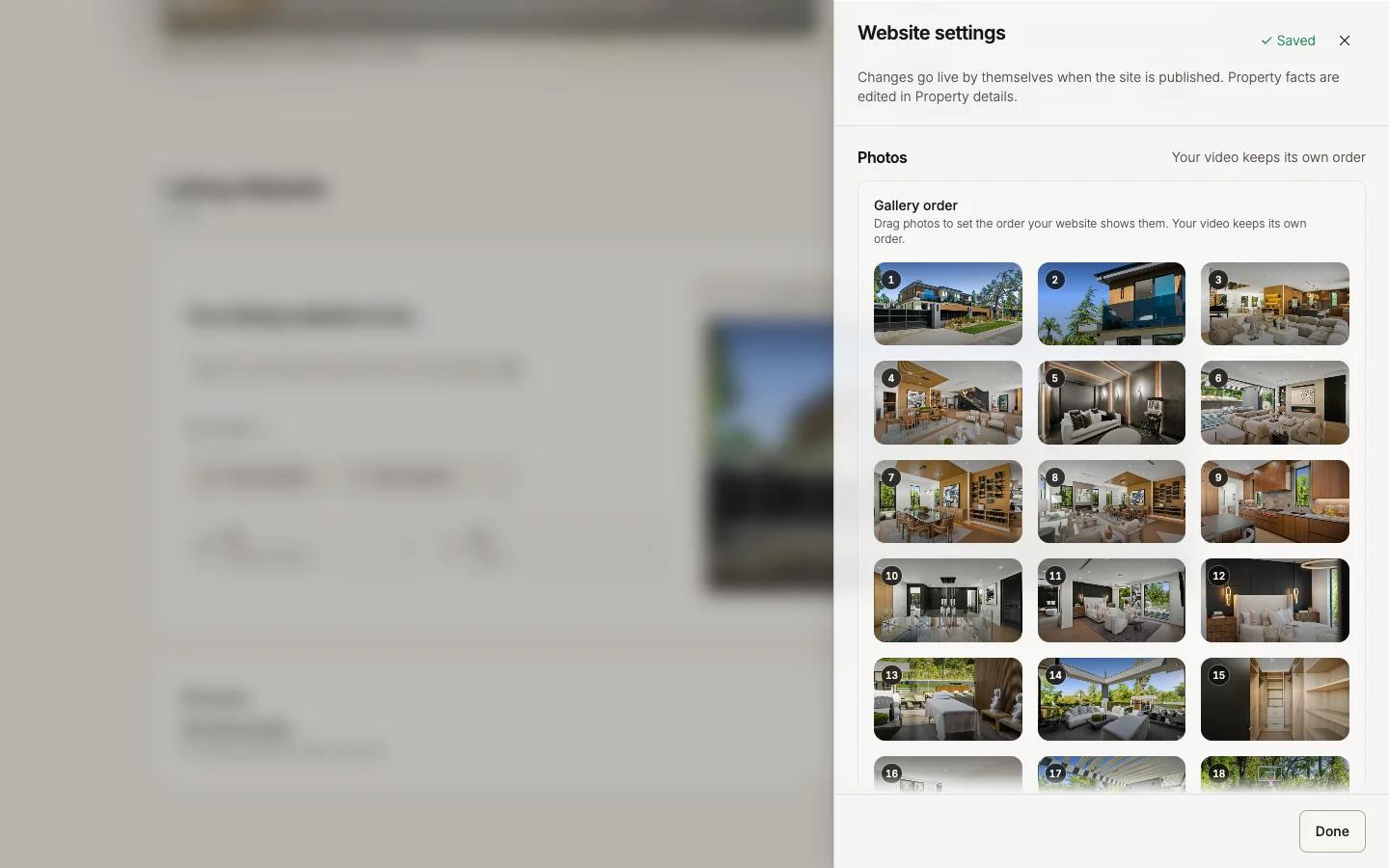
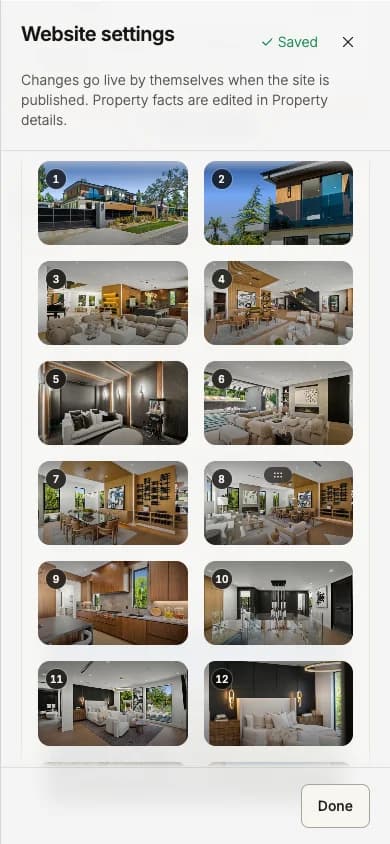
| Photos | Gallery order: drag photos into the website's order (your video keeps its own). Feature Photos (up to two). Bottom Banner: Automatic (middle photo) or your pick. |
| Features | Tap preset features or Add your own. |
| Open house | Turn it on, then Date, Start, End. |
| Floor plans and 3D tour | Add floor plans, and paste a 3D tour link from Matterport, Kuula, CloudPano, iGuide or Zillow 3D Home (the share link, not embed code). The site gets a 3D Tour section. Clear the field to remove it. |
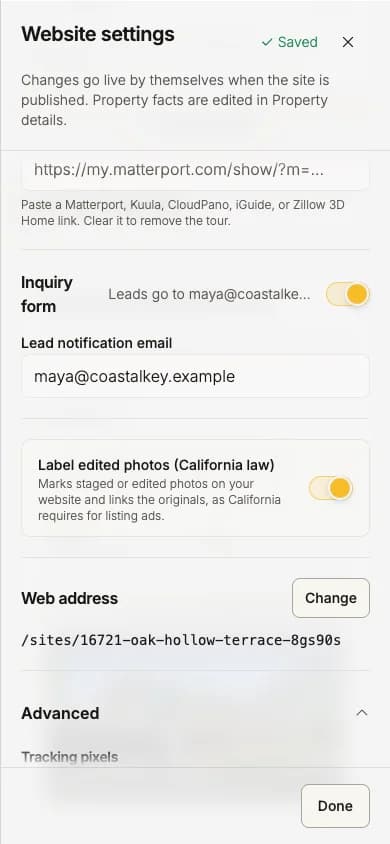
| Inquiry form | On or off, and the Lead notification email. See Leads and analytics. |
| Label edited photos (California law) | California addresses only, on by default. Labels edited photos "Digitally altered" and staged ones "Virtually staged", and links the originals. Other listings have no switch. |
| Footer logo | On Pro the "made with Reel-E" credit is hidden and you can add your own logo there. |
| Web address | The address of the site, and your own domain. See Change the web address. |
| Advanced | Tracking pixels. See Tracking pixels. |
Change the web address
Under Web address, press Change
Type the new address
Use letters, numbers and dashes. Reel-E checks it: Available or This URL is already taken. Addresses are unique across Reel-E, so a common street name may be taken.
Press Use this address
Tracking pixels
Under Advanced > Tracking pixels, add your Meta Pixel ID and Google tag ID (for example G-AB12CD34EF or AW-123456789; the Find it links show where to copy them), then press Save tracking.
- The IDs apply to all your listing websites. Turn off Use on this listing website to leave one out.
- Pixels never load on MLS links or video share links, and they respect a visitor's Global Privacy Control.
- Only IDs are accepted, not Tag Manager containers or code.
Rentals
Set This listing is to For rent in Property details. The price becomes Monthly rent (shown as a price per month), optional rental terms show on the site, and the form reads "Request a showing".