

Shot length, Style and transitions
Your video is cut to the beat of the song. Pick a Style for the whole video, then fine-tune any shot's length and transition.
- Time
- 2 minutes
- Where
- Keylight Studio > Style; Shots > Edit > Length and Into
- Who
- Trial and every plan
- Cost
- Free. AI Seamless uses 1 AI+ credit
Pick a Style
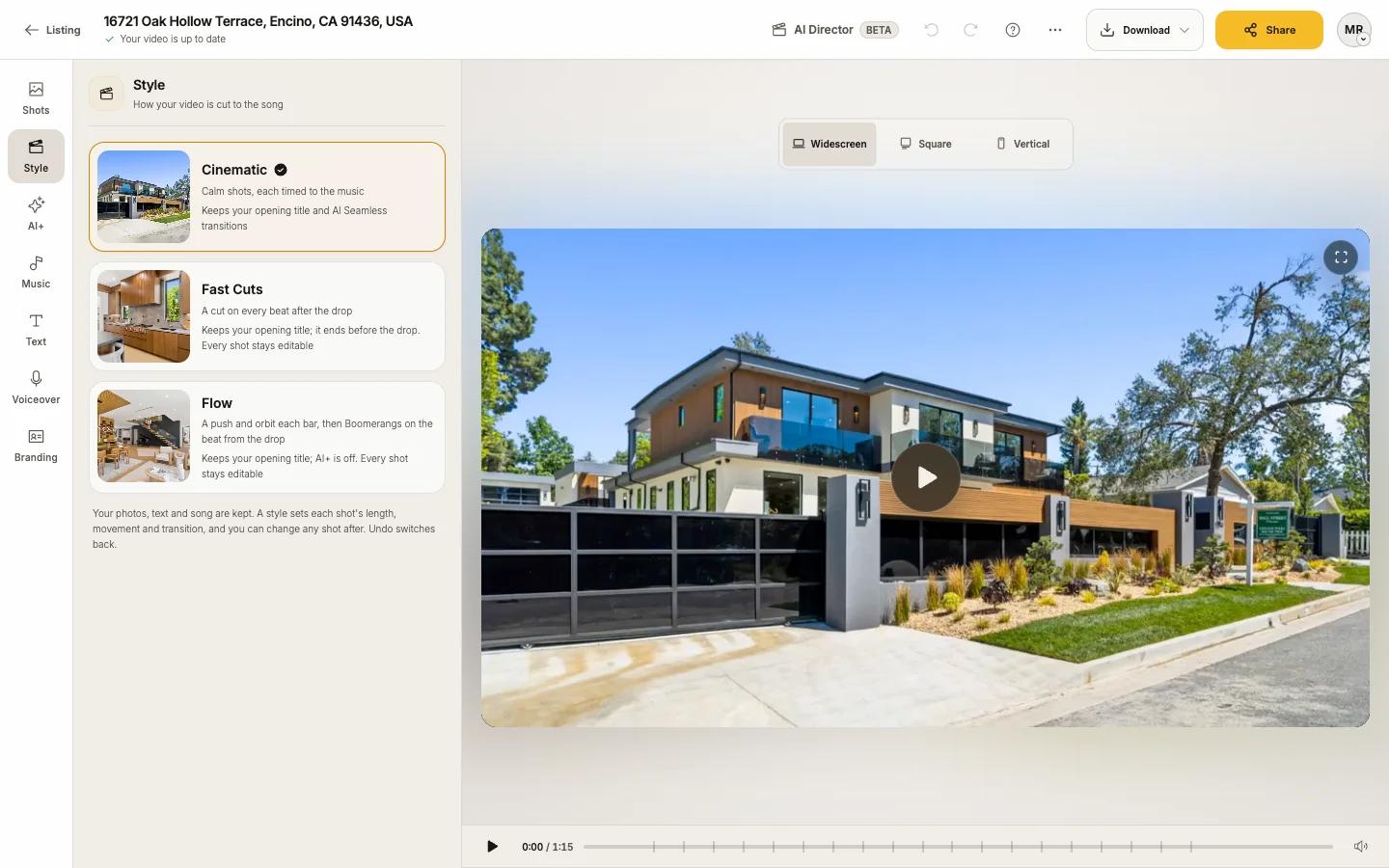
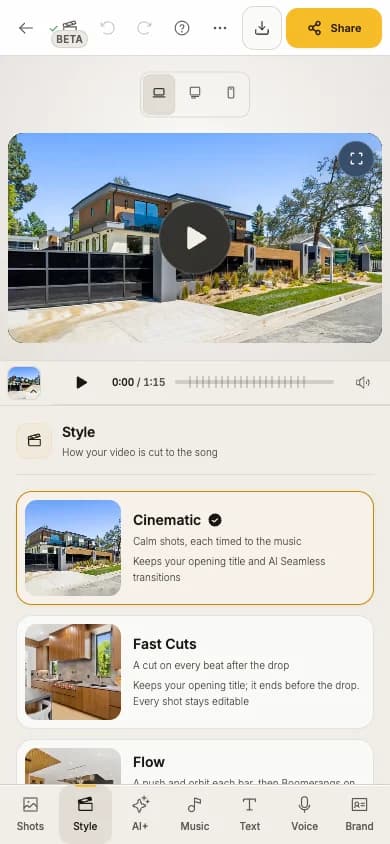
In Keylight Studio, open Style ("How your video is cut to the song") and choose one:
| Style | What it does | Good to know |
|---|---|---|
| Cinematic (default) | Calm shots, each timed to the music | Keeps your opening title and AI Seamless transitions |
| Fast Cuts | A cut on every beat after the drop | Keeps your opening title; it ends before the drop. Every shot stays editable |
| Flow | A push and orbit each bar, then Boomerangs on the beat from the drop | AI+ is off in Flow, and so is narration. Your AI+ shots are kept and come back in Cinematic |
Your photos, text and song are kept. A Style sets each shot's length, movement and transition, and you can change any shot after; Undo switches back. After you change shots, the Style shows "edited" and offers Reset to that Style.
Change one shot's length
In Shots, press Edit on the shot
Under Length, choose Shorter, Normal or Longer
Each shows its seconds for this song, for example "Shorter 1.5 s · Normal 3.0 s · Longer 6.0 s".
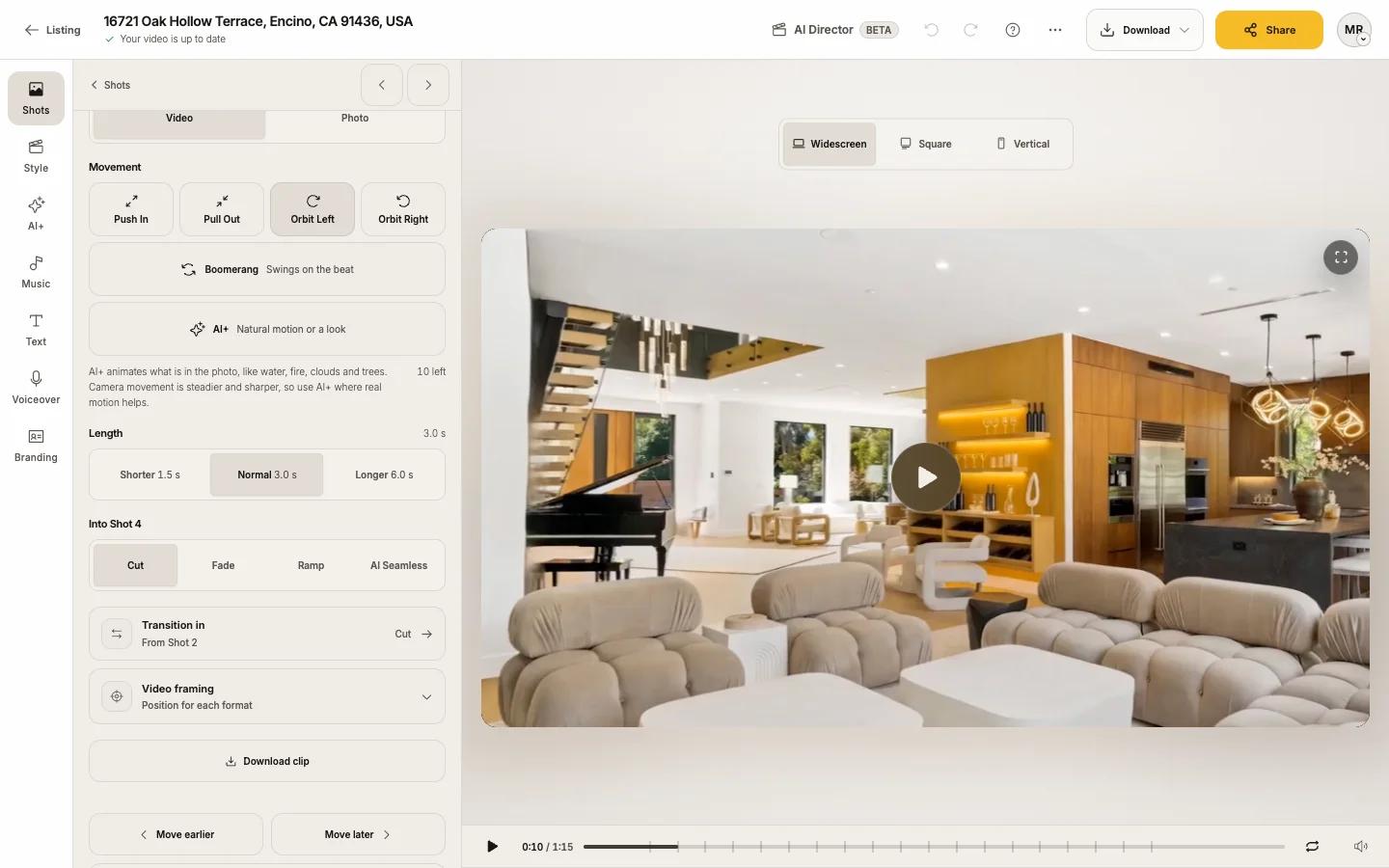
Lengths follow the beat, so there is no seconds box. Some shots are locked, with the reason shown:
- The opening shot and the closing shot have a set length, timed to open and end the video.
- Shots joined by AI Seamless keep the length of their transition.
- An AI+ shot has Trim AI+ shot instead (free).
- If the opening title needs more time on screen, Keylight offers Remove the title or keeping the title at its length.
The total length is in the Shots count line ("14 shots · 0:57"). To shorten the whole video, take shots out, choose Shorter on a few, or try Fast Cuts.
Change a transition
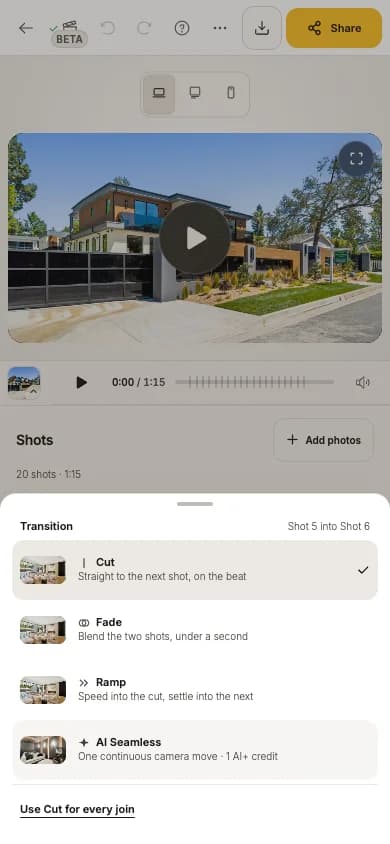
Between two shots in Shots is a small button showing the join. Click it, or in an open shot use the transition into the next shot ("Into Shot 4"):
| Transition | What it does |
|---|---|
| Cut | Straight to the next shot, on the beat |
| Fade | Blends the two shots, in under a second |
| Ramp | Speeds into the cut and settles into the next shot (a speed ramp) |
| AI Seamless | One continuous camera move from the first photo into the second. 1 AI+ credit. See AI Seamless |
Use Fade for every join sets them all at once.
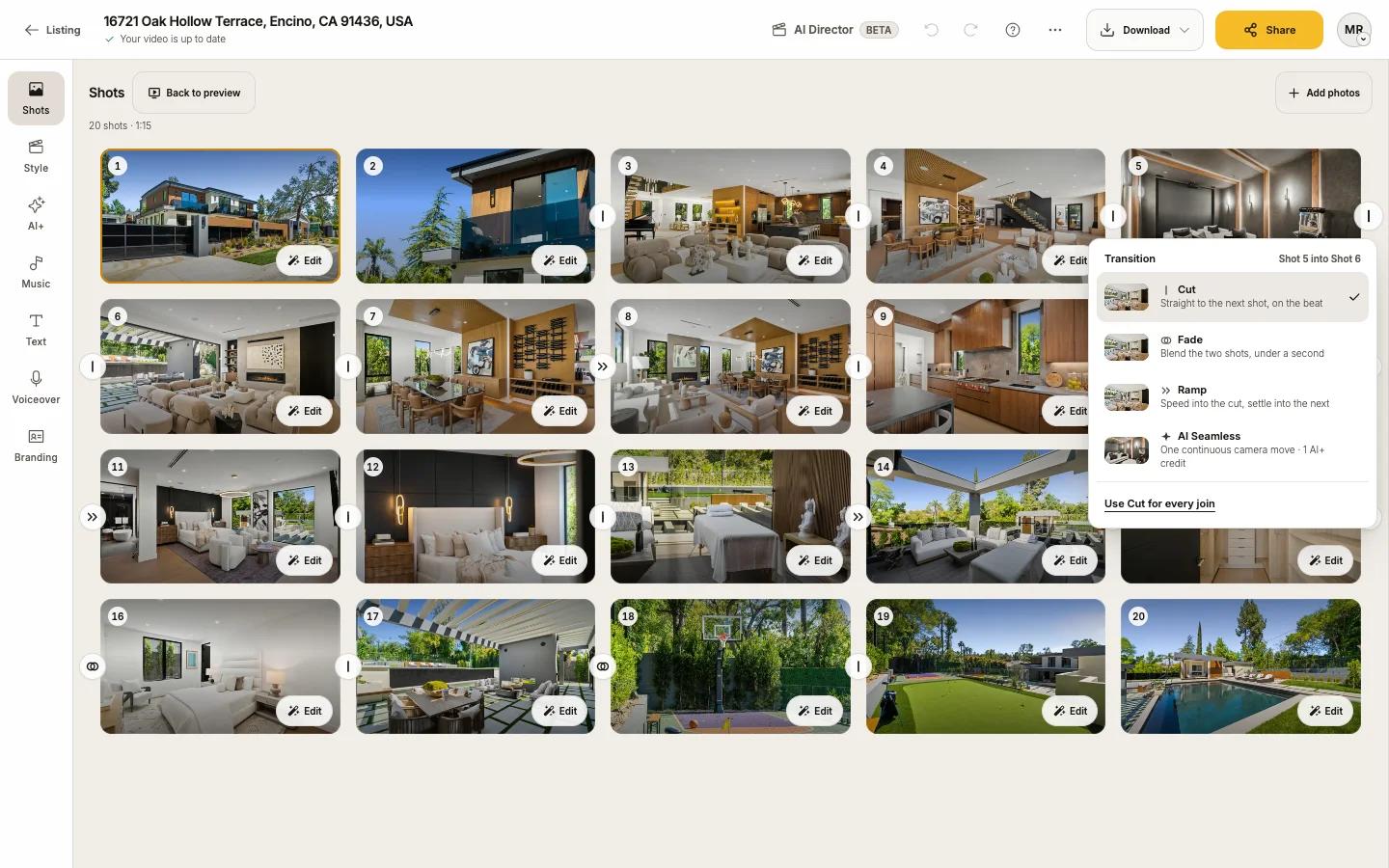
Some joins cannot change: the cuts next to the opening and closing shots stay clean, and joins next to an AI+ shot or an AI Seamless pair are fixed.
Fade in and out of black
In Text or Branding, Fade in and out of black is on by default. Off opens on the first frame and holds the last.