

Download your video
Save any format, with or without your branding, or all of them in one ZIP. Files that are not made yet download by themselves when they are ready.
- Time
- Seconds for a ready file; a few minutes for a new one
- Where
- Keylight > Download; listing page > Download card
- Who
- Everyone. Trial files carry the watermark
- Cost
- Included
From Keylight Studio
Press Download in the toolbar
The menu is titled Download your video.
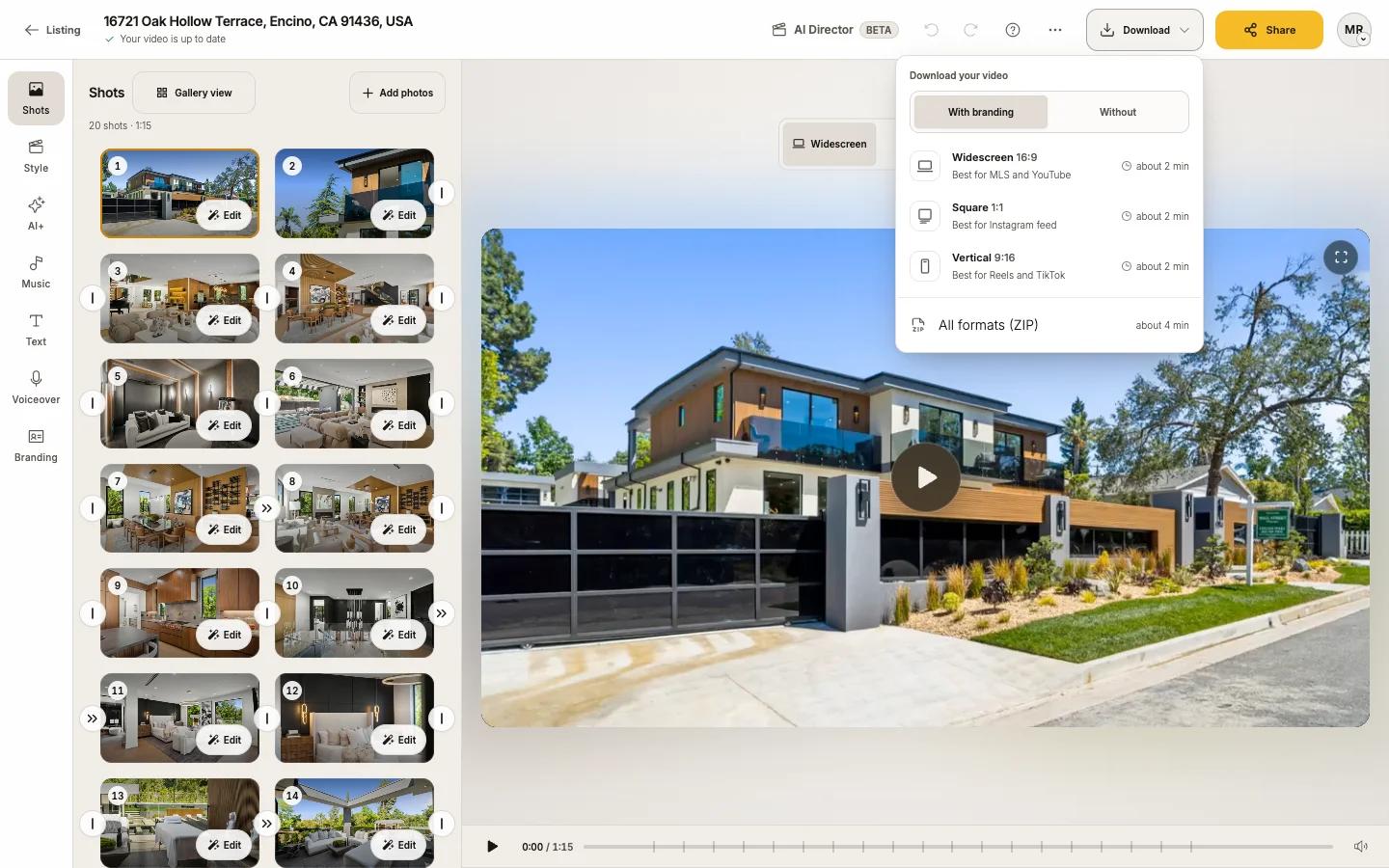
Choose With branding or Without
Without leaves out the title, contact card and logo, which is what MLS rules usually ask for. Reel-E remembers your choice. A video with no branding skips this.
Pick a format, or all of them
Widescreen 16:9 (MLS and YouTube), Square 1:1 (Instagram feed) or Vertical 9:16 (Reels and TikTok). Or All formats (ZIP).
Wait for Ready, or let it download by itself
Each row says Ready, or how long it needs ("about 2 min"). A ready file saves at once. A new one is made first: the button shows "Preparing Widescreen · about 2 min", then downloads by itself, "even if you leave this page."
From the listing page
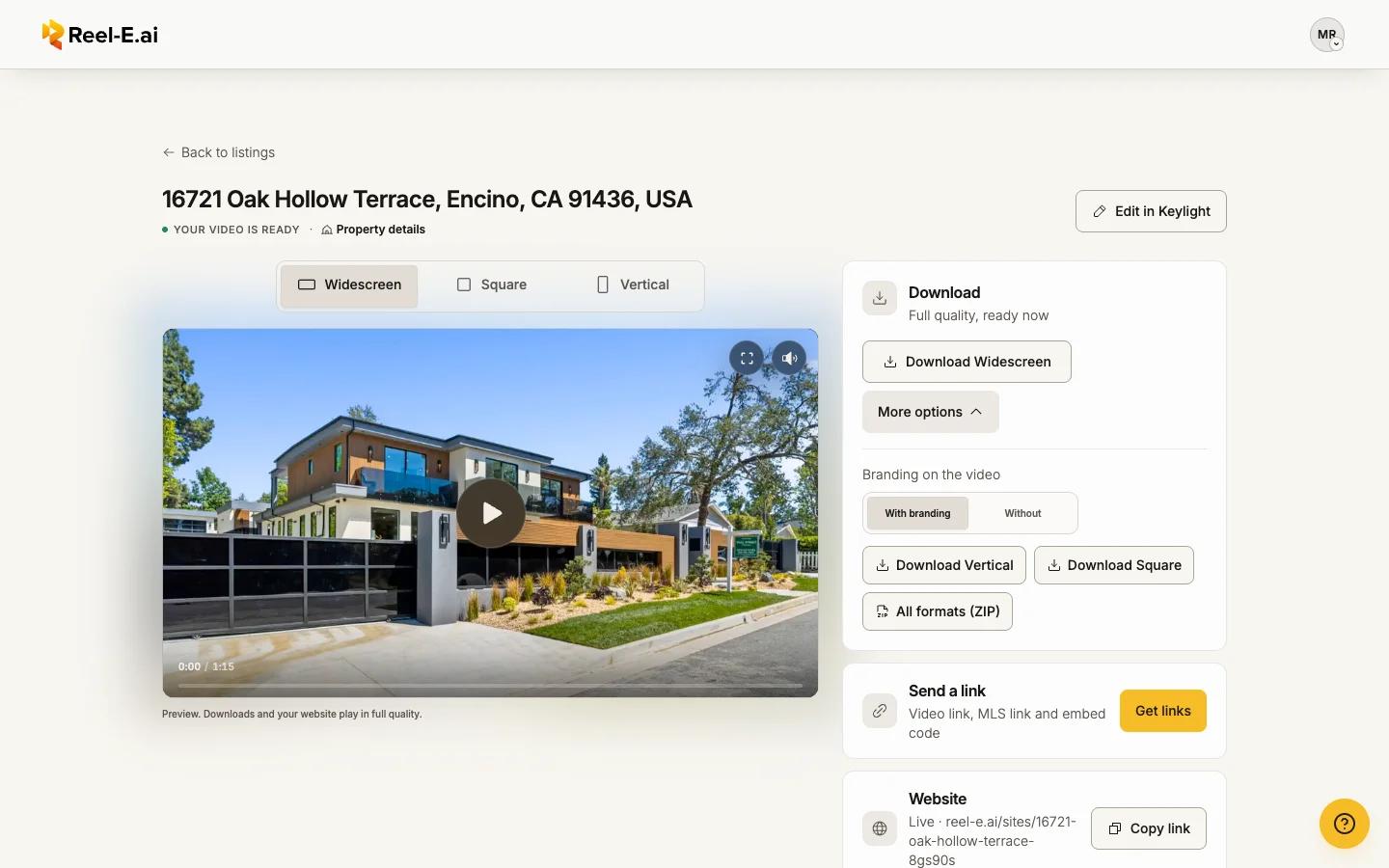
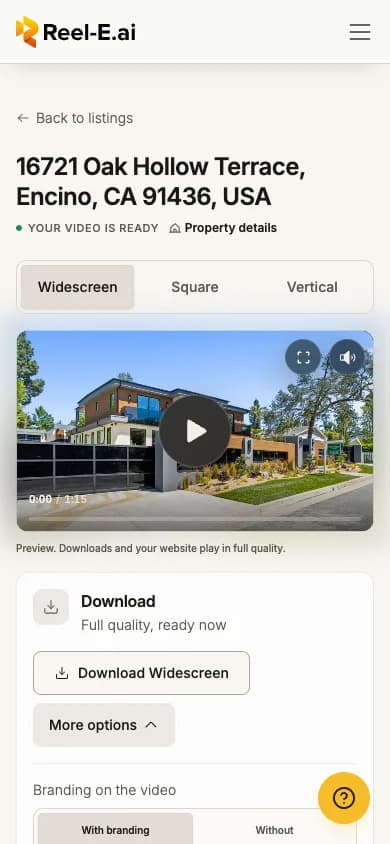
The Download card under the video has the main format as one button (Download Widescreen; on a phone Save Vertical to Photos) with "Full quality, ready now" or when it will be ready. More options has Branding on the video (With branding / Without), the other formats and All formats (ZIP).
The downloads tray
Every download you asked for, on any listing, shows in the tray at the bottom left: Making your video, Packing the ZIP, Ready, Downloaded. Close the tab and come back; the tray picks up where it was. Open the project to download means the file is ready but needs the listing open to save.
On a phone
On a phone, downloads save to Photos (Save to Photos). The ZIP is not offered on a phone; save each format instead.
What is in the files
- Full quality for your plan (see Limits below). The player in Keylight and on the listing page is a lighter preview; downloads and your website play in full quality.
- More download choices in Share also has Titles & text and Narration switches for a file without text or without voiceover. See File names for how each version is named.
- The ZIP holds every format with and without branding (six files), or three when the video has no branding.
Download one shot's clip
Each shot's movement clip can be saved on its own: open the shot (Edit) and press Download clip. Clip downloads are on Growth and Pro. On other plans and the trial the button explains it and offers the upgrade.
Trial videos
Trial downloads carry the Reel-E watermark: "Trial videos carry the Reel-E watermark. It comes off when you upgrade." After you start your plan, download again and Reel-E makes the clean file. A file saved during the trial keeps its watermark. See Your trial and the watermark.
Limits
| Limit | Trial | Essential | Growth | Pro |
|---|---|---|---|---|
| Download quality | 1080p | 1080p | 1080p | 4K |
| Single-clip downloads | No | No | Yes | Yes |
If something looks off
- Download paused or Download didn't start: your browser held the file back. Allow downloads for reel-e.ai and choose the format again; the file is already made, so it saves at once.
- One download at a time…: the next one starts when the current one finishes.
- A soft-looking video on social media is usually the platform's copy. Compare it with the downloaded file.