

Your listing page
Every listing has one page: watch the video, download it, send a link, publish the website and get the post written for you.
- Time
- 1 minute
- Where
- Dashboard > a listing
- Who
- Everyone
- Cost
- Included
When your video is ready, its listing page is where you watch it and send it out. Open it any time from your dashboard by choosing the listing.
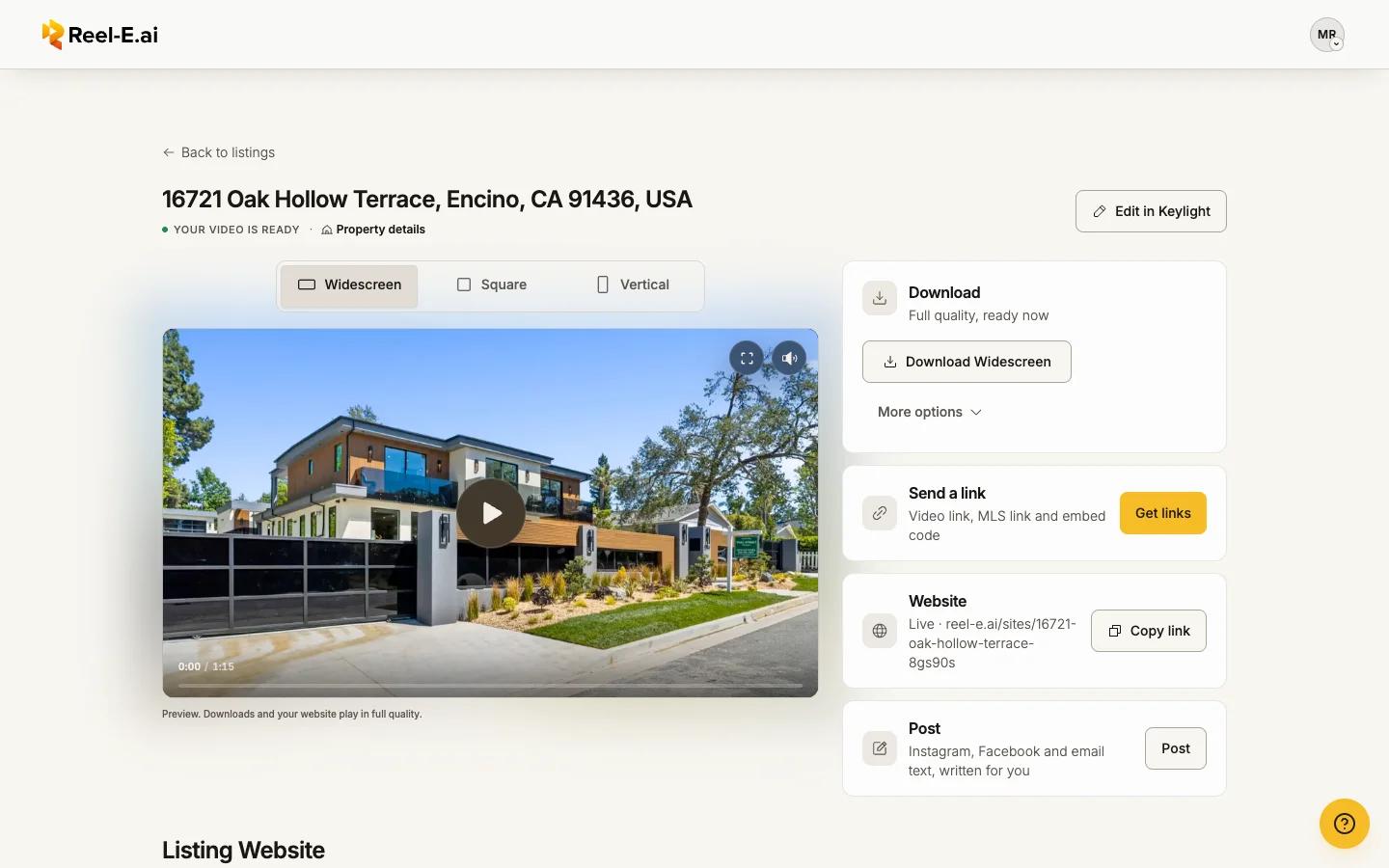
What is on the page
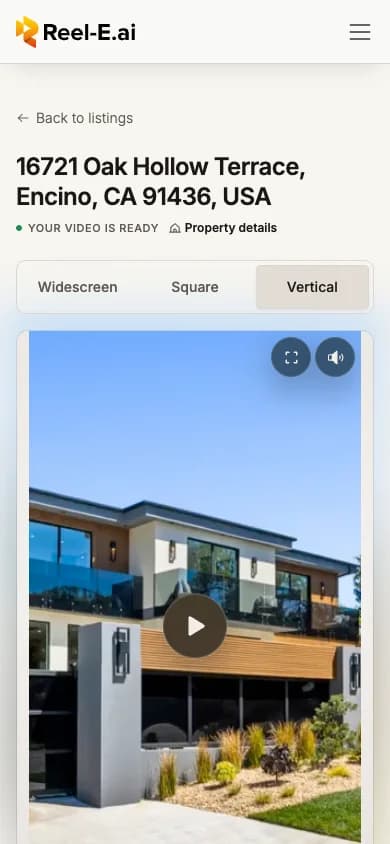
- The video: choose Widescreen, Square or Vertical above the player. The player shows a preview: "Downloads and your website play in full quality."
- Edit in Keylight: opens Keylight Studio to change anything. On a phone it sits after the cards.
- Download: full-quality files: the main format as one button (Download Widescreen, or the format you picked), and More options for the other formats and All formats (ZIP). A file that is not made yet says when it will be ready ("Full quality, ready in about 2 min") and downloads by itself when it is, even if you leave the page. See Download your video.
- Send a link: the video link, the MLS link and the embed code, behind Get links. See Links, MLS link and embed.
- Website: your listing website's status (Not set up yet, Ready to publish or Live) with Set up, Publish or Copy link. See Publish your listing website.
- Post: Instagram, Facebook and email text, written for you. See Post to social.
Further down: Listing Website with View website and Edit website, the QR code and flyer for yard signs and open houses (once the website is live), and Delete this listing.
While the video is being made
The same page shows Creating your video with each stage until it is ready. You can close the tab once your photos are uploaded; Reel-E keeps going and the page is ready when you come back.
On the trial
Trial videos carry the Reel-E watermark, and editing is included. Trial listings may also show a short list of first edits to try, such as Add your contact card or Rearrange your shots. See Your trial and the watermark.