

Music
Change the song and your whole video re-times to its beat. Use the royalty-free library, your own track, or create one.
- Time
- 1 minute
- Where
- Keylight Studio > Music
- Who
- Trial and every plan
- Cost
- Free. Created tracks: 5 per listing, 12 per day
Every cut lands on the beat. When you change the song in Keylight Studio, Reel-E re-times the video to the new beat in a couple of minutes; keep editing while it does ("Syncing to the new song").
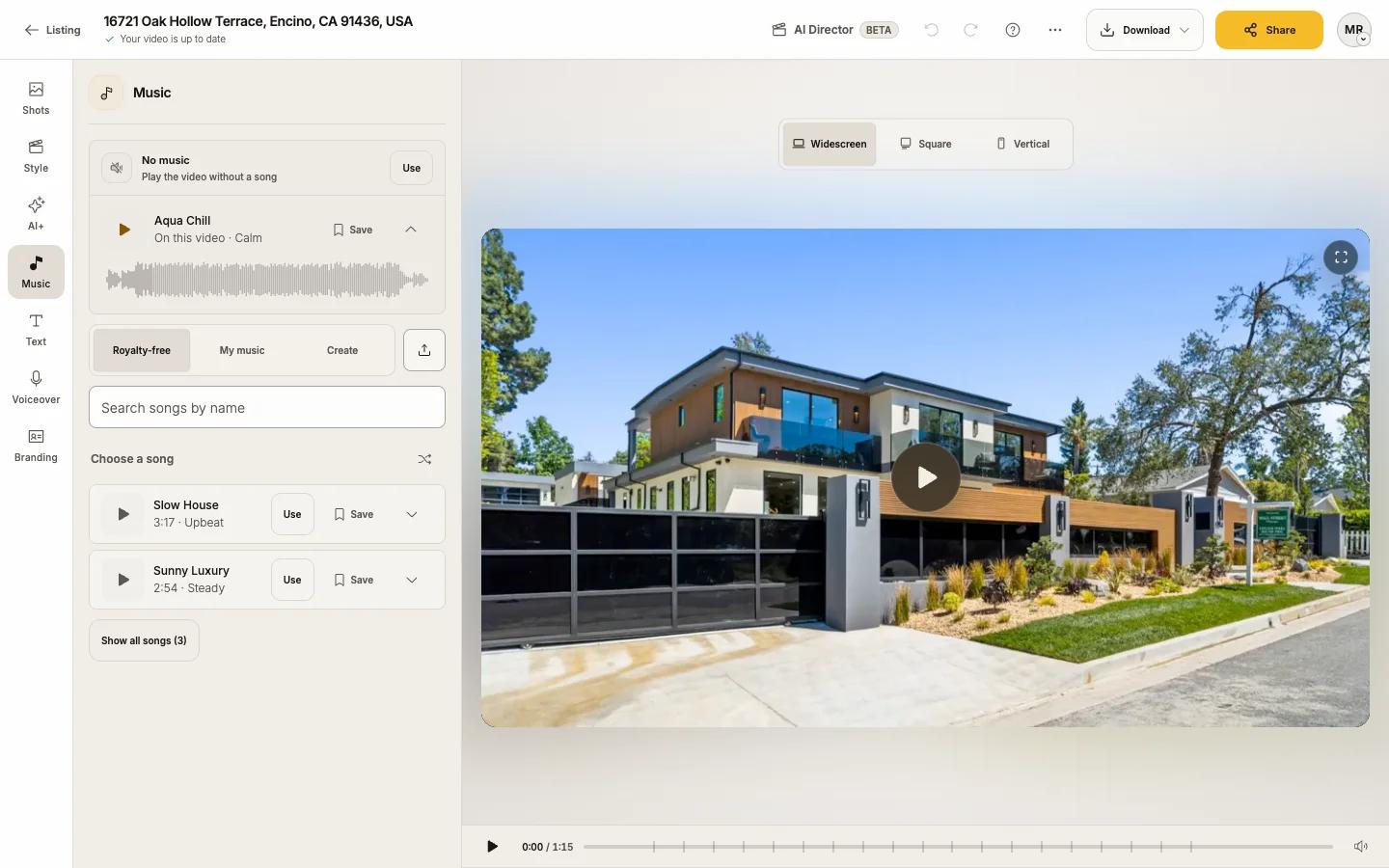
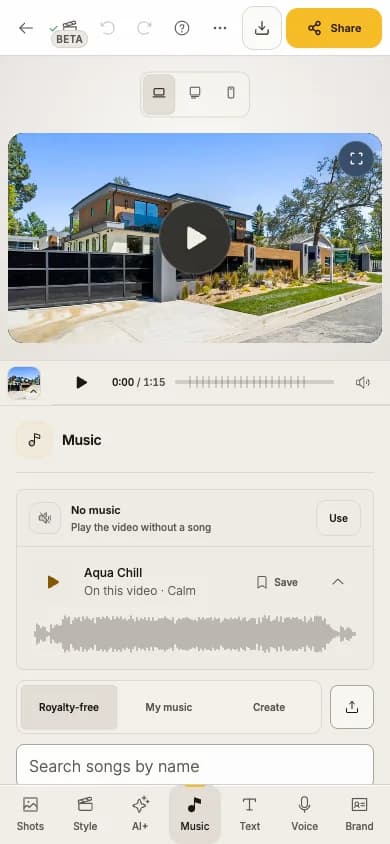
Change the song
Open Music
The song in use is at the top, marked "On this video". Under it, the start line tells you where the song starts relative to its drop.
Listen to the suggestions
Under Royalty-free, Choose a song shows suggestions. Press play on any song to hear it. Each shows its length and feel: Calm, Steady or Upbeat.
Press Use
"Now using" and the song's name appear, with Undo.
More songs: Shuffle suggestions for new ones, Show all songs for the whole library, or search with Search songs by name. With Fast Cuts or Flow, songs that suit the Style come first, marked "Great for" the Style.
No music at the top plays the video without a song. All library music is original and royalty-free: use your video on any platform.
Use your own track
Open My music, or press Upload music
Choose Upload soundtrack
MP3, WAV, M4A, AAC, FLAC or OGG, up to 20 MB, from 10 seconds to 6 minutes. Up to 5 files at a time.
Press Use on it
Uploads are saved to your account and appear in My music in every listing. Only upload music you have the right to use.
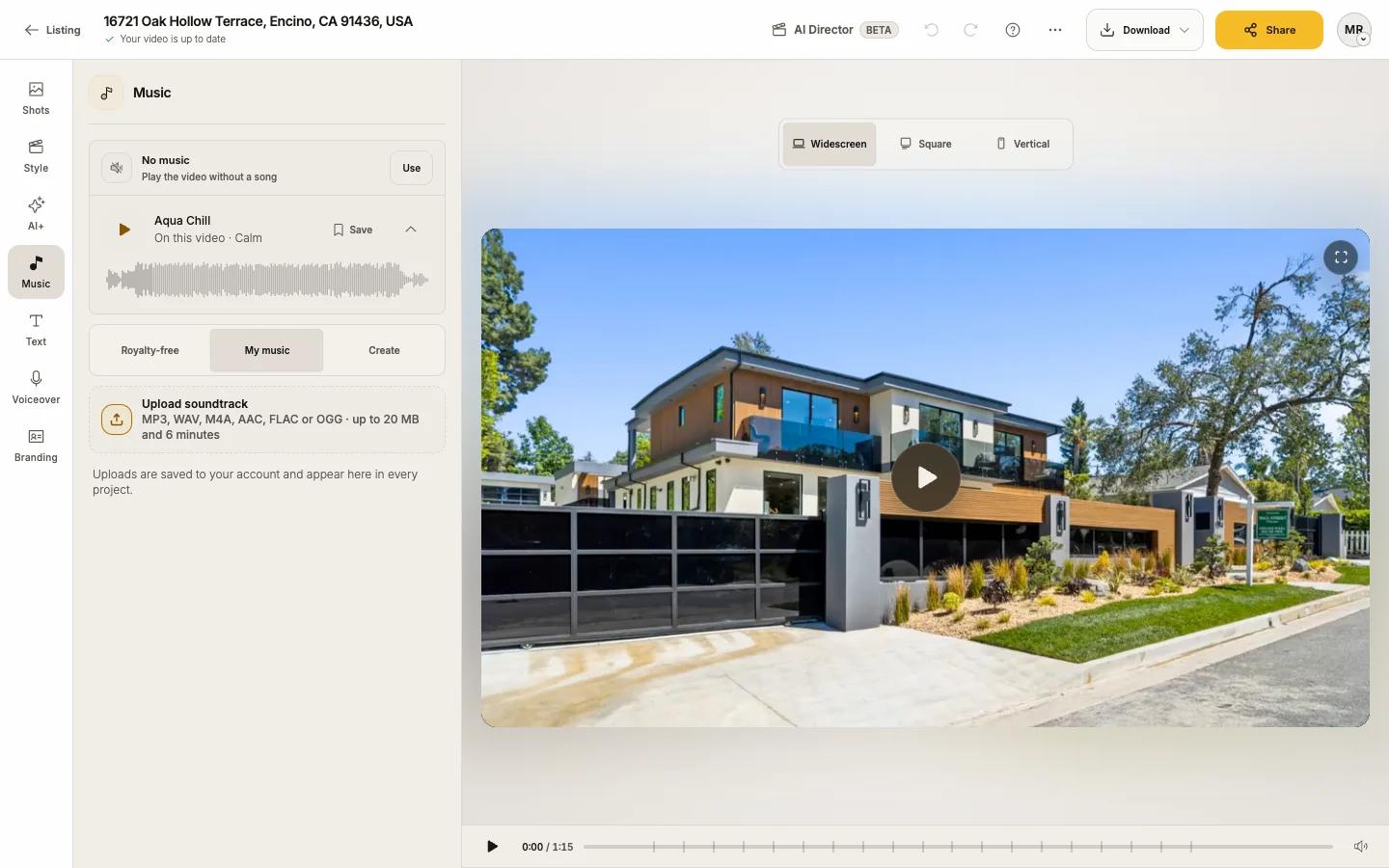
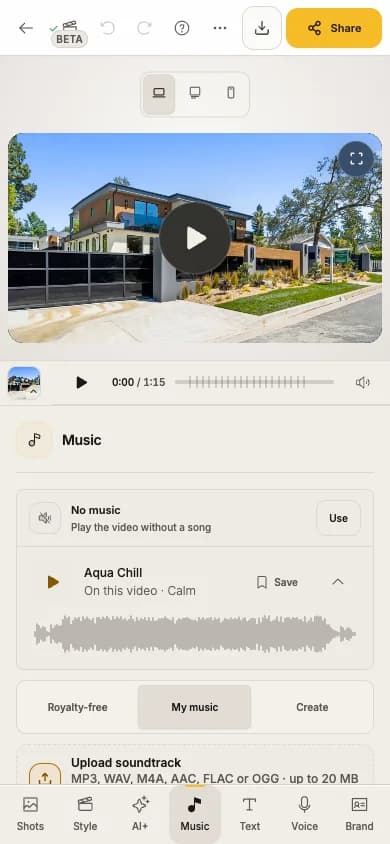
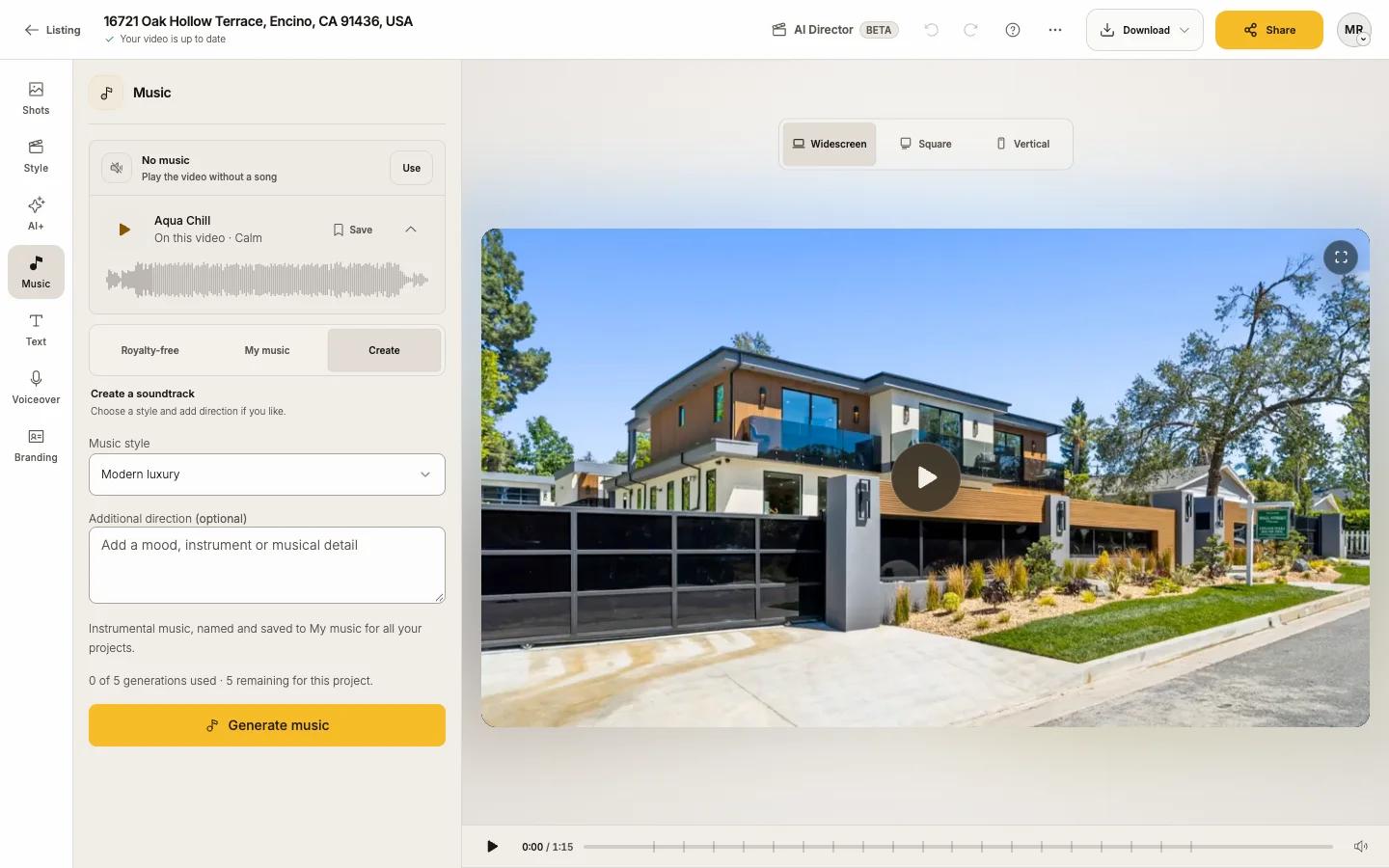
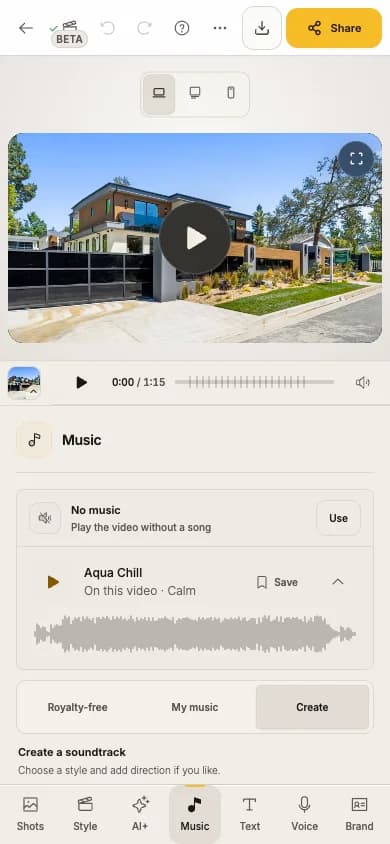
Create a soundtrack
Open Create
Pick a Music style and add direction
For example "Modern luxury", or Custom. Additional direction (optional) takes a mood or an instrument.
Press Generate music
The instrumental track is named and saved to My music for all your listings.
Trim, save and remove
- Save adds a library song to My music.
- Trim (uploaded and created tracks): set Start and End, then Save trim. Library songs start automatically before the drop.
- Right-click a song for Preview, Save to My music, Trim and Remove song. A track used in a listing cannot be removed.
Volume with narration
When narration is on, music volume is set in Voiceover with Music balance, from Quieter to Louder; music ducks smoothly under the voice. See Voiceover and captions.
Limits
| What | Limit |
|---|---|
| Upload | MP3, WAV, M4A, AAC, FLAC, OGG; 20 MB; 10 s to 6 min; 5 per batch |
| Create | 5 per listing, 12 per day, instrumental only |