

AI+ motion and looks
Bring a photo to life with real motion, or give it a look like Day to dusk or Starry night.
- Time
- About two minutes per shot, while you keep editing
- Where
- Keylight Studio > AI+; or a shot's Edit > AI+
- Who
- Trial and every plan, with AI+ credits
- Cost
- 1 AI+ credit per shot. Switching versions and turning AI+ off are free
Standard camera movement glides through your photo. AI+ goes further: water ripples, fire flickers, trees and clouds move, or the scene changes with a look.
Add a look
Open AI+ in Keylight Studio
Your credits show at the top, and shots that already have AI+ are listed under In your video.
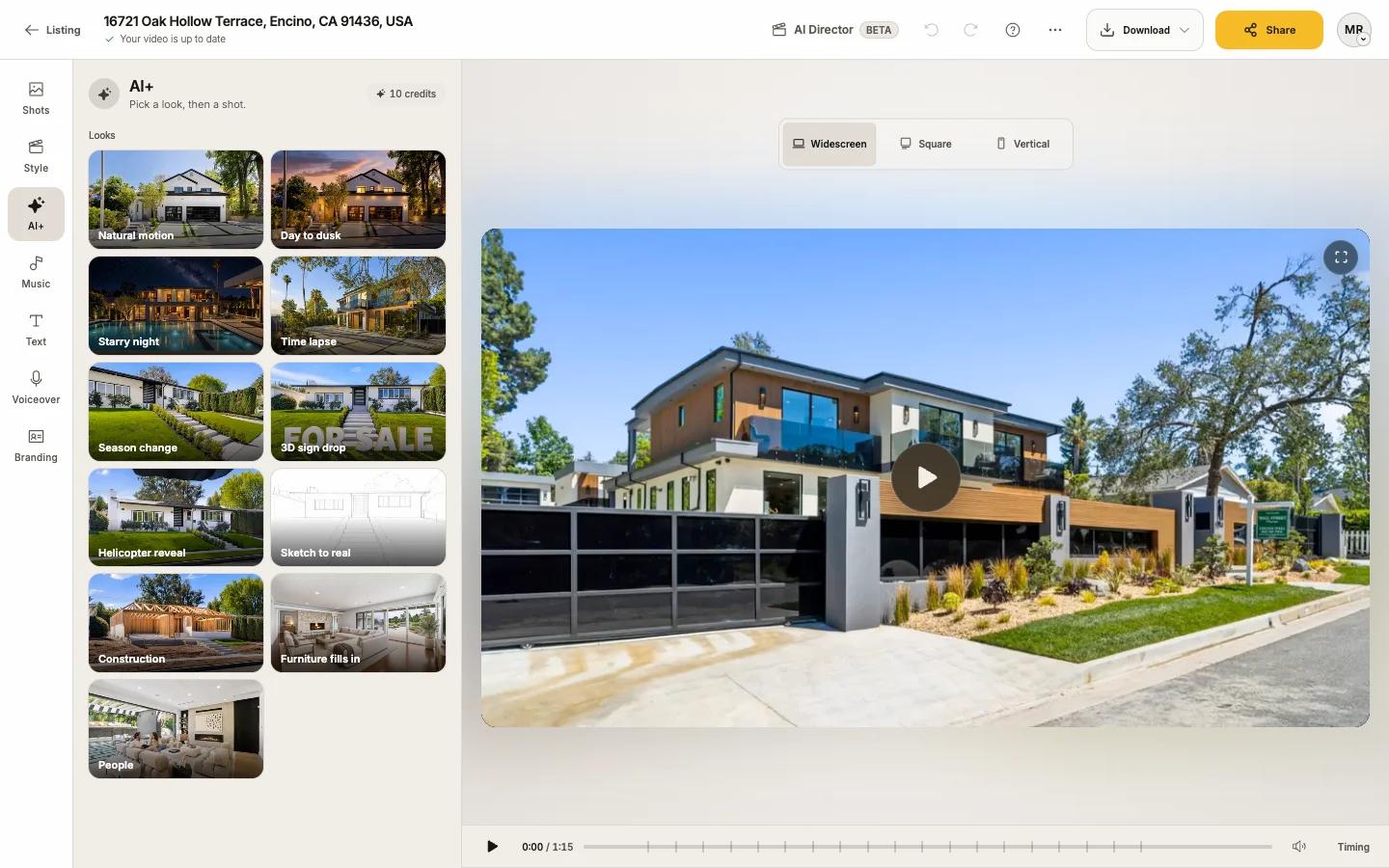
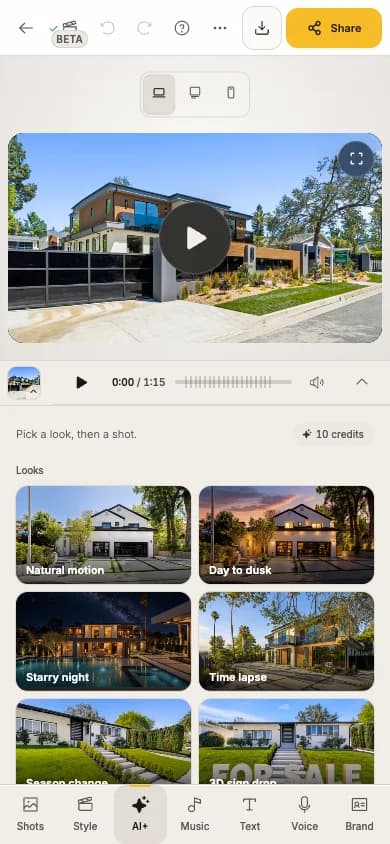
Pick a look under Looks
Each tile loops an example.
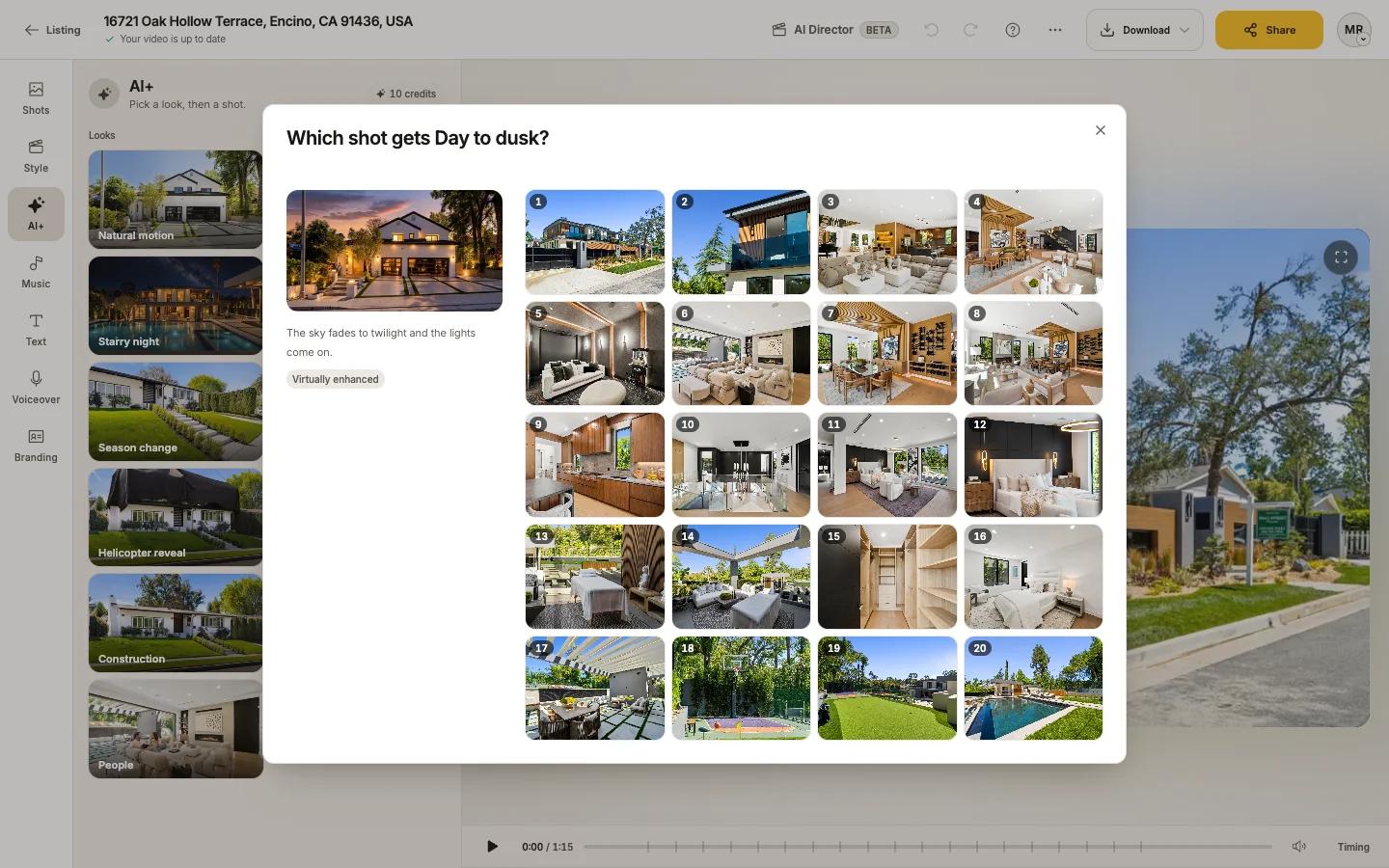
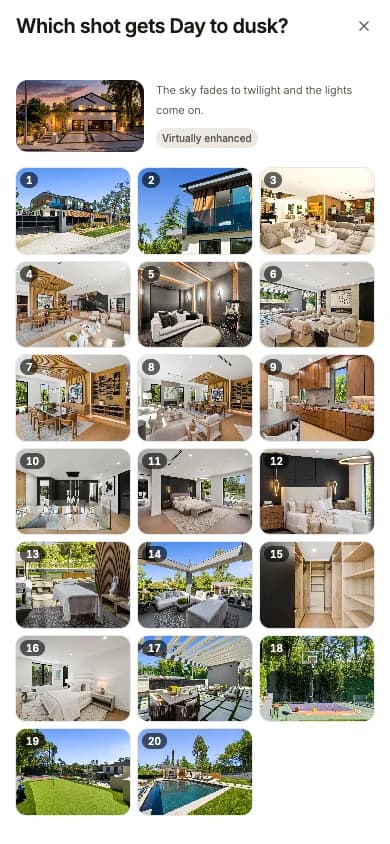
Pick a shot
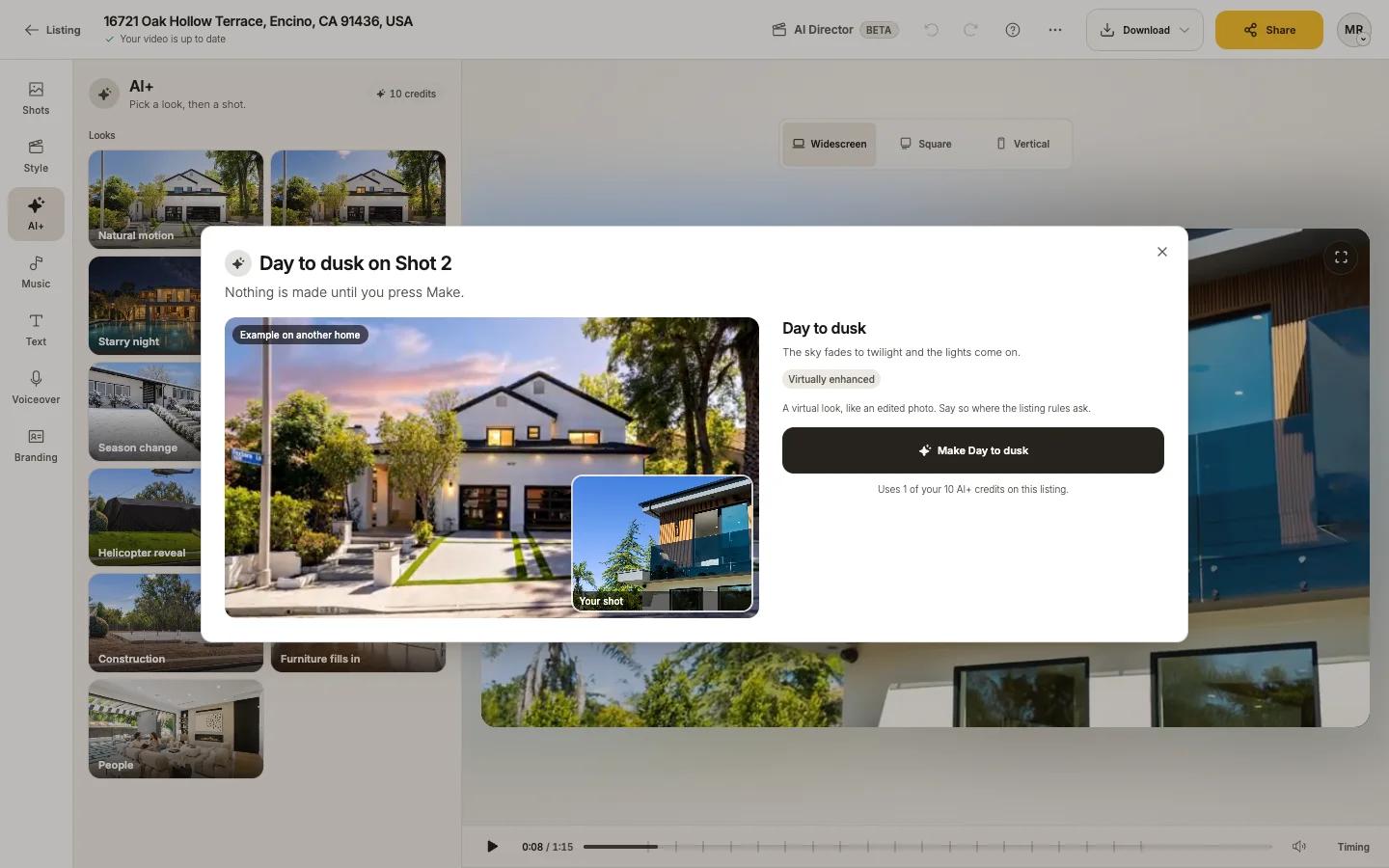
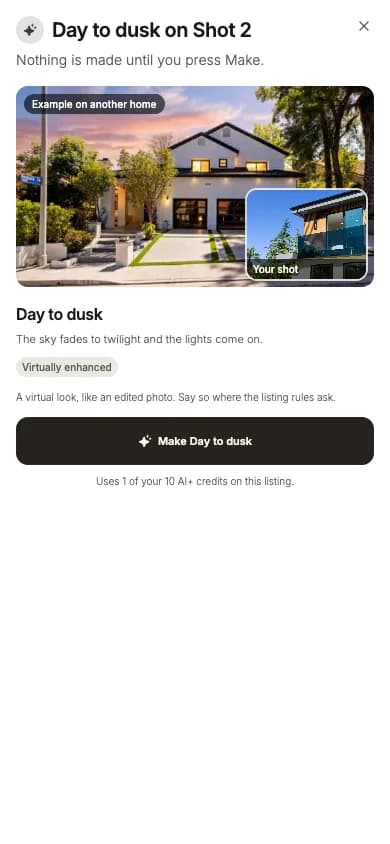
The sheet asks which shot gets the look. Up to three are marked Good fit. Looks made for outside shots leave inside shots out, and say so. Nothing is made until you press Make.
Press Make
Check the example beside your shot, then press the Make button, which names the look (for example "Make Day to dusk"). The line under it tells you the cost: "Uses 1 of your N AI+ credits on this listing."
Keep editing
It takes about two minutes. The clip drops into your video by itself ("AI+ clip ready").
The looks
| Look | What happens | Works on |
|---|---|---|
| Natural motion | Brings the photo to life: water ripples, fire flickers, trees and clouds move | Any shot |
| Day to dusk | The sky fades to twilight and the lights come on | Outside |
| Starry night | A clear night: stars turn overhead and the lights glow | Outside |
| Time lapse | The sun moves, shadows glide and the scene comes alive | Any shot |
| Season change | The yard turns from one season to another (choose From and To) | Outside |
| 3D sign drop | Big 3D letters drop onto the lawn: For Sale, Just Listed, Open House and more, or your own two words | Outside |
| Helicopter reveal | A helicopter lifts a cover off the home | Outside |
| Sketch to real | The home starts as a pencil sketch, then becomes the photo | Outside |
| Construction | The home builds itself on its lot | Outside |
| Furniture fills in | The empty room furnishes itself, piece by piece | Inside |
| People | A couple enjoying the space | Any shot |
From a single shot
In Shots, press Edit on a shot and choose AI+ under Movement. Natural motion is recommended; you can add a note on what should move ("For example: the fire in the fireplace"). AI+ on shows on the shot; choose it again to go back to camera movement.
Versions, thumbs and the free redo
- Every result is kept as a version. Switching between versions is free.
- Rate a result with thumbs up or down. After a thumbs down, tell us why and you get Make again free once.
- Make again at any other time uses 1 credit.
- Undo keeps a paid result at no charge; Redo brings it back free.
Credits
AI+ credits are per listing, not per month. AI Seamless uses the same credits. Your balance is in More > AI+ credits; Get more AI+ credits adds a pack or a boost (see Add-ons). Reel-E may add one AI+ shot to a first video on its own, outside your credits.
| Limit | Trial | Essential | Growth | Pro |
|---|---|---|---|---|
| AI+ credits per listing | 2 | 6 | 10 | 12 |
Good to know
- AI+ is off in the Flow Style; your AI+ shots are kept and return in Cinematic or Fast Cuts.
- AI+ shots end on a gentle push-in, and the transitions next to them are fixed.
- Clips are 5 seconds, or longer when a longer shot needs it.
If something looks off
If a clip cannot be made, your credit comes back and the shot uses standard movement, so your video is never stuck. There is nothing to retry.