

Keylight Studio tour
Keylight Studio is where you edit your video, photos, captions, voiceover and branding. Here is where everything lives.
- Time
- 3 minute read
- Where
- Listing page > Edit in Keylight
- Who
- Trial and every plan. Editing is included; it never uses a listing
- Cost
- Free. AI+, AI Seamless, photo edits and voice generations use their own allowances
Open any listing and press Edit in Keylight. Every change saves as you go, and Undo is always at the top.
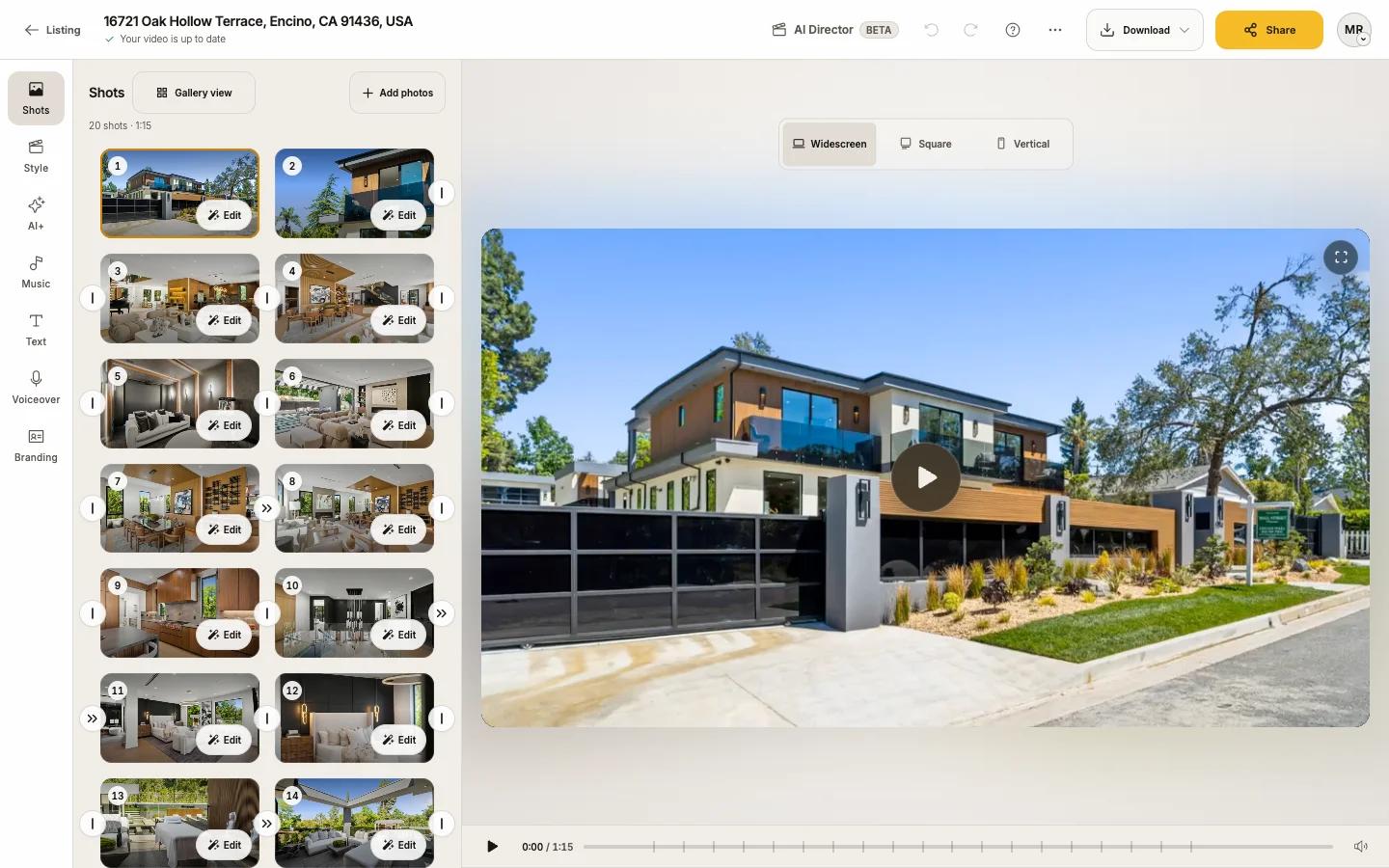
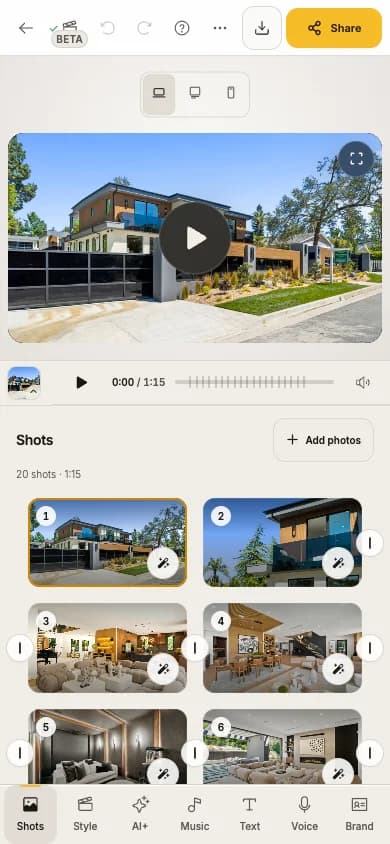
The top bar
From left to right:
| Control | What it does |
|---|---|
| Listing (back arrow) | Back to the listing page |
| Listing name and status | "Saving…", then "Saved". While Reel-E works you see what it is doing, for example "Adding movement" or "Syncing to the new song" |
| AI Director | Ask for a change in your own words. A live beta. See AI Director (beta) |
| Undo and Redo | Step back or forward. The tooltip names the step, for example "Undo: Changed song to …" |
| ? (Help) | Search help, Contact support, Show me walkthroughs, the tour and keyboard shortcuts |
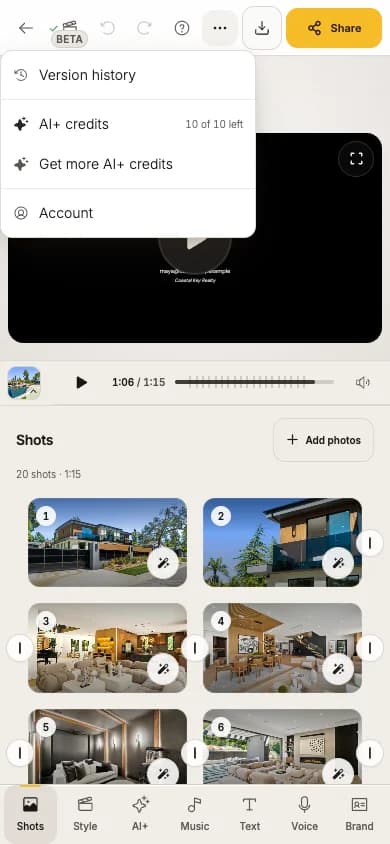
| More (three dots) | Version history, your AI+ credits and Get more AI+ credits |
| Remove watermark | Trial only: start your paid plan to get clean files |
| Download | Download any format, with or without branding |
| Share | Video link, MLS link, embed, your listing website and the Post text |
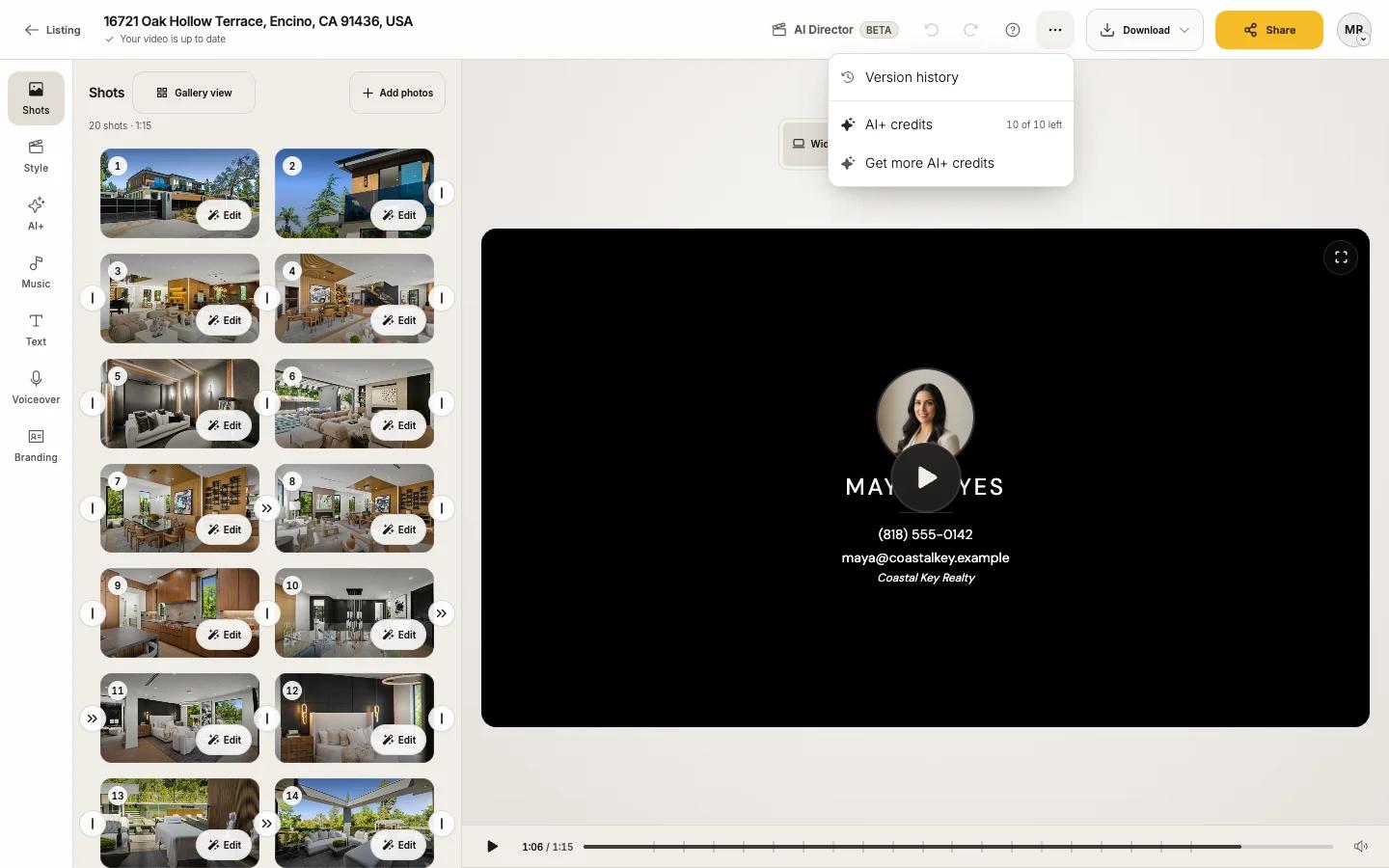
The tool rail
The left rail (the bottom bar on a phone) holds seven tools, in this order:
| Tool | Use it to |
|---|---|
| Shots | Put photos in or out of the video, reorder, open a shot. See Shots |
| Style | Choose how the video is cut to the song: Cinematic, Fast Cuts, Flow. See Length, Style and transitions |
| AI+ | Add real motion or a look, such as Day to dusk or Starry night. See AI+ |
| Music | Change the song, upload your own, create one. See Music |
| Text | Opening title, your own text, stickers. See Text |
| Voiceover (Voice on a phone) | Narration and captions. See Voiceover |
| Branding (Brand on a phone) | Contact card and logo at the end. See Branding |
Photo editing opens from a shot: press Edit on a shot, then the Photo tab. See Edit a photo.
The player
- Widescreen, Square and Vertical above the video switch the format you are previewing. Each format can have its own framing.
- Play, the position slider, mute and fullscreen sit under the video. Loop this shot repeats the shot you are editing.
- Timing (in Text, Voiceover and AI+) shows lanes under the player so you can drag text and narration in time.
- The preview is a lighter copy for smooth playback. Downloads and your website use full quality.
Help, walkthroughs and the tour
Press ? or the ? key. How can we help? has a search box ("I need help with..."), Contact support, and Show me walkthroughs that point at the real controls, such as "Change the order of your shots", "Change the music" or "Add your contact card, Headshot and logo". More help has the tour, all walkthroughs, tutorials and shortcuts.
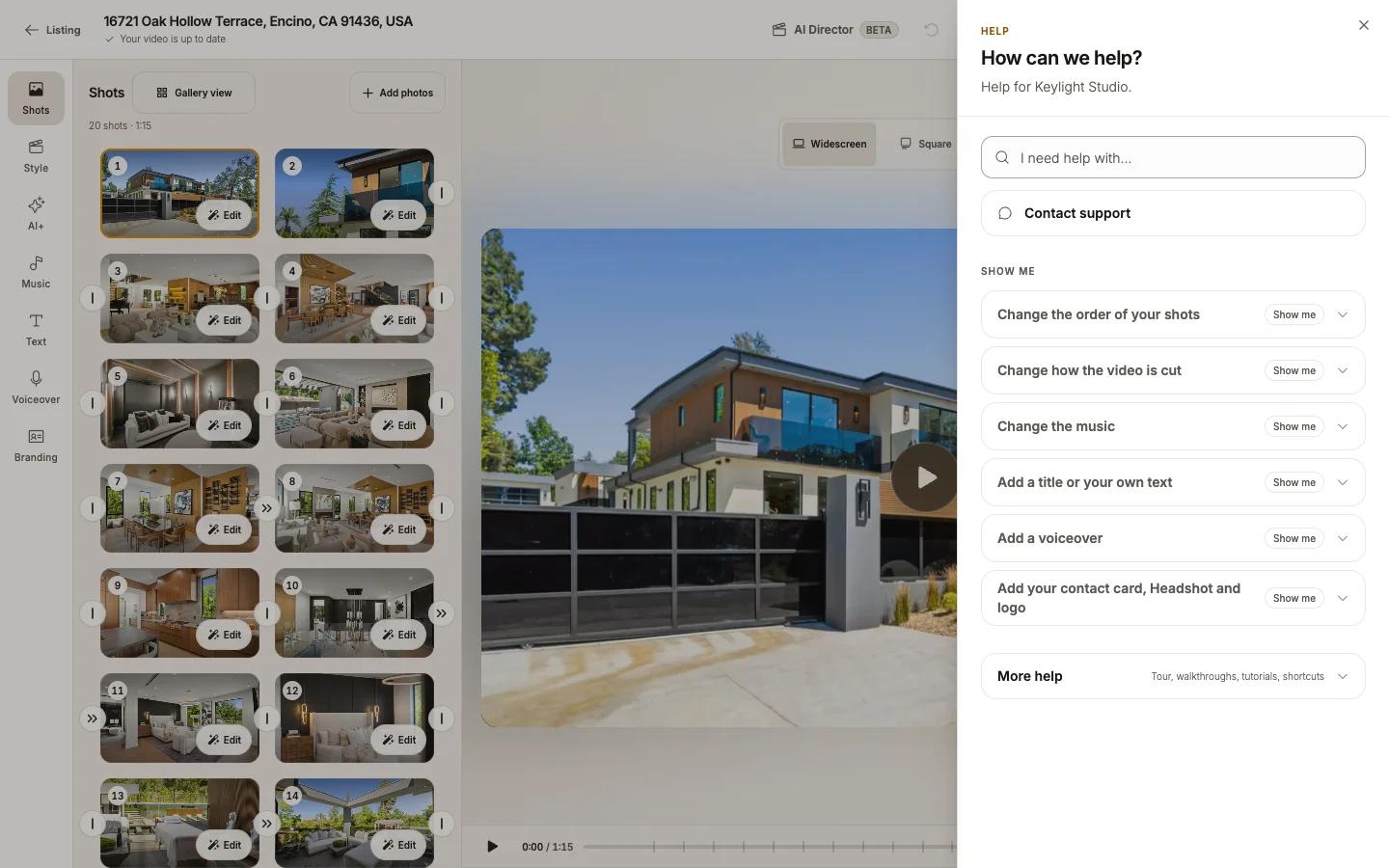
The first time you open Keylight you see Welcome to Keylight Studio with Show me around (a one-minute tour) or I'll explore on my own. The Get set up checklist next to Help tracks the basics: watch, arrange, pick a song, add your contact card, download, share.
Keyboard shortcuts
| Key | Action |
|---|---|
| Space | Play or pause |
| Cmd/Ctrl + Z | Undo |
| Cmd/Ctrl + Shift + Z | Redo |
| Delete | Remove the selected clip, text or voice section |
| Cmd/Ctrl + X | Remove the selected clip |
| Left / Right | Previous or next photo while editing photos |
| Esc | Cancel a drag |
| ? | Open Help |
Leaving
Press Listing. Your edits are already saved. If a photo is still uploading, Leave Keylight? asks you to wait or leave it as a draft.